Whether you're joining Teachery through our free 14-day trial, you're doing some hardcore lurking on our platform, OR you want a refresher on how Teachery works, this help doc is for you!
We've created walk-through videos for each major section of Teachery. If you're looking for something other than these topics, use the search bar at the top of this page.
This is the main page of your Teachery account. When you log into Teachery, this is where you will land. You'll notice there are five sections you can click on:
Courses & Themes (pretty straightforward 😉)
Products (new - learn more here)
Hubs (learn more here)
Purchased Themes (if you buy Themes from other Teachery Users)
Customers (only displays after you get your first customer)
Analytics (analytics of all your courses/products in one dashboard)
If you've purchased courses from other Teachery Users, you can always find those in the Learn link in the top navigation bar.
Your Teachery Plan, name, email address, password, billing history, API key, and integrations (e.g. Stripe, Flodesk, Kit, etc.) all live in the Account area.
Note: Billing History (for monthly and annual plans) only appears in Account > Plan once you've picked a Teachery plan and paid your first payment.
We display your 20 most recent customers in the Teach > Customers page. You can use the search function to find any other customers and access their Customer Profile via this page. You can also download your entire Customer List (CSV) in this area of Teachery - learn more about exporting customer data here.
If any of your customers are on recurring payment plans and these payments/instalments fail, these will be flagged in the Customers page too. Learn more about how failed payments are handled.
📄 Read our help doc on customer actions (that is: resending welcome emails, refunding customers, canceling/pausing subscriptions, or revoking customer access).
In the Teach page, click the + Create a new Course or Theme button. You’ll be walked through a process (first step is pictured below) in which you can add some basics to your course: a title, description, image, lesson titles, and pricing. But once you’ve completed that workflow, you can return to the course via the Teach page at any time to change anything you’ve set and build out your lessons, etc. You can also save and exit at any point.
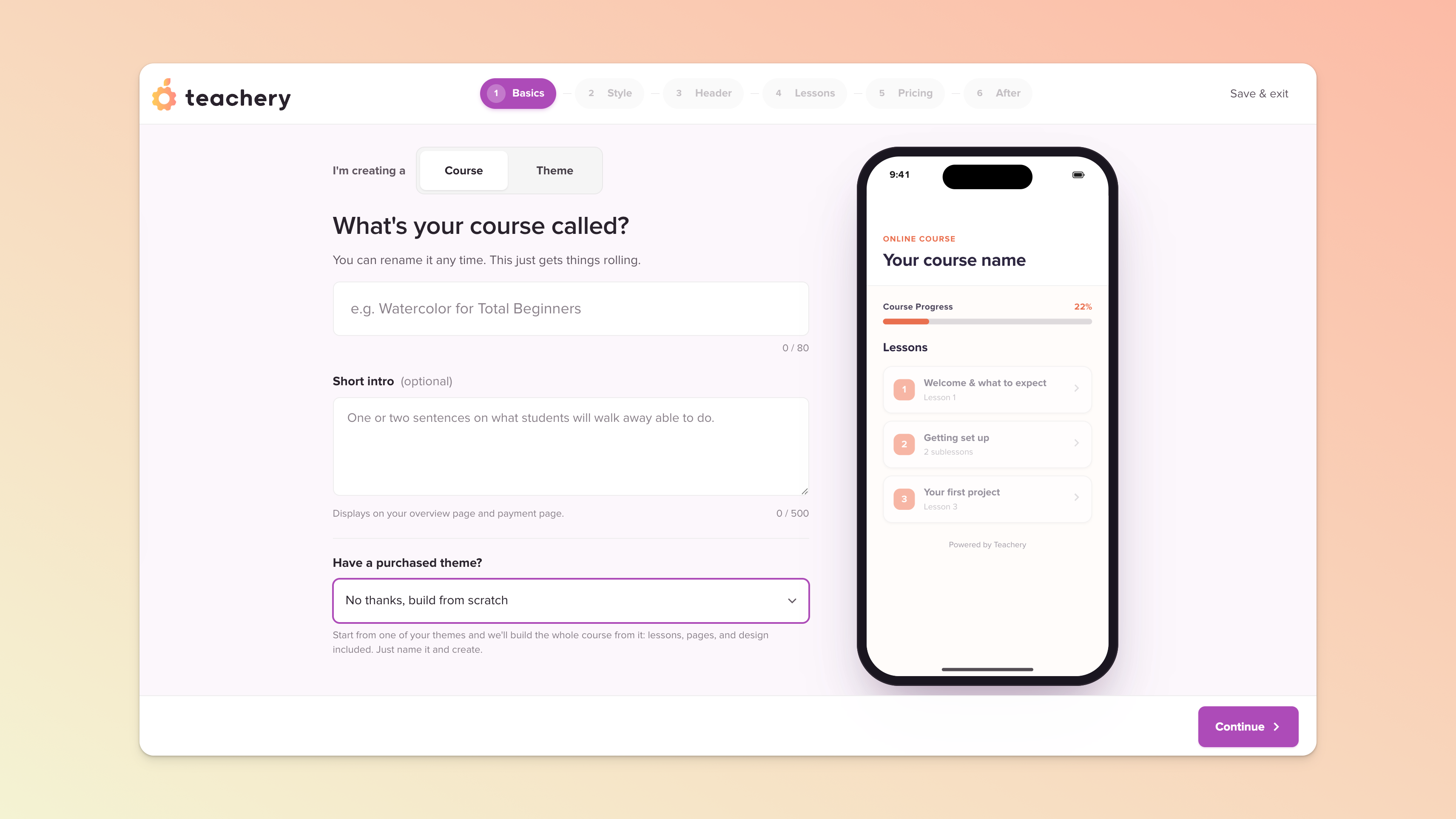
In the first step, you’ll be prompted to select a theme. This is optional and you can instead choose to begin with a clean slate. If you choose that option, you’ll be able to change some basic elements, like colors, fonts, etc. in an upcoming step (and even more so later, via the styling section of the full course editor).
If you’d like to see demos of some of the free themes we offer for free, please visit this page. You also have the option to apply any theme you may have purchased from another Teachery creator via our Marketplace.

Your Overview page is your course’s main/landing page (a.k.a dashboard). This page is great for welcoming your customer and letting them know what to do next! It also includes a preview (thumbnail and intro) of all your lessons. Learn more here.
Through a Payment Page (free, paid, or recurring payment)
Through our Zapier Integration (or Pabbly or Make)
Your lessons are arguably the most important part of your course! We've tried to give you a ton of flexibility when it comes to adding content to your lessons, while also keeping your lesson structure organized based on best practices for online learning.
📄 We have an in-depth help doc on Lessons and Lesson Content we recommend reading.
Teachery will ALWAYS strip out text formatting from external sources. Please trust us when we say this is done for your overall benefit. 💜
Most text editing platforms inject a bunch of code behind the scenes and it will quickly break your course. Plus, reformatting gives you a chance to up-level your Teachery skills!
(If you want to use something like Microsoft Word to draft your course content (or you’re copying over from another platform), we recommend that you copy + paste into a simple tool like EditPad, then copy + paste from EditPad to Teachery.)
The video below walks you through our lesson editor. We have individual help docs on lesson content that you can learn more about:
One of the biggest features we pride ourselves on in Teachery is the ability to style your course to keep a similar look and feel to your website/business.
We have two course templates that will help keep your students engaged throughout your course, but we let you change the colors, fonts, headings, buttons, and more!
We have multiple style editors to make the customization process as simple as possible. You can individually style your:
Overview Page
Course Lessons
Payment Pages
Landing Pages
Login Pages
Course Expiration Bar
📄 You can read our in-depth help doc on styling your course here (with examples and helpful styling resources).
Here's a walkthrough video of the Overview Style Editor in action:
Our payment pages are just as customizable as the lessons in your course, and we've optimized the payment page layouts for the highest sales conversion possible.
We use Stripe to help process your student's payments and the initial Stripe setup is super simple (and your students will never know Stripe exists!)
Custom branding
Countdown timer
Recurring payments (monthly or yearly)
Adding tracking or conversion code (like Facebook Pixels, et al)
Turning course sale notifications on/off
Connecting Mailchimp or ConvertKit
If our built-in Payment Pages don't quite cut it, you can always take payment outside of Teachery.
Payment Pages are the way your student makes an actual purchase for your course while Landing Pages are the pages that lead someone to make a purchase.
We openly admit that our Landing Page template is not as flexible as companies that focus solely on Landing Page creation. However, our template has been thoroughly tested for an ideal structure and leading your customer through the buying journey of your course.
Landing Pages can lead to Payment Pages or can be toggled to collect emails if your course isn't quite ready for purchase.
📄 Read our full help doc on Landing Pages to learn more about what you can do with them along with additional recommendations.

This is where you control a bunch of core course settings. Each course you create will have its own unique settings.
Course Name
Course URL
Injecting Custom Code (into the HEAD or BODY tag)
The Course Links page within your course is a friendly place to grab almost all important URLs associated with your course.
If you want to quickly find your Payment Page URLs, Landing Page URLs, or helpful URLs for your students (Login, Password Reset, Recurring Payment), this is the area for that!
We have a ton more to offer, including additional help docs on these popular features and topics:
Course Affiliates (other people help you sell your courses)
Teachery Affiliates (promote Teachery and get a commission)
Don't forget to use the search bar at the top of this page as well to search for any topic you might be looking for.
If you're ready to start your 14-day free trial, click here!
