Teachery Themes are a great way to sell a fully designed course that a customer can create their own courses from with just ONE click of their mouse! Yep, it really is that easy once a customer purchases a Teachery Theme 🎉👍.
Before we dive into this help doc, if you’re unsure about the difference between Teachery “Templates” and “Themes”...
Templates are the core structure of a Teachery course. We have two templates that every course (or Theme!) starts with.

Themes are courses that you’ve pre-designed and want to sell to customers who can then use the Theme to build their own courses. All Themes will be based on one of our two Templates.
Hopefully, that clears up any confusion on the terminology! 🤗

Plain and simple, a Teachery Theme is a pre-designed course that a customer can purchase from you, and then they can use that course to create their own courses!
A Teachery Theme will look and feel EXACTLY like our existing courses, because, they are built using the same framework. You can add Lessons, Landing Pages, Payment Pages, images, videos, color styles, custom code, etc. Everything you can add to a current course can be added in a Theme.
Where Themes take a slightly different turn from courses, is that when you sell a Theme to a customer, they now have possession of that Theme in their Teachery account and can create an infinite number of courses based on the Theme they bought from you.
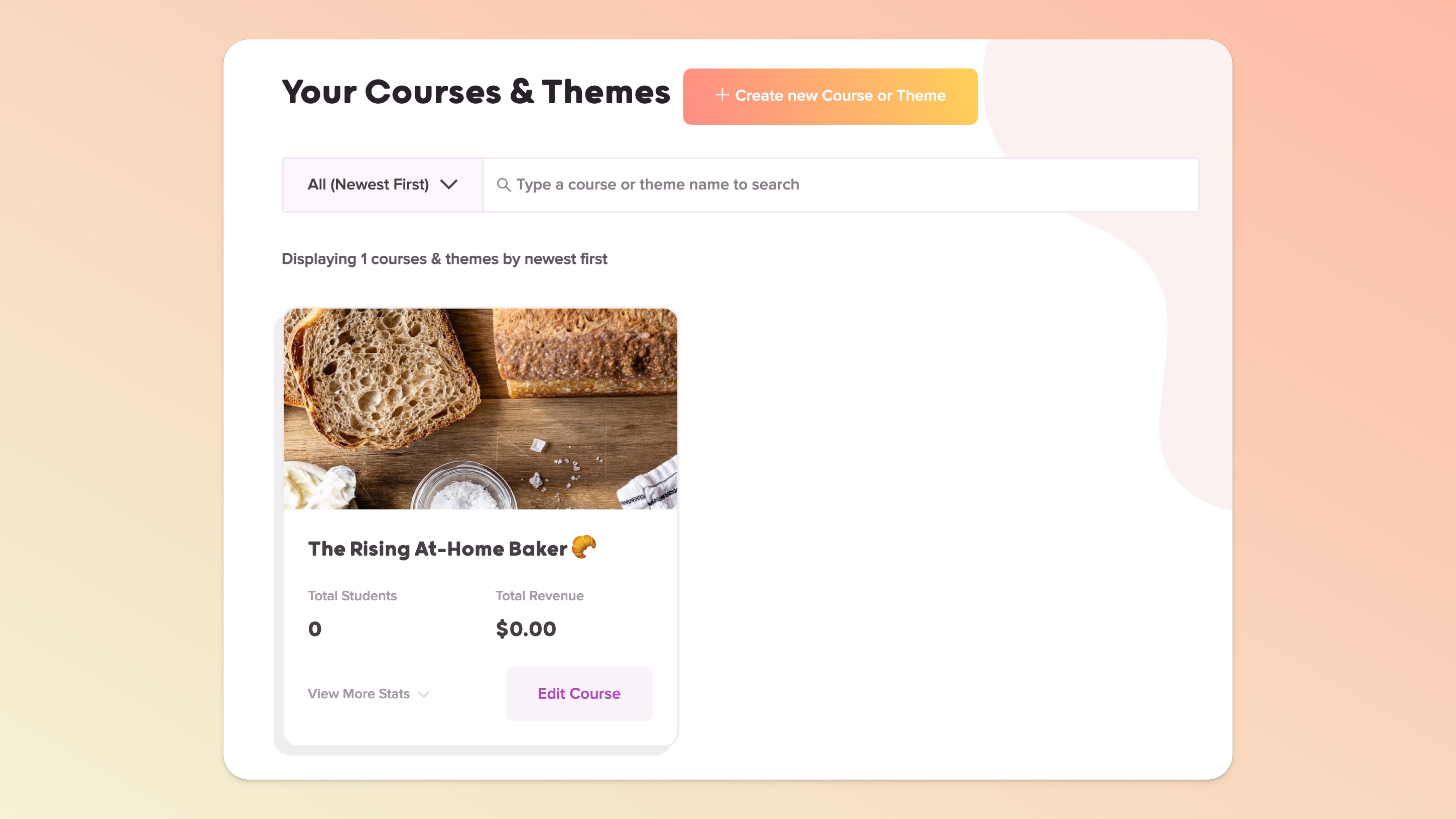
Imagine you have an existing course that teaches people how to be better at-home bakers (let’s call your course: The Rising At-Home Baker 🥐).
You can create a Theme of that baking course and allow your customers who want to also create courses around baking to use your course design and layout (let’s call your Theme: The Rising At-Home Baker Theme 👩🍳).
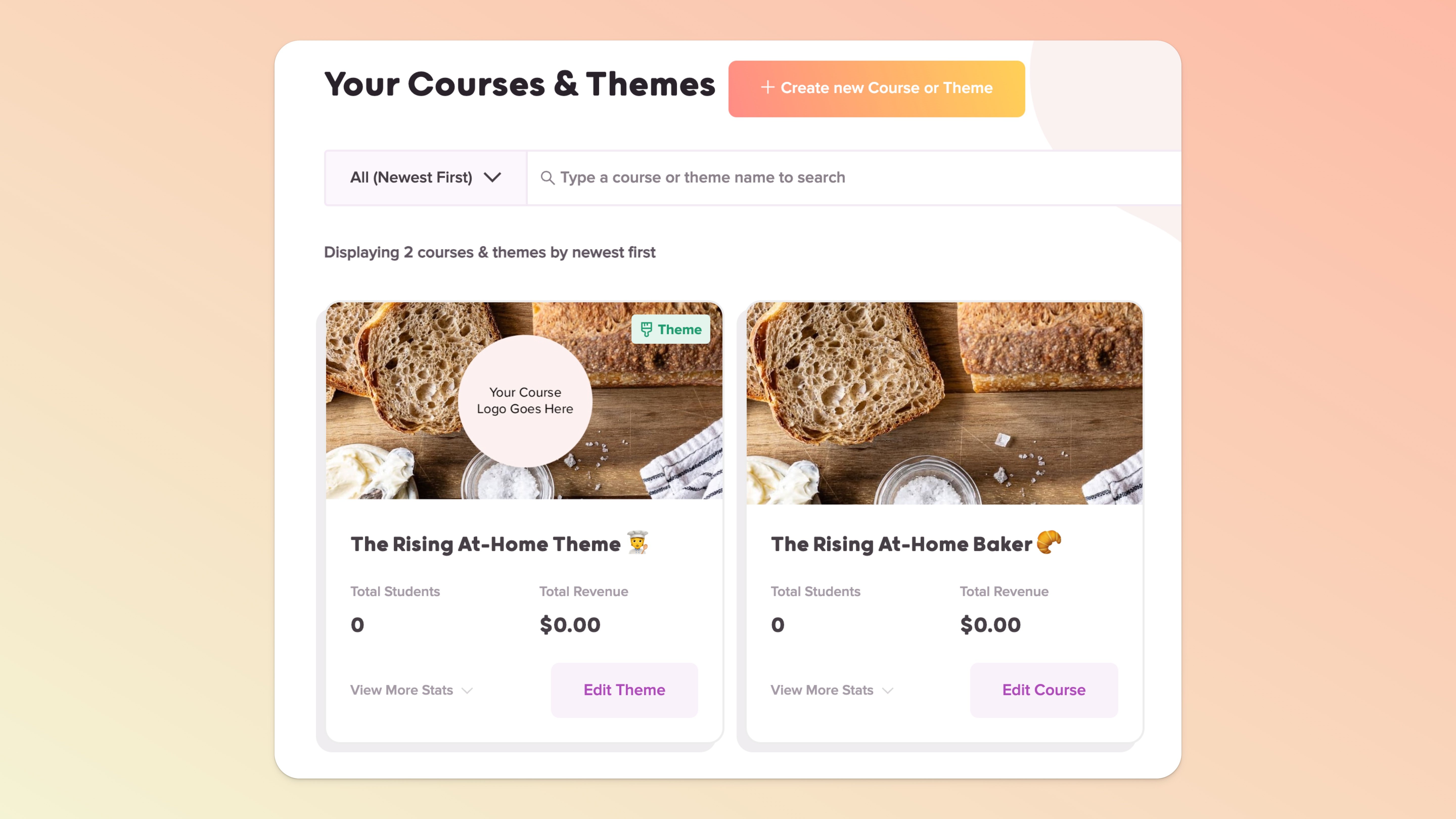
🤓 From a technical standpoint, you will have two courses in the Courses & Themes section of your Teachery account (one is a standard course and one will be labeled a “Theme”). These are completely separate items in your course/Theme list, and can now serve two different customer audiences!
This is a great question! Courses are our standard bread-and-butter product here at Teachery.
A Course helps a customer learn a skill that you teach!
Themes are not necessarily meant to teach someone a skill but are meant to help give a customer a starting point so they can then create a course to teach a skill.
If you’ve ever used WordPress before, Themes are extremely similar in name and function. If you’ve ever used Squarespace before, they use the word “Template” to mean a similar thing.

Curious how many Themes you can have in your Teachery account? AS MANY AS YOU WANT! 🥳🙌 Just like our unlimited amount of courses you can create, Themes are the exact same.
There are three ways you can create a Theme:
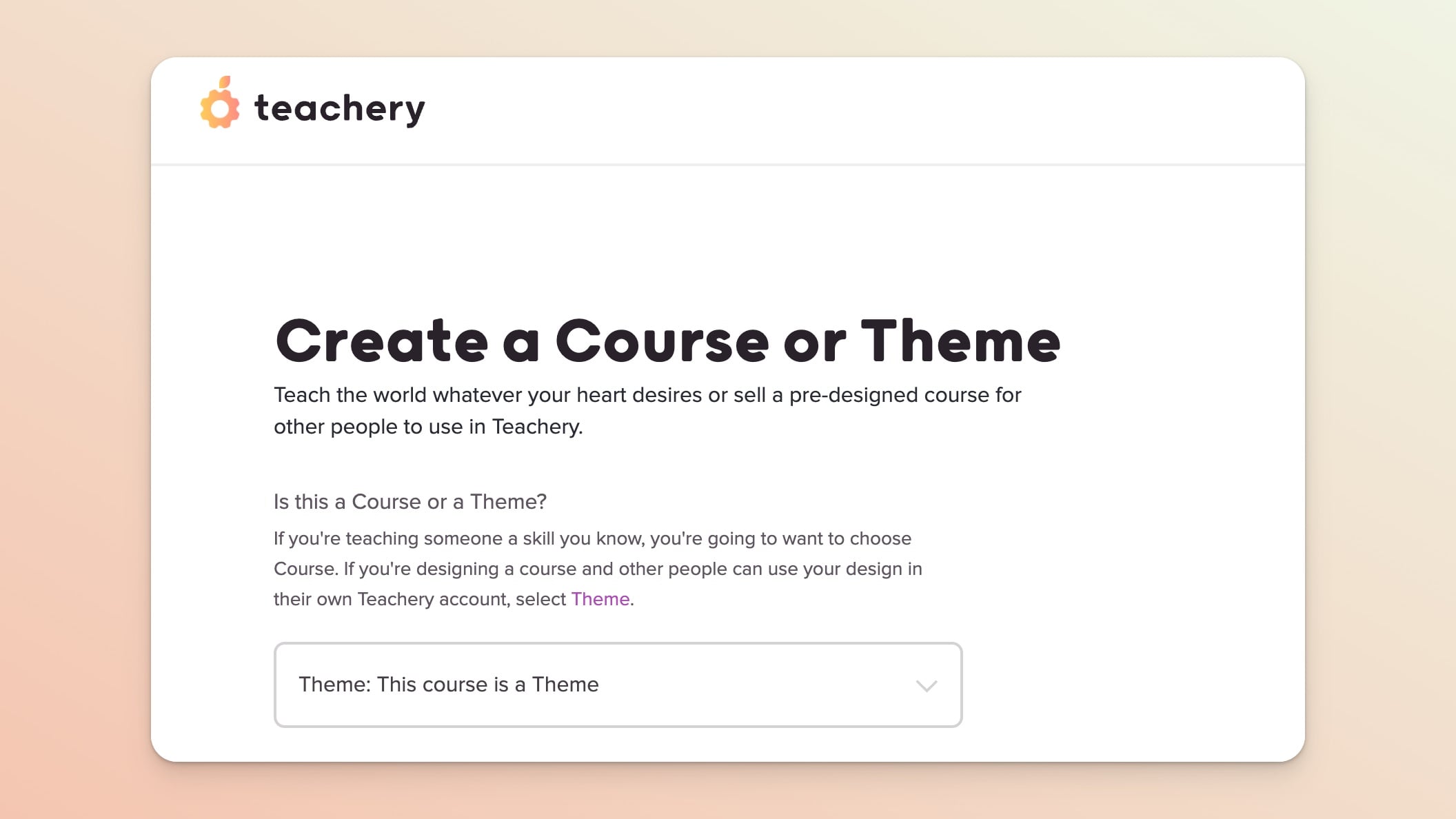
You’ll start this process just like you’d start to create a course. You’ll choose our Minimal or Sidebar Template for the layout, and then you can customize and build the Theme just like you would a course.
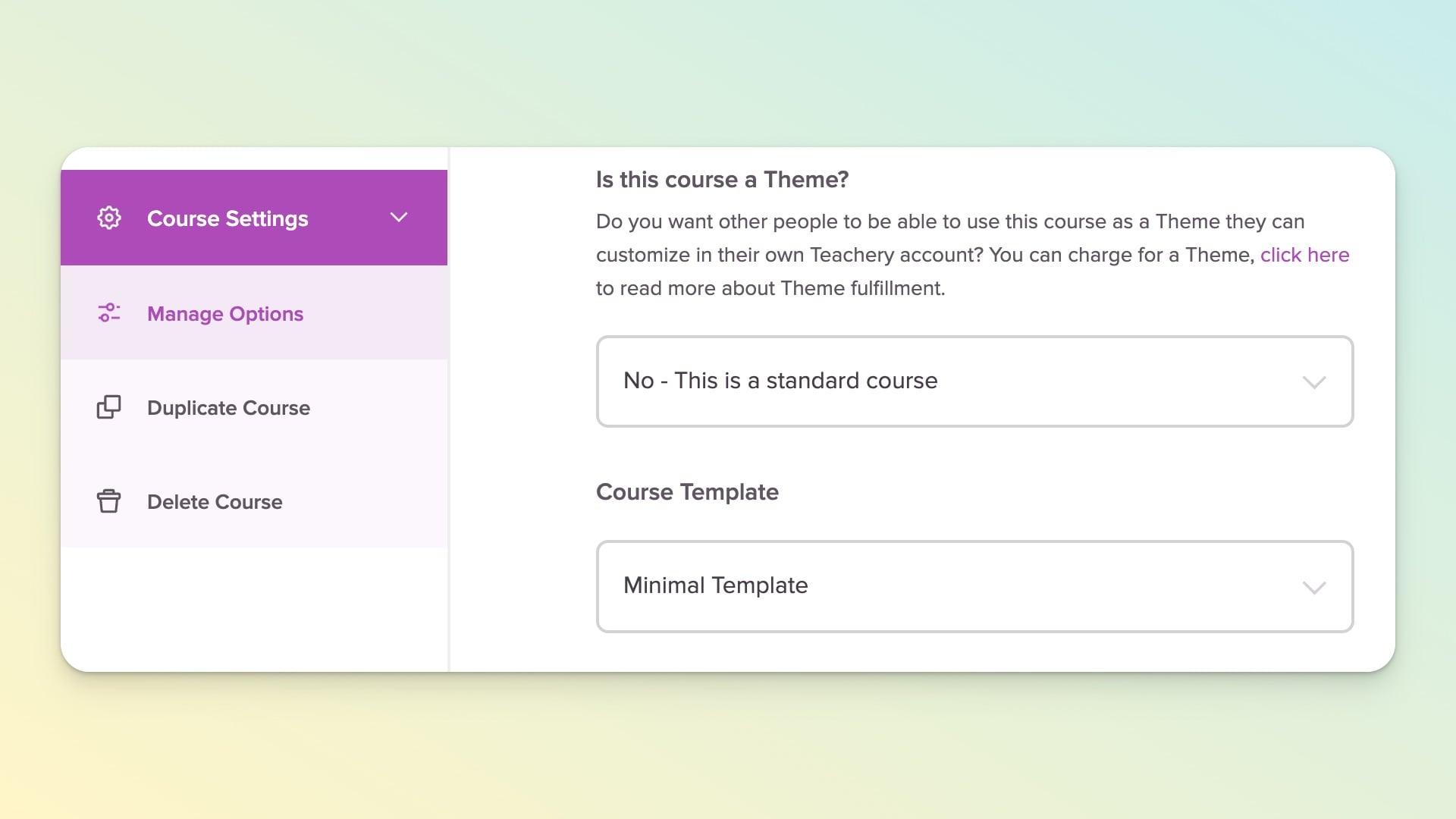
Any course in your Teachery account right now that has no active customers can be switched into a Theme quickly and easily. Once it’s changed to a Theme (in Course Settings > Manage Options page), you can start accepting customers via the Theme’s Payment Pages.
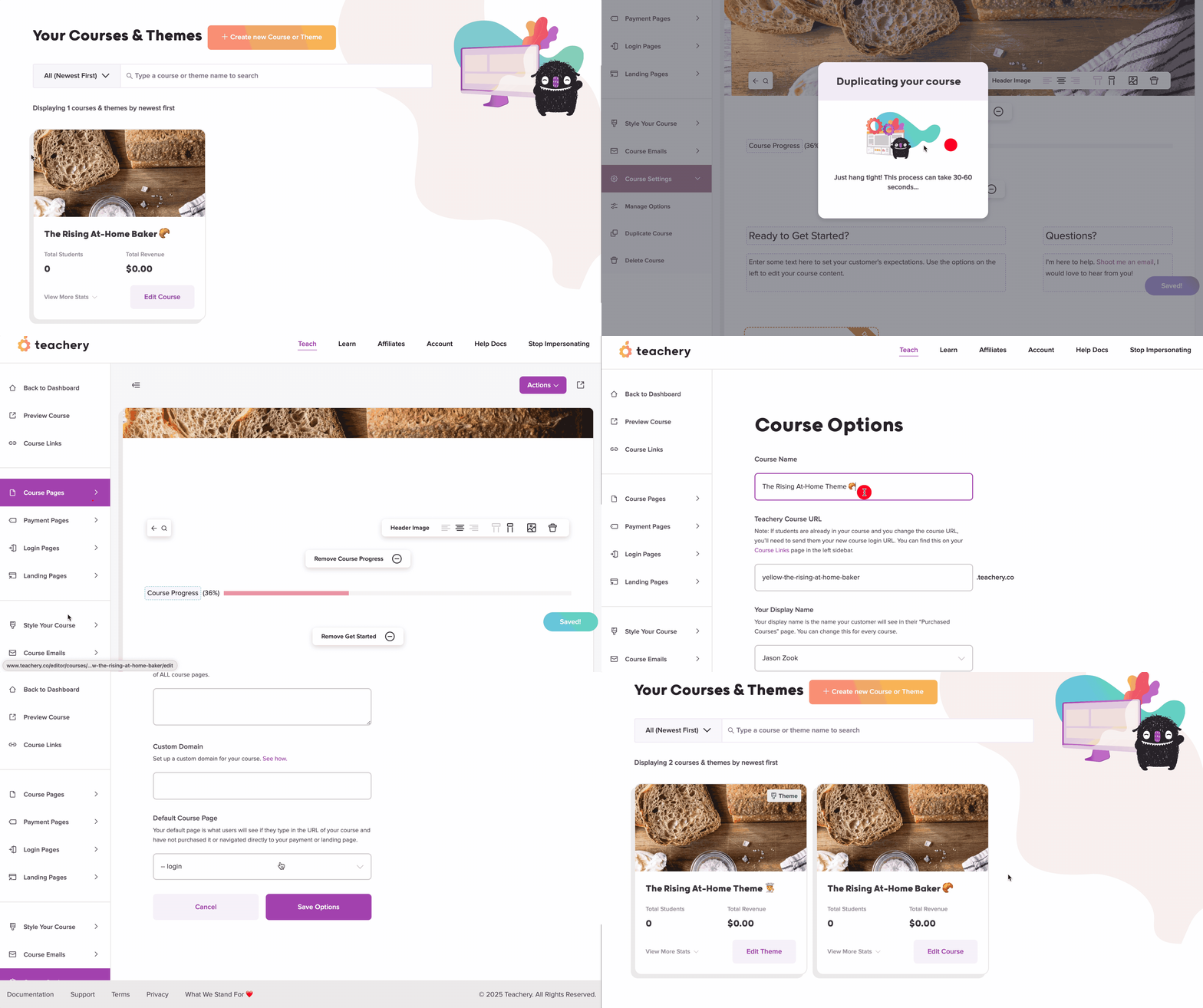
You don’t have to spend hours recreating a Course you want to turn into a Theme, all you need to do is:
Duplicate your existing Course
In the new Course, go to Course Settings > Manage Options
Update the Course Name, URL, and change the “Is this course a Theme?” setting to Theme
Make sure to Save and you have your Theme!
Don’t forget, when you duplicate a course, you’ll want to check the lesson names/URLs, as well as update the Welcome Email. More info here.
The Lessons? Landing Pages? Payment Pages? Styles? They get EVERYTHING ✅.
Whatever you design and include in your Theme, when a customer purchases the Theme they get every page created within that Theme.
Let’s go back to our example of The Rising Baker Theme 👩🍳. Imagine this Theme has the following:
6 helpful Lessons with images, text, and embedded videos as placeholders
6 helpful Sublessons within one of the lessons with more images (especially of cinnamon rolls!)
2 Landing Pages fully designed to help someone sell their baking course
2 Payment Pages (1 recurring payment and 1 fixed payment) to help someone sell their course
Custom styles via our standard Style Editor (you know, all the fancy button colors)
Custom code in the Head Tag Code Injection area (that sweet CSS you added to zhuzh up the look of the course)
When you sell The Rising Baker Theme 👩🍳 and a customer purchases it, they will have that ENTIRE “course” waiting for them in their Teachery account.
This brings us to…
So, you’ve created The Rising Baker Theme 👩🍳, you’ve told your audience about it, and someone purchased your Theme — HUZZAH! 🥂💸
Let’s take a look at what happens next:
Just like our standard Teachery courses, after a purchase is made your customer will get the Theme Welcome Email (which you can customize, as usual).
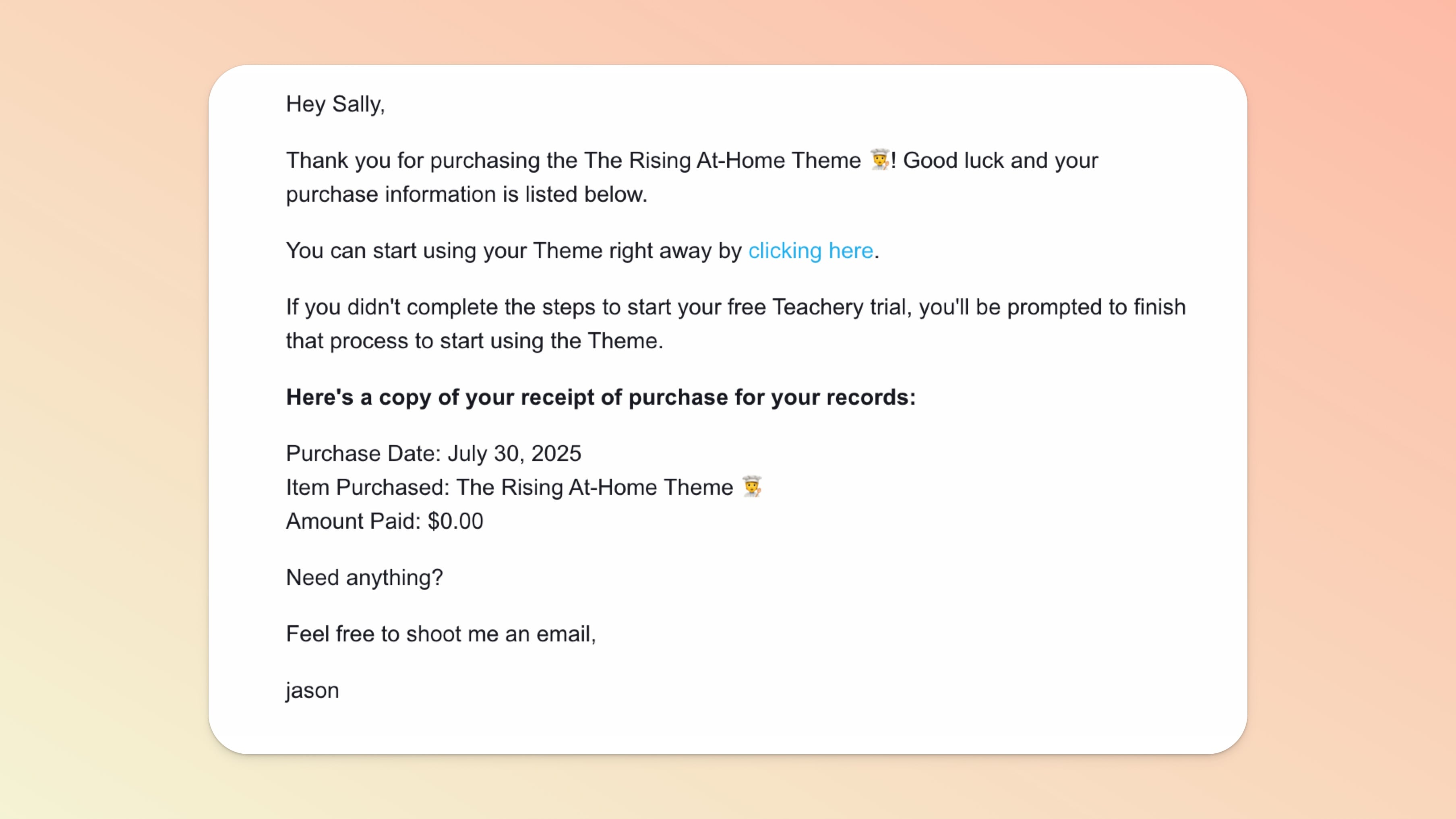
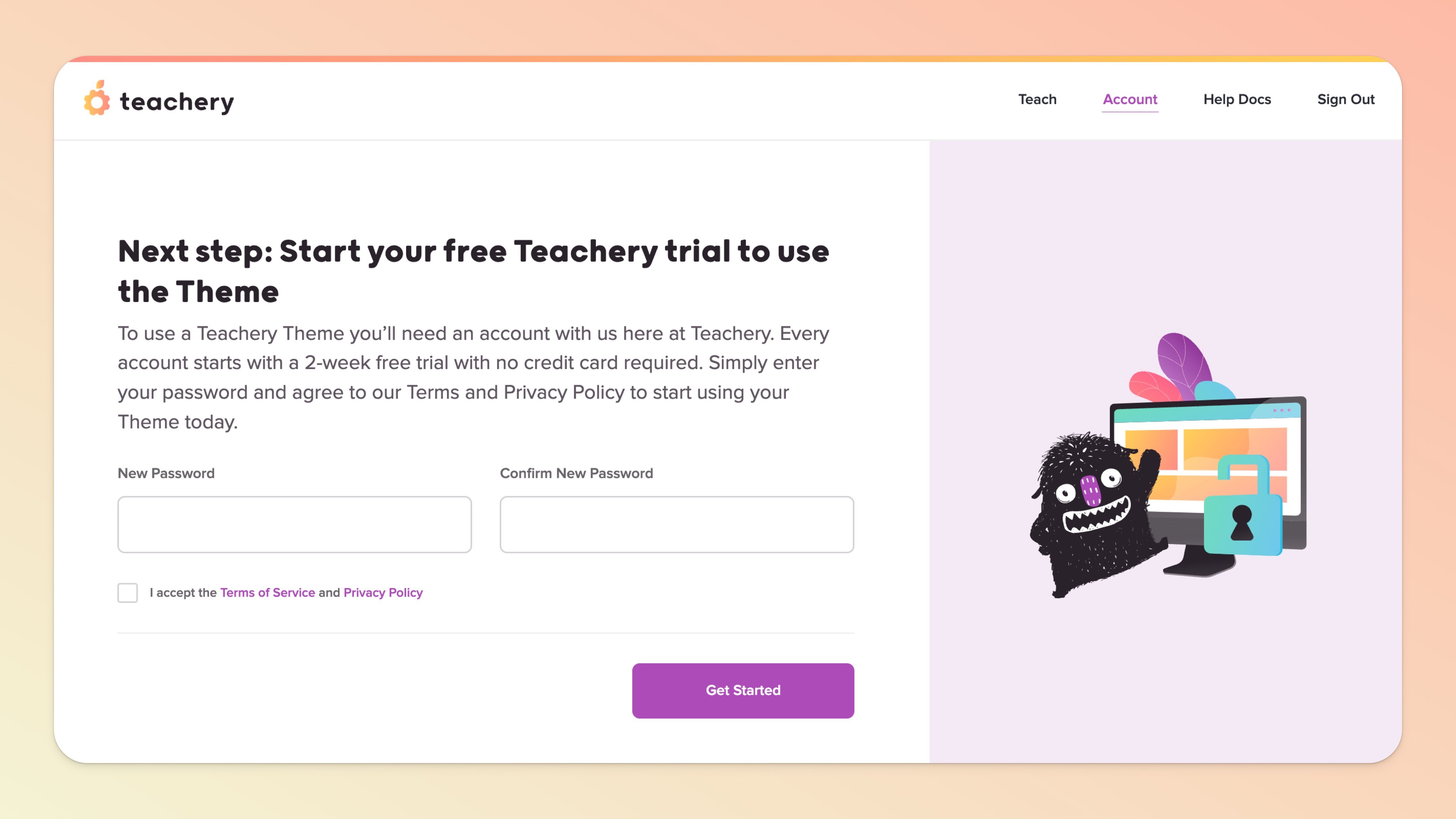
IF your customer is not yet a Teachery User, they will be prompted to start a 2-week free trial with no credit card required. After a very quick signup process, your customer will be dropped into their new Teachery Dashboard.
IF your customer is already a Teachery User, they will be dropped into their Teachery Dashboard.
In the Teachery Dashboard, a new section will appear called Purchased Themes. Your customer can click the "Start Using Theme" at any time from this section to create a new course from your awesome Theme.
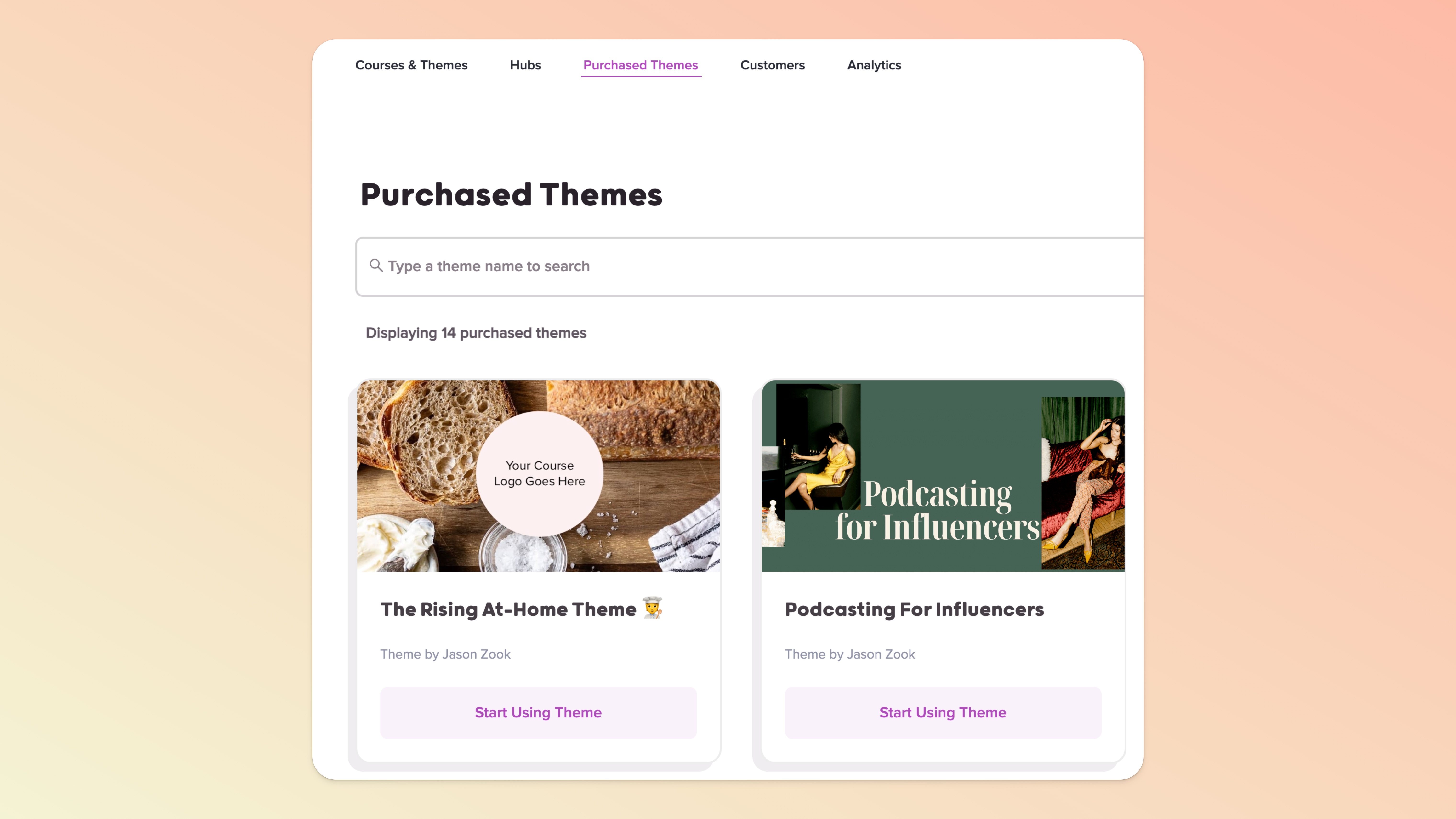
Your customer can take one of two actions with the Purchased Theme…
They can hover over the Theme preview image and click the “View Theme” button to view the original Theme (this is great for referencing the original design!)
They can click the “Start Using Theme” button which will immediately create a new course using the Theme design.
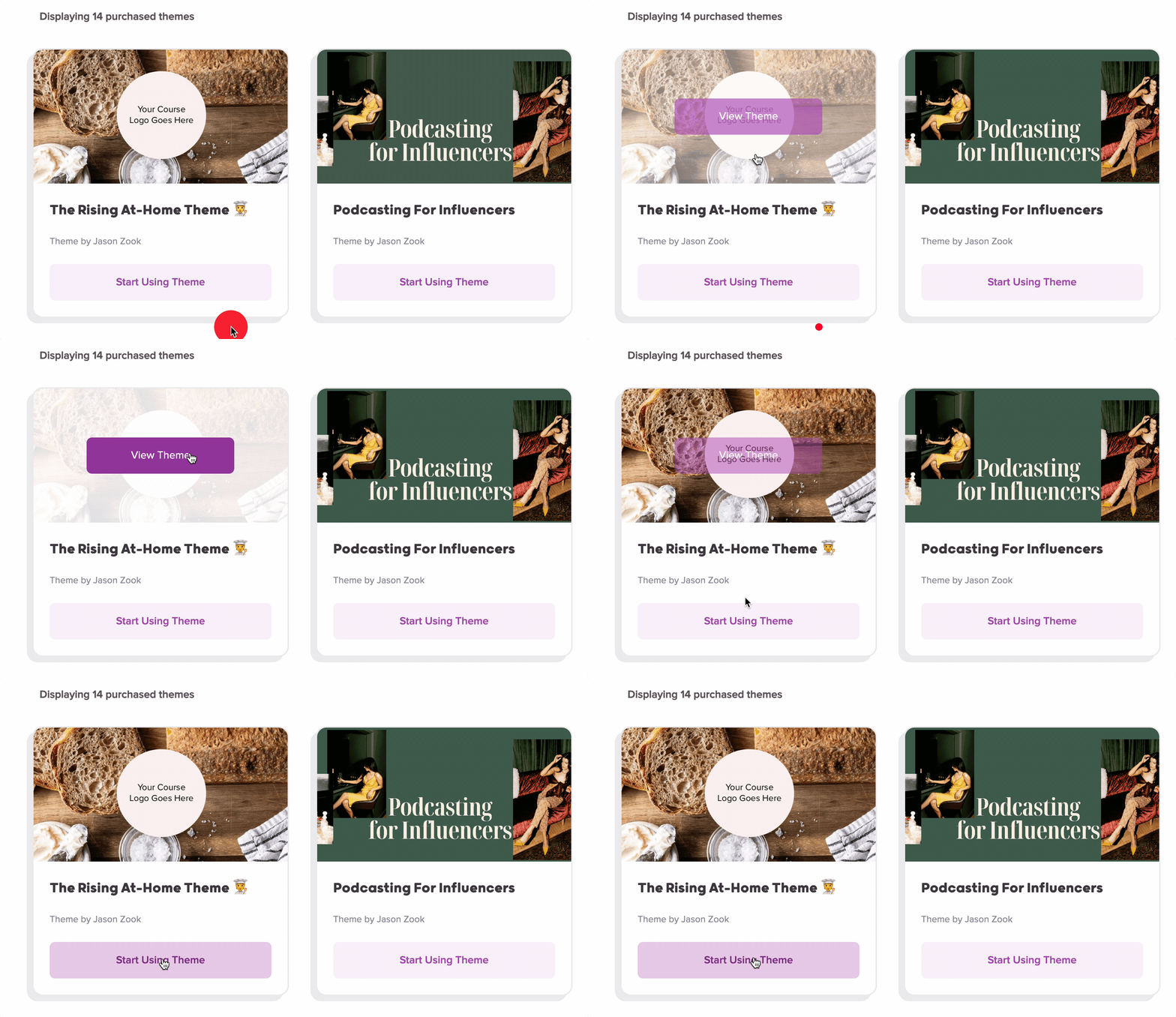
With the newly created course (from your Theme), the customer can now customize the course to their liking! They can edit and change anything within the course.
So, you’ve sold The Rising Baker Theme 👩🍳 to a handful of customers but now you’re thinking you might add an additional lesson and swap out the header image in the Theme.
The updates DO NOT change anything with courses that customers may have already created from the Theme, but if they make a NEW course from the Theme, your updates will show up in the new course.
Let’s go over a quick example:
Customer A purchased The Rising Baker Theme 👩🍳 and has previously clicked “Start Using Theme” to create a new course in their Teachery account. They changed the name of the course to Cherry Pie Oh My Course 🍒 and have changed images, deleted a few lessons, and customized a Payment Page.
You then went into The Rising Baker Theme 👩🍳 and added a new Lesson as well as changed the header image of the Theme.
Customer A’s course Cherry Pie Oh My Course 🍒 will be completely unaffected! Nothing at all will change.
However, a day later, Customer A clicks “Start Using Theme” again to create another course. This new course, which they’re calling Carrot Cake 101 🥕 WILL have the newly added Lesson and header image that was changed in the original Theme in your account.
If you want to make updates to an existing Theme that has active customers but you DO NOT want the active customers to get the updates, you will want to duplicate your Theme and make changes in the new duplicate version. Then, you can promote the new Theme to your customers and the previous Theme will stay just as it is for the customers that purchased it.
With Themes, we’ve created an optional Theme Bar that is a persistent “sticky” bar that sits along the bottom of your Theme.
The Theme Bar has customizable text, colors, and a button that you can link to a Payment Page you’ve created within the Theme to sell it!
(You can also have the Theme Bar button point to an external payment URL if you want to take payment for the Theme outside of Teachery 🤝.)
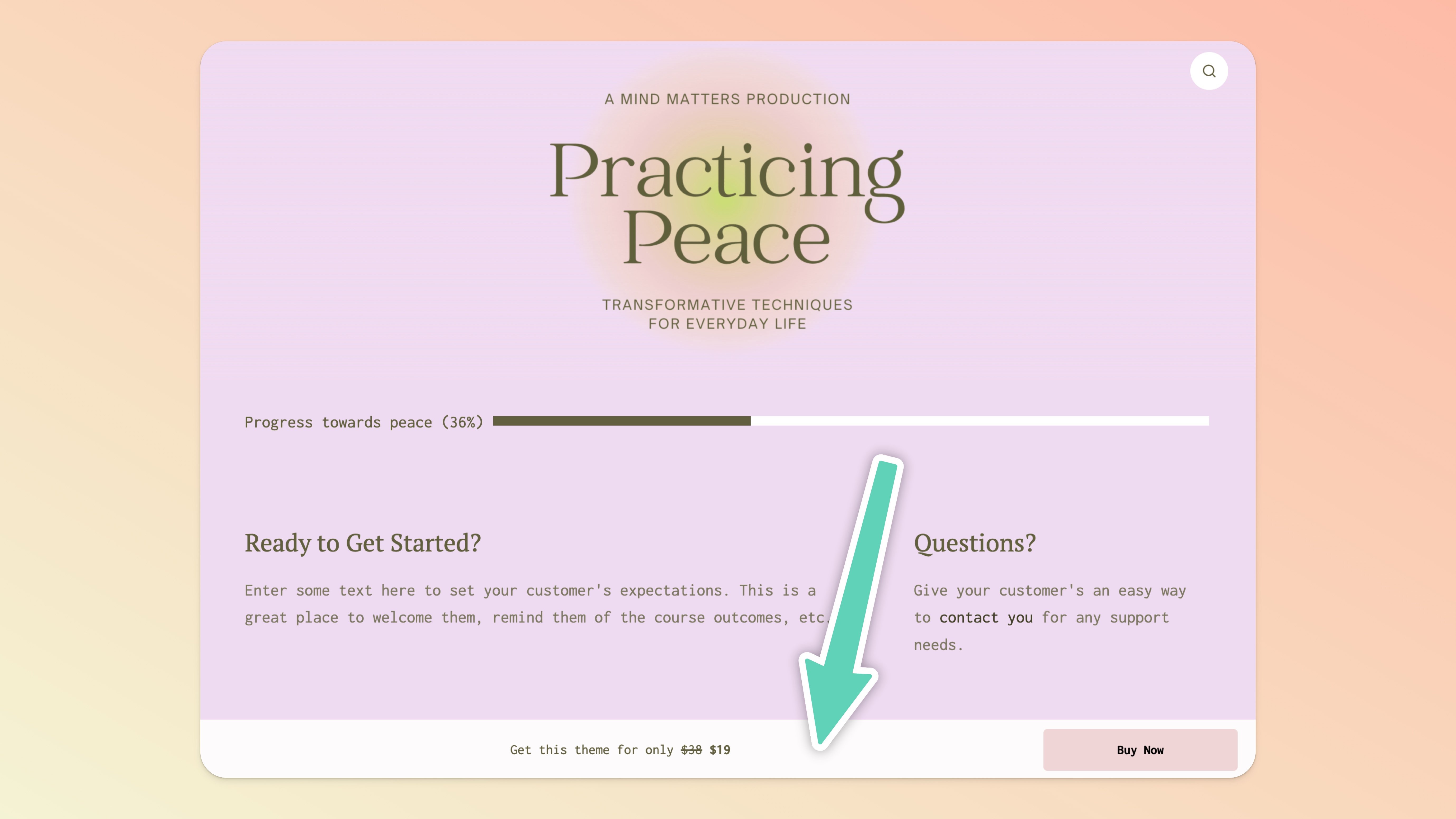
This one is pretty easy and straightforward: Just like you sell courses in Teachery! 🛒 💳
Themes have their own Landing Pages and Payment Pages. Just remember, any page you create within your Theme a customer will get access to once they purchase your Theme.
👍 👍 Yes to both! With our Upsells feature, Themes can be added as Upsells right alongside courses. Because we’ve engineered Themes using the same course technical architecture, Themes can be added within Upsells just like courses.
Just like our standard courses, we’ve updated the “Add Customer to Course or Theme” button on your Customers page.
You’ll even see Themes denoted in the dropdown menu with a small green flag ✅.
Unfortunately, this is one limitation of Themes and it’s due to the fact that we never want to overwrite your existing course data 🙅♀🙅♂.
If you have a course already created in your Teachery Dashboard and you have a Purchased Theme, you can create a new course from the Theme and you’ll simply copy + paste your content from your existing course into the newly created course.
The short answer is, YES. You do this the same way you revoke standard course access. Navigate to your customer’s profile via the Customers page, click the purple Actions menu in the top right of the course/Theme card in question, and choose Revoke Access.
The longer answer is, YES, but, if the customer has already clicked “Start Using Theme” and created a course from your purchased Theme, we will not be able to remove that course from their account. This would get very tricky, very quickly. Just know, if access is revoked, the customer would not be able to make new courses from the Theme.
If your customer is in a failed payment status (which you can always see at the top of the Customers page — if you don’t see any failed payment notices, you don’t have any!), when they click the “Start Using Theme” button they will be redirected to our standard Update Billing page. You can find this page within your Theme by clicking the “Theme Links” at the top of the left sidebar in the Theme editor. Once your customer has updated their billing info and the charge has succeeded, they will be able to use the Theme again to create courses.
Similar to the answer about revoking access, YES, customers will no longer be able to create new courses from the Purchased Theme (that will disappear from their Teachery Dashboard). However, any created courses from the Theme will stay intact in the customer’s account.
Easy! While editing the Theme you want to use, go to Course Settings > Duplicate Theme. This will create a new copy of the Theme. Edit the new version, go to Course Settings > Manage Options > Is this course a Theme? and choose No. Save your settings and you now have a new Course from your Theme 👍.
We hope you enjoy using and selling Themes! If you have any questions you didn’t see answered here, please use the support chat bubble to start a conversation with us 👋.
