One of the decisions we made at the beginning of Teachery was to try to maximize your flexibility when sharing your knowledge with your customers.
We believe you have so much more control and functionality by embedding videos from external video hosting applications like YouTube, Vimeo, Wistia, Loom, Canva, etc.

Other course platforms might allow you to upload videos natively, but then your videos are trapped in those platforms AND are limited by whatever small feature set is available.
Many other course platforms are going to tell you that uploading videos to their servers will keep your videos 100% private. Truthfully, that is not the case. Anyone with the technical ability can scrape a video from a page and re-upload it elsewhere.
You get 5GB of media hosting with a FREE Canva account, making it an awesome option for hosting your course videos. Plus, unlike YouTube, Canva won't put any other content at the end of your videos!
For the price of ~$15/month, Vimeo Pro gives you all the features you'd ever need! Videos can be private, customized, and all branding removed, plus you get accessibility features like chapter markers, auto-captioning, and end-of-video actions. We have ZERO incentive to promote Vimeo to you and we do not receive an affiliate commission from them.
Canva has come a long way when it comes to video production and with 5G of hosting on the FREE plan, it's a great option for your course videos!

The video below shows you two ways you can use Canva for your course videos:
1⃣ Video hosting - You can simply upload a video you create outside of Canva into a Canva Video project. Then, use the Share > More > Embed > HTML Embed code option to get the code needed for Teachery.
2⃣ Video creation + hosting - You can create a Presentation in Canva AND record directly over your slides in Canva's Recording Studio! Once you're done recording, unfortunately, you can't immediately embed the video you just created. You need to:
Download the "Present and Record" video
Create a new Canva Video Project
Upload your downloaded video, place it on your video canvas, and then use the Share > More > Embed > HTML Embed code option to get the code for Teachery.
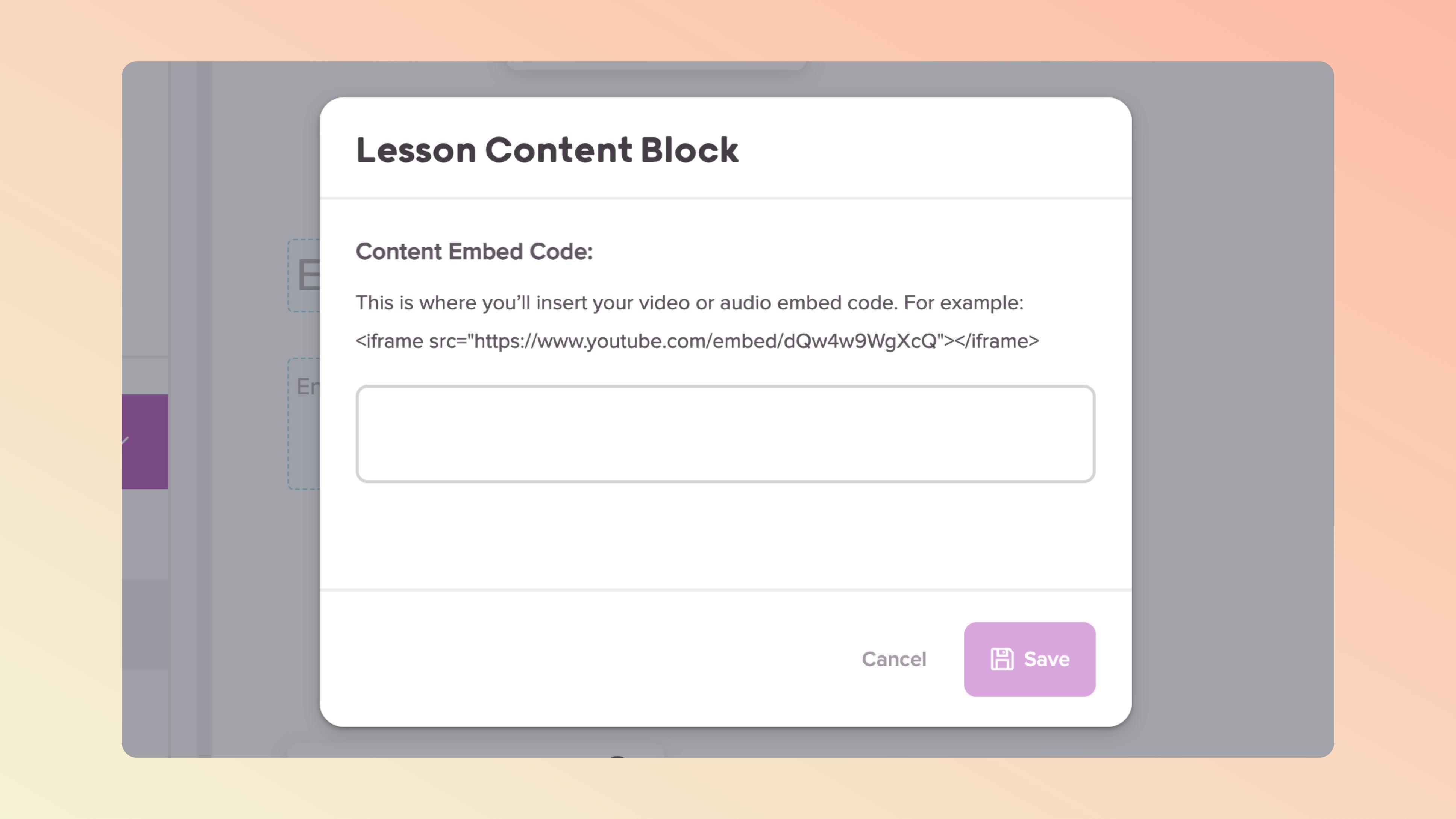
👉 With either option, all you have to do once you have Canva's HTML Embed code is to add that to a Teachery Lesson using the + Add Content Block > + Add Embed Code option. If you need to remove the hyperlinked credit that appears below the embedded video, please jump to the 03:12 timestamp in the video below.
Canva uses the first millisecond/frame of your video as a thumbnail, so if your video preview/thumbnail is appearing as a black screen or if you’re wanting to define a thumbnail:
1⃣ Trim the video - Trim out the first 0.1s of your video - it should then use whatever frame/shot your video begins with as the thumbnail.
2⃣ Insert an opening image - Screenshot/export a frame of your video that you would like to use as the thumbnail and drop that image into the very start of your video Canva file so that it serves as the first frame of your video.
YouTube is a great option for hosting your course videos because YouTube is completely free to use! However, because YouTube is free, you have a lot less control over what you can do with your videos.
If you need your videos to be completely private, YouTube is NOT the option for you. However, if you want a great free video hosting option, this is the route to go!

Watch our walk-through video on adding YouTube videos to Teachery:
Vimeo is a great option for video hosting and does have a free plan to start with. However, one of the best reasons to use Vimeo is for Vimeo Plus* which starts at ~$15 per month (with enough storage space that you'll probably never need to upgrade).
*We do NOT get compensated for sharing Vimeo Plus, we just use it ourselves at Teachery and love it.
Vimeo Plus is great because it allows you to remove all the extra options on videos (like sharing, Vimeo logo, etc) AND you can customize the video player with extra features like branded colors/logo, calls to action, chapter markers, and more!
Vimeo now requires that videos have a content rating defined within their settings. If not, playback in your embeds may not work. Read more about this here.
If an embedded video is displaying the error message “Sorry, because of its privacy settings, this video cannot be played here”, please check your video’s embed privacy settings in Vimeo. You may need to include your course’s domain under the Specific Domains option (available in the Where can this be embedded settings). Read more about this here.
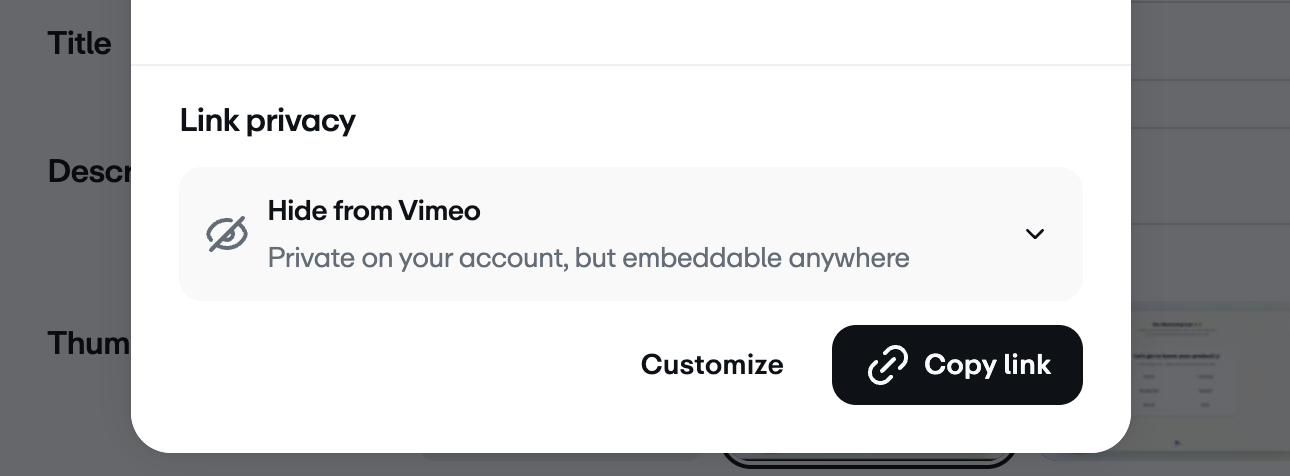
All privacy settings except for Private allow you to embed your video on other sites. We recommend using the Hide from Vimeo privacy setting if you want to embed your videos but still have them hidden from search/sharing in Vimeo. Once you select this privacy setting, only THEN grab the embed code and insert it into a Content Block (or quick add using the + icon in any text area) in Teachery.
Wistia is a great option for video hosting because they offer an incredible amount of additional features, video analytics, and more. But, you get what you pay for and Wistia will probably be one of the pricier video hosting options out there.
For our course editor, Wistia videos are ONLY able to be added to the "Add Content Block" sections of Lesson Pages.
Because of the way we load javascript within Sublessons in courses, you'll need to make sure you select a certain option when embedding Wistia videos (this is for Wistia only).
Unfortunately, Zoom (or similar tools like Butter) doesn’t enable direct embedding, so the only way to share a Zoom recording is to download it from Zoom and then upload it to a hosting platform (e.g. Youtube, Canva, Vimeo, etc.) and only then embed it in Teachery. Alternatively, simply share a direct link to the recording in Zoom’s cloud. You can learn more about these options in Zoom’s help docs.

There are plenty of other video hosting companies that you can use with Teachery, as long as they provide you with iframe embed code (or some script embed code). To use any other video host:
Click the Add Content Block + button in your lesson.
Click Add Embed Code option.
Paste your embed code into the field and click the Preview embed button that appears.
If everything looks good, hit Save and you're done! ✅