Much like how we handle videos and slide presentations, we don't host your audio files in Teachery. Just like those companies don't offer online course creation, we believe embedding your content from other sources gives you so much more flexibility!
Our main recommendation for audio hosting is Soundcloud. You can also use apps like Elfsight or any podcast host, like Spotify. Basically, any audio hosting company that offers iframe embed code will work.
Here's our walkthrough video on embedding Soundcloud in a course lesson:
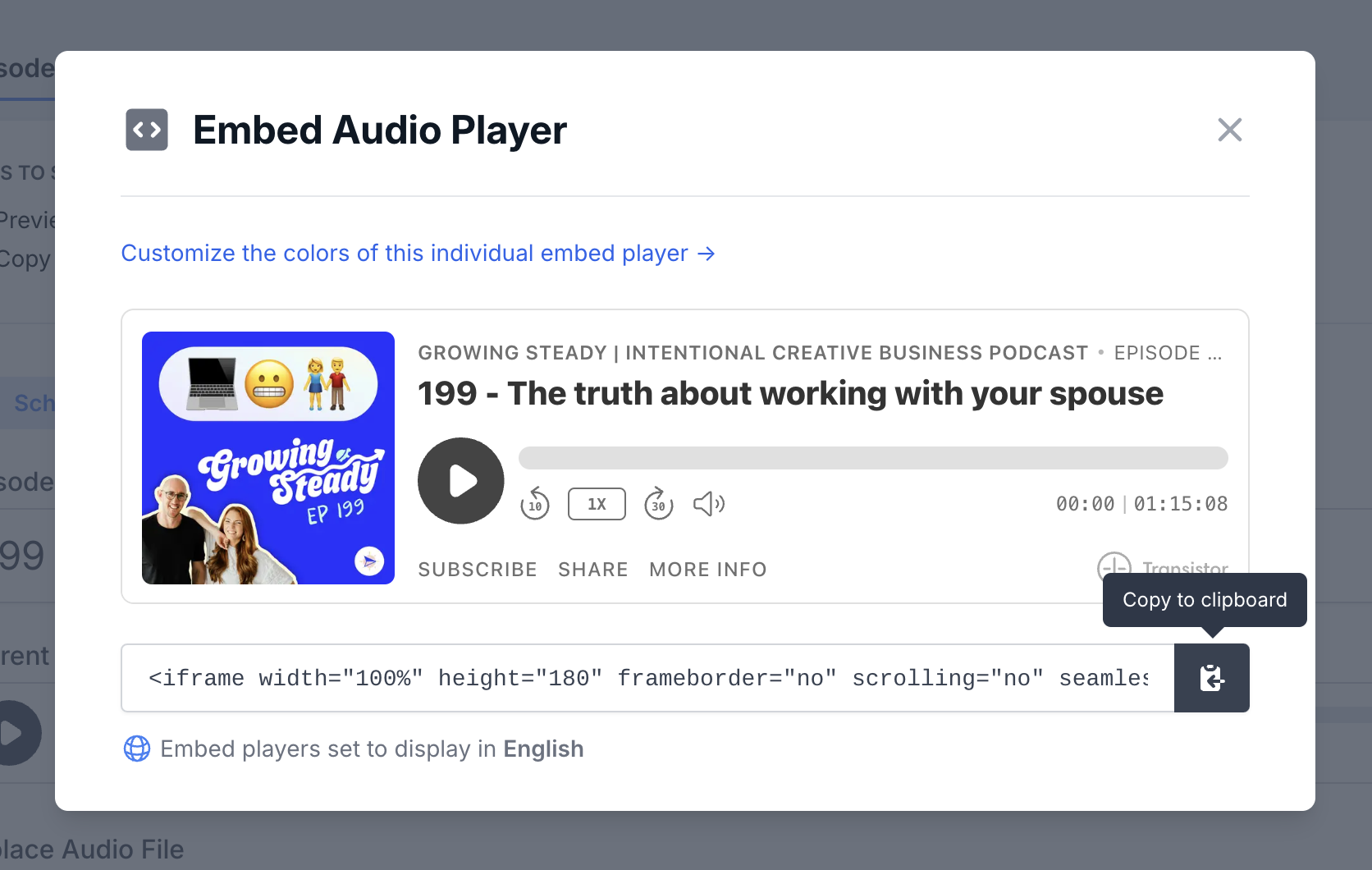
All you have to do is navigate to your "episode" and find the area where your podcast host provides and <iframe> or <script> code.
Copy that and paste it into an Add Embed Block in your course lesson.

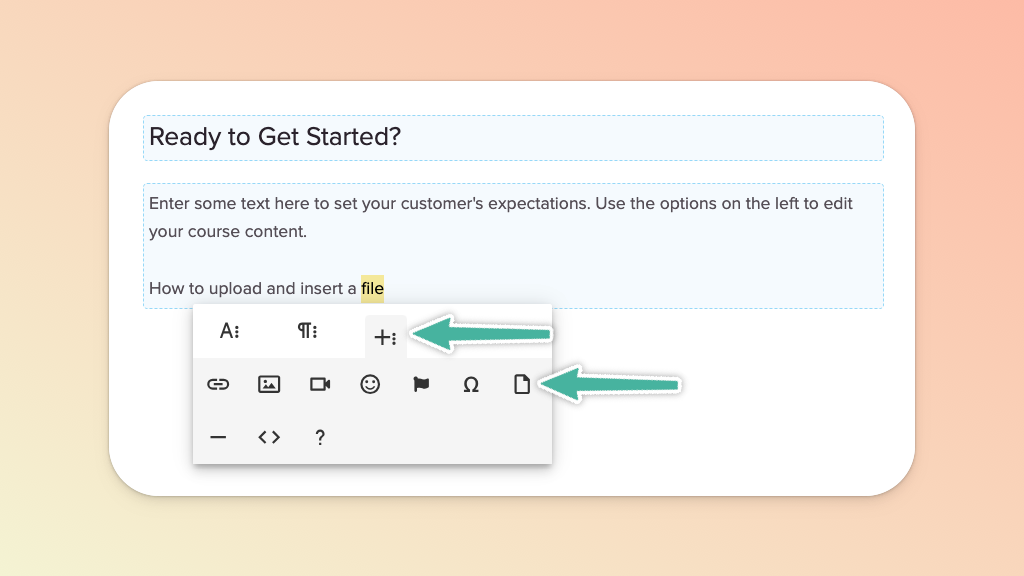
Click into any text area and highlight the text to which you want to link your file, click the (+) icon in the menu widget that pops up, then click the upload file icon to open the file manager.
Import an audio file (< 50MB - .mp3 or .wav) from your computer (or select one already in your file manager) and click the Select button in the bottom right corner of the file manager. The file manager window should automatically close and hyperlink the text you had highlighted.
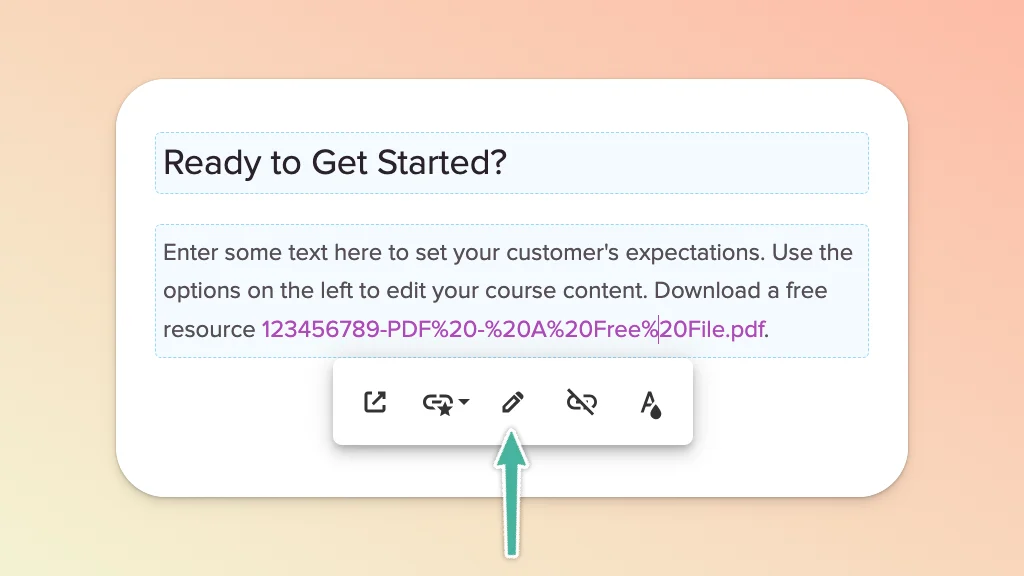
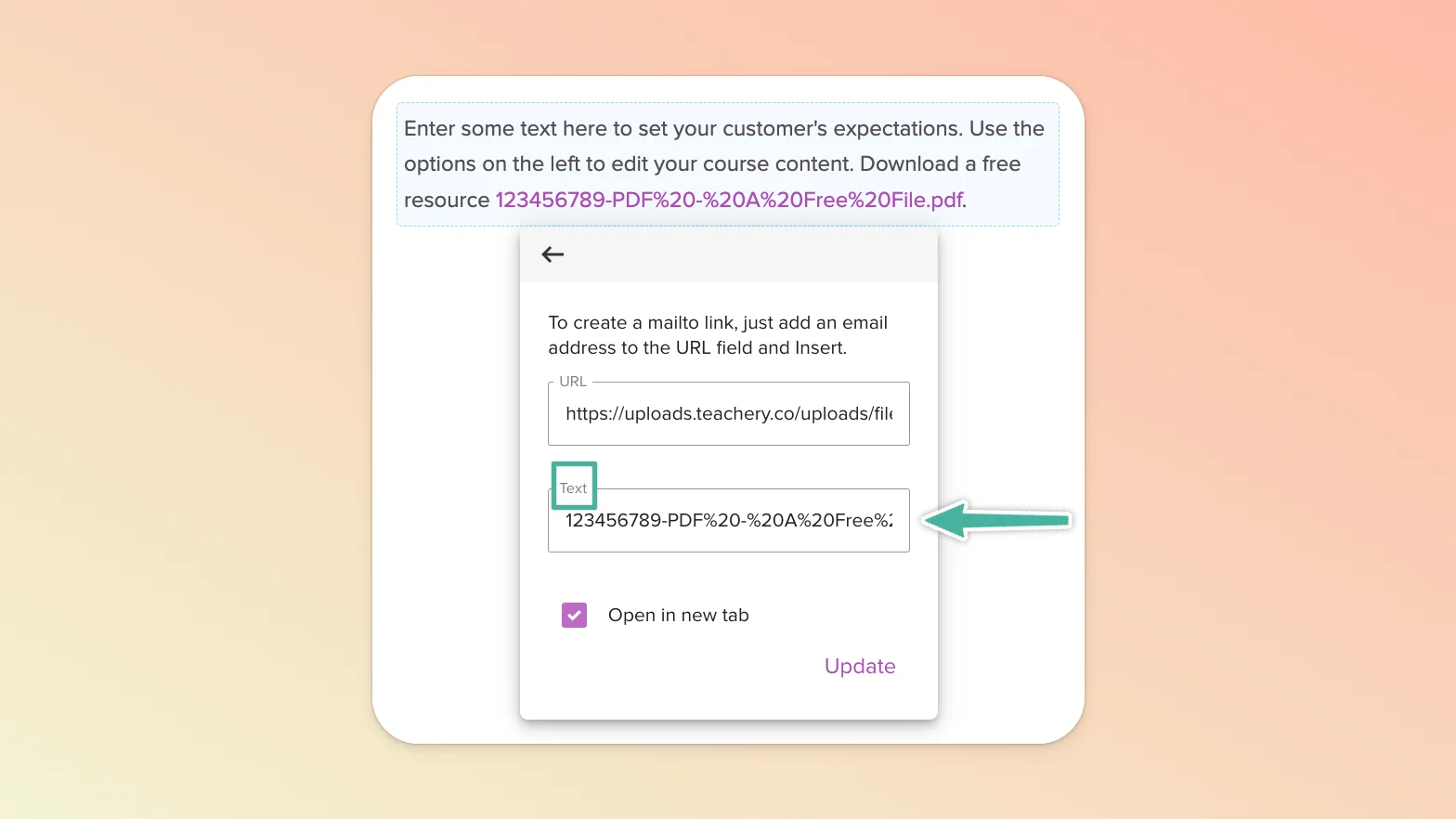
To correct/change the hyperlinked text itself, click into it and then select the edit (pencil) icon in the menu widget that appears, make the change and click Update to apply it.