If you're looking to offer payment plans for your courses, monthly subscriptions, or yearly memberships, our Recurring Payment Page feature should do just the trick!
Before we begin, let’s consider the scenarios in which you may want to use a recurring payment plan.
Recurring payment plans can either serve as pay-as-you-go subscriptions (e.g. you pay for 6 months, you get access for 6 months) or as instalment plans (i.e. you pay off what is usually a once-off, lumpsum membership fee in a certain number of instalments for unlimited access).
This option would usually be accompanied by a course expiry date. However, if you’re offering customers multiple periods of access to choose from within the same course (for example: pay for 3 months, access is revoked after 3 months or pay for 6 months, access is revoked after 6 months), then our course expiry functionality will not work (it will apply the same course access duration to every customer).
In that case, customers will retain full access until such time that you manually revoke their access (or try to automate this using something like Zapier).
If customers want to renew/extend their current subscription, you will need to manually revoke their access once the current payment plan ends and then re-share the payment page for them to repurchase/re-enroll.
These are simpler to implement as revoking access at a specific time is not required. Simply complete the steps on this page or, if you’re using our new payment page builder, you’ll want to consult this guide. If you do want to define a duration that will impact all customers equally (regardless of whether they’re paying a one-time price or via instalments), then our course expiry functionality will work for you here.
Login to your Stripe account
Go to Settings >> Subscriptions and emails
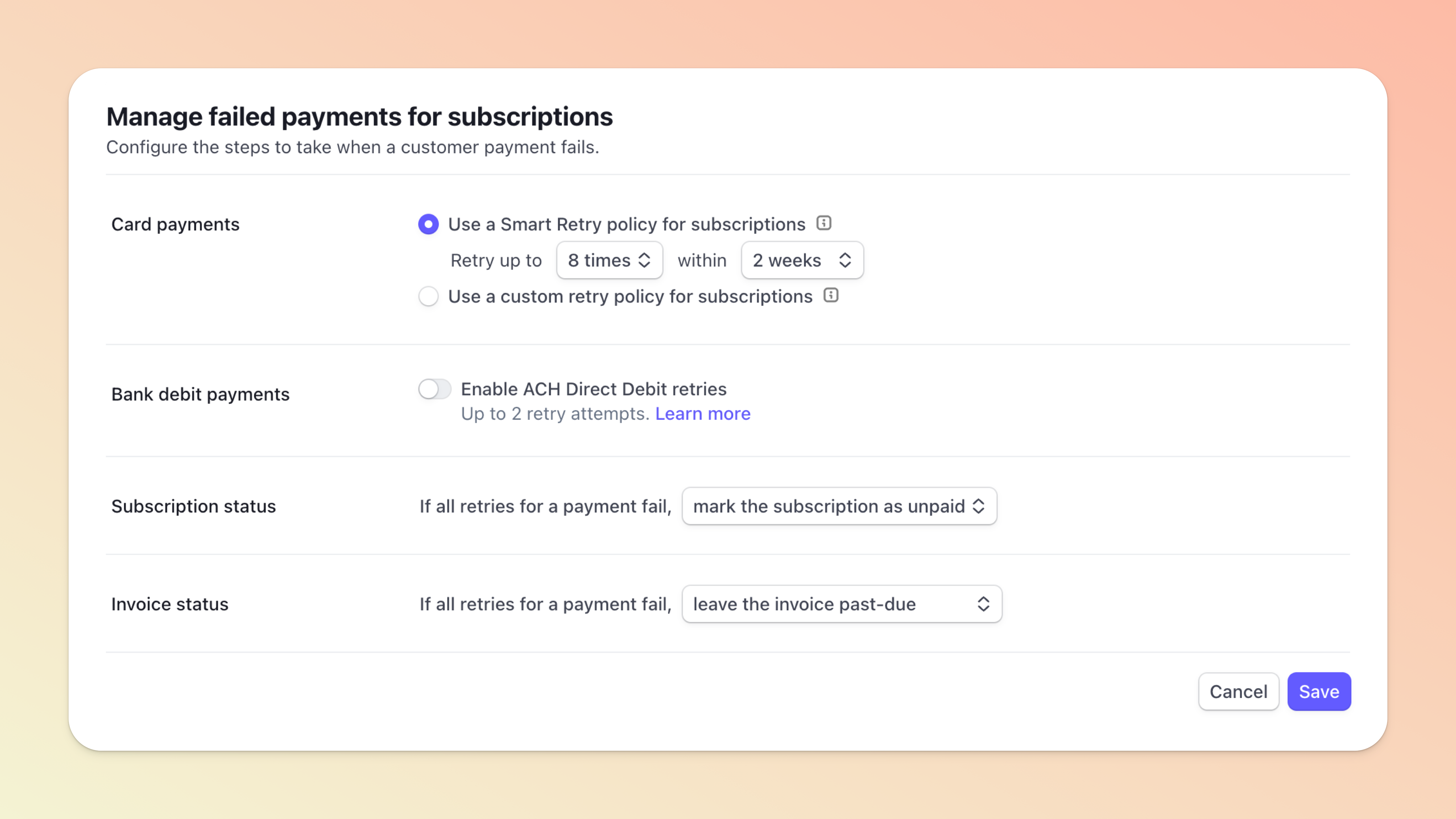
Find the "Manage failed payments" section
For "Retry schedule" click the radio button to "Use Smart Retries"
For "Customer emails" toggle ON the "Send emails when card payments fail"
For "Subscription status" set the dropdown to "mark the subscription as unpaid"
These settings will help ensure that we can recover failed payments during a recurring payment subscription for you. 😃

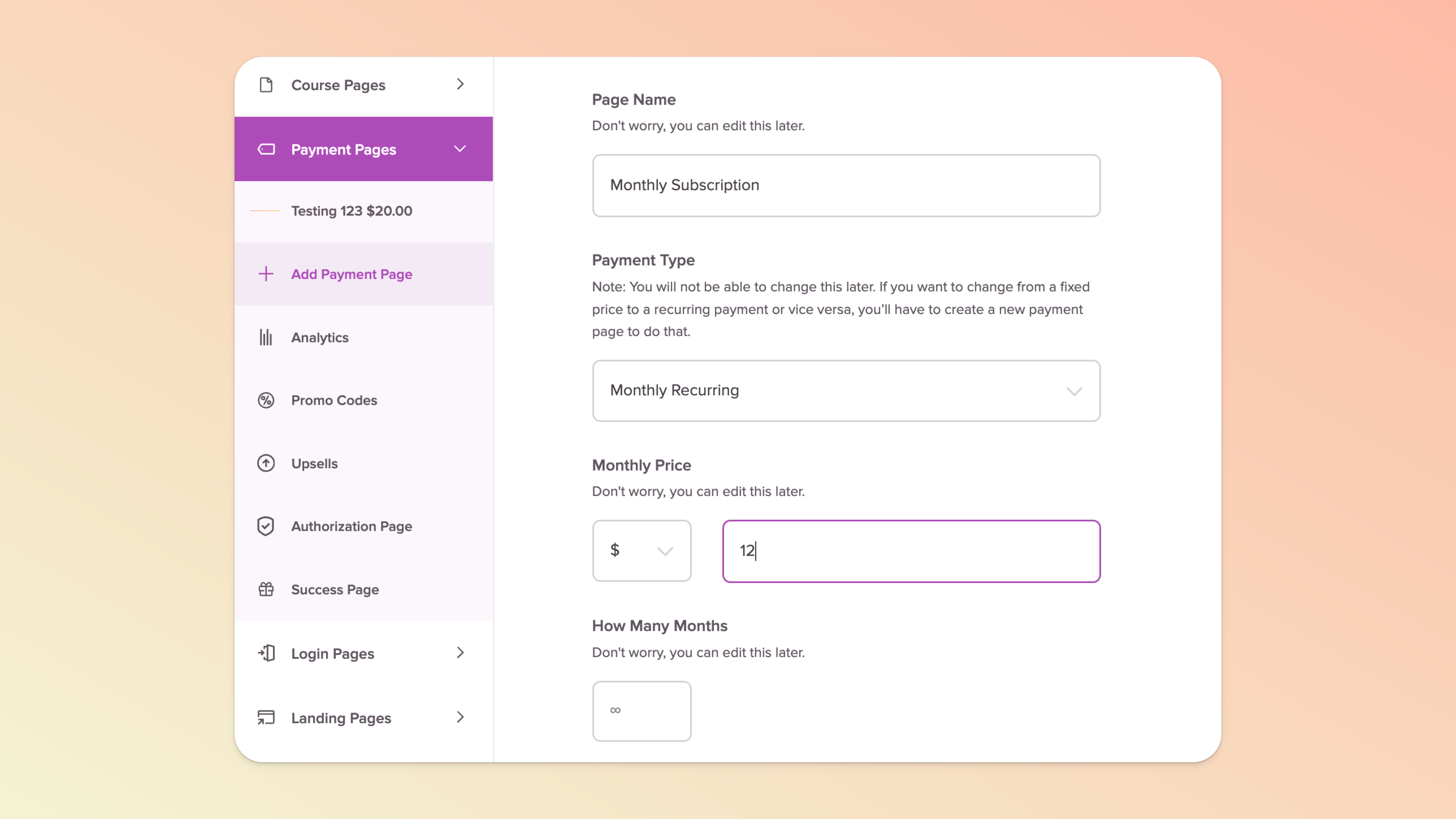
Select a Teachery course you want to edit and click on it
From the sidebar, click Payment Pages and then + Add Payment Page
In the Payment Type dropdown menu, Select Recurring Monthly* or Recurring Yearly
Set your monthly/yearly price and select the number of months/years**
Once created, you can customize the Recurring Payment Page to your liking! ✅

Let's say you have a course with two payment options:
$200 1-time ("Fixed") payment
$20 monthly for 12 months ("Monthly Recurring") payment
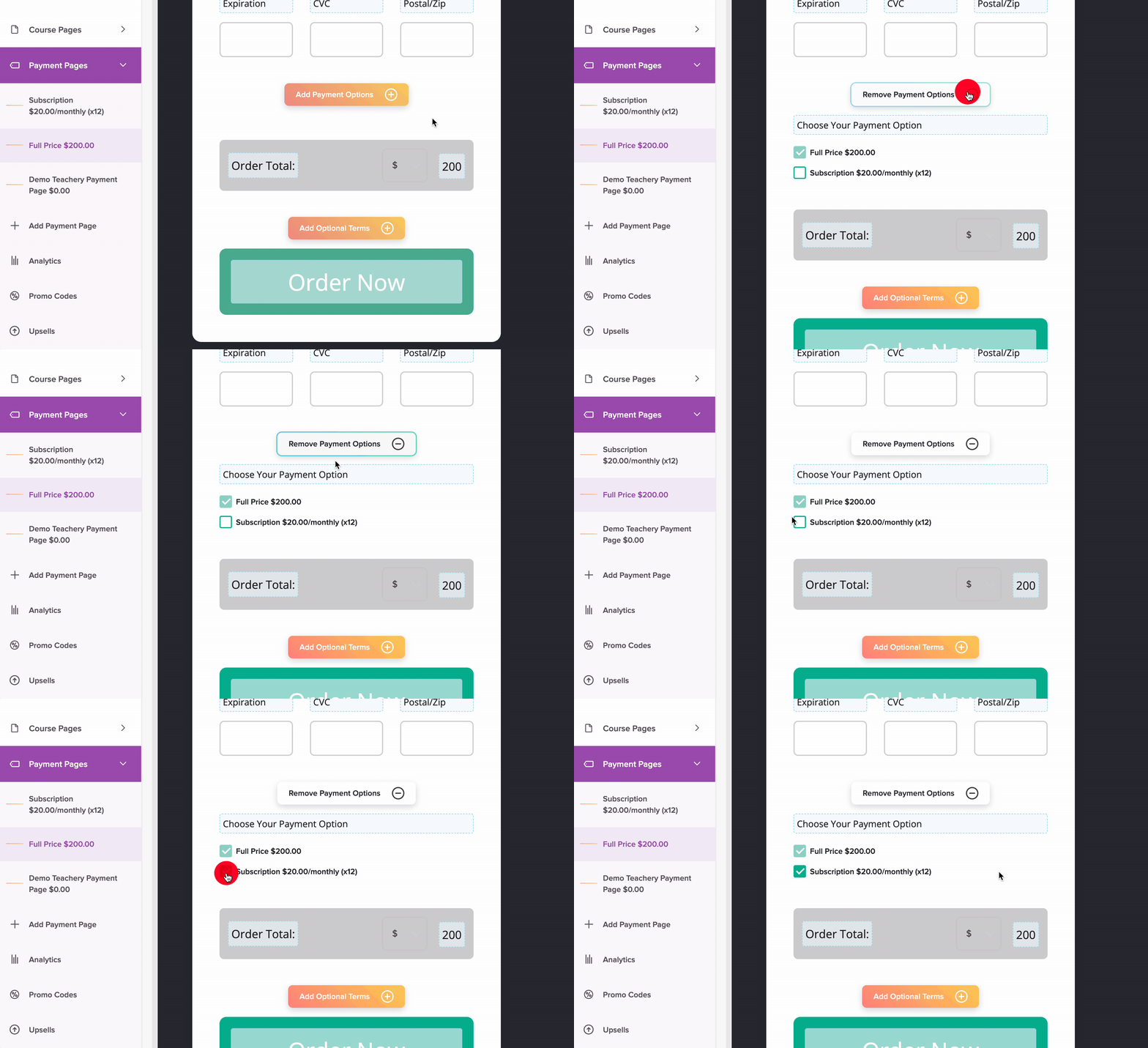
The first thing you'll want to do is create EACH payment page separately. Name the pages, set the price, and customize the pages to your liking.

Toggle ON the Add Payment Option + button, then check the boxes ☑ for the payment options you want to be displayed on the payment page.
That's it! Now, you can share your payment page and your customer will see multiple options they can choose between 💸 👍 .
We have good news and bad news.
Bad news: You will almost always encounter failed payments when selling anything with recurring payments. It's just the nature of the beast. We're sorry to break this to you.
Good news! The good news is, we have you covered!
When you create your first recurring payment page, you will find a new email you can customize within your course editor:
Click on the course to edit it
Look in the left sidebar for "Course Emails" section
Click the Recurring Payment Failed email
You can customize that email, including the subject line, from name, from email, logo, email colors, and content.

When the first recurring payment fails, your recurring payment failed email will be sent to your customer. They will be assigned a label of “failed” in your Customers list (and have a status of “delinquent” in your Customer CSV export) and appear in your list of customers with failed payments.
If they do not take action, another TWO emails (same exact emails) will be sent on a varying schedule (this schedule is determined by Stripe).
👍 If your customer updates their billing information at any time, no more failed payment emails will be sent and they will be good to go!
👎 Should your customer NOT update their billing information after the 3rd email, we will block course access from the student on your behalf. This means if they try to log in to the course, they will only see the billing update page (no matter what page of your course they try to view). Note that they will now be assigned a label of “canceled” and “revoked” in your Customers list (and have a status of “revoked” in your Customer CSV export). They will no longer appear in your list of customers with failed payments.
If your customer never updates their billing information, they will continue to be locked out of your course forever (until they add billing info again).
💡 Pro-tip: If you're using a recurring payment option, we recommend creating a spreadsheet of your own that you update on the schedule in which your payments get requested (monthly, annually, etc). This is a tedious task, but it's also the best way to ensure you're keeping an eye on your customer's payment activity.
Here's an abridged version of our other help doc on Revoking Access, etc. These are actions you can take in a Customer's Profile (found by clicking a customer record on the Customers page).
By clicking this link you will be removing a customer's access to your course. This will NOT refund any existing payments and will NOT cancel any recurring payment subscriptions your customer might have. This CAN be undone by clicking Grant Access (which appears only after you Revoke Access).
You can refund a single payment OR you'll see individual payments for recurring payment purchases. You can refund any payments and refunding will NOT result in revoking access to your course. We recommend refunding payments via your Customer Profiles in Teachery instead of within your Stripe account because it keeps the records up to date in Teachery.
If a customer needs to have their subscription payment extended out into the future, you can do that using our Pause Subscription action. You can read more on pausing subscriptions here.
If a customer has purchased your course via a recurring payment page and you want to stop any future payments, use the Cancel Subscription option in their profile. This will NOT refund your customer and will NOT revoke access - their payments will simply come to an end. Learn more about revoking access above and cancelations here.
If a customer purchases a recurring payment plan, but needs to update their credit card information, we make it really easy. You can find this URL in the "Course Links" section of a course editor (top left of the sidebar). Or, you can simply give your customer the URL of your course with "/billing" added to the end. For example, if your course URL is yourcourse.teachery.co, you would give them yourcourse.teachery.co/billing - that's it!
(If you use a custom domain or custom subdomain, you can give them that URL with /billing on the end.)
Use the chapter marker dots in the video timeline to jump to different sections.
💬 If, at this point, you hit any hurdles/doubts and can’t find the answers elsewhere in our help center, please use the support chat bubble* in the bottom right of your screen. Make sure to include course/product info, customer info, helpful screenshots, or anything else that may be relevant to your query.
* Support hours are 09:00 to 17:00 GMT.
