Let's create a Teachery course together! 🎉
We'll show you how in just seven steps you can have a course created, customized, and ready to sell in no time at all.
In the Teach page, click the + Create a new Course or Theme button. You’ll be walked through a process (first step is pictured below) in which you can add some basics to your course: a title, description, image, lesson titles, and pricing. But once you’ve completed that workflow, you can return to the course via the Teach page at any time to change anything you’ve set and build out your lessons, etc. You can also save and exit at any point.
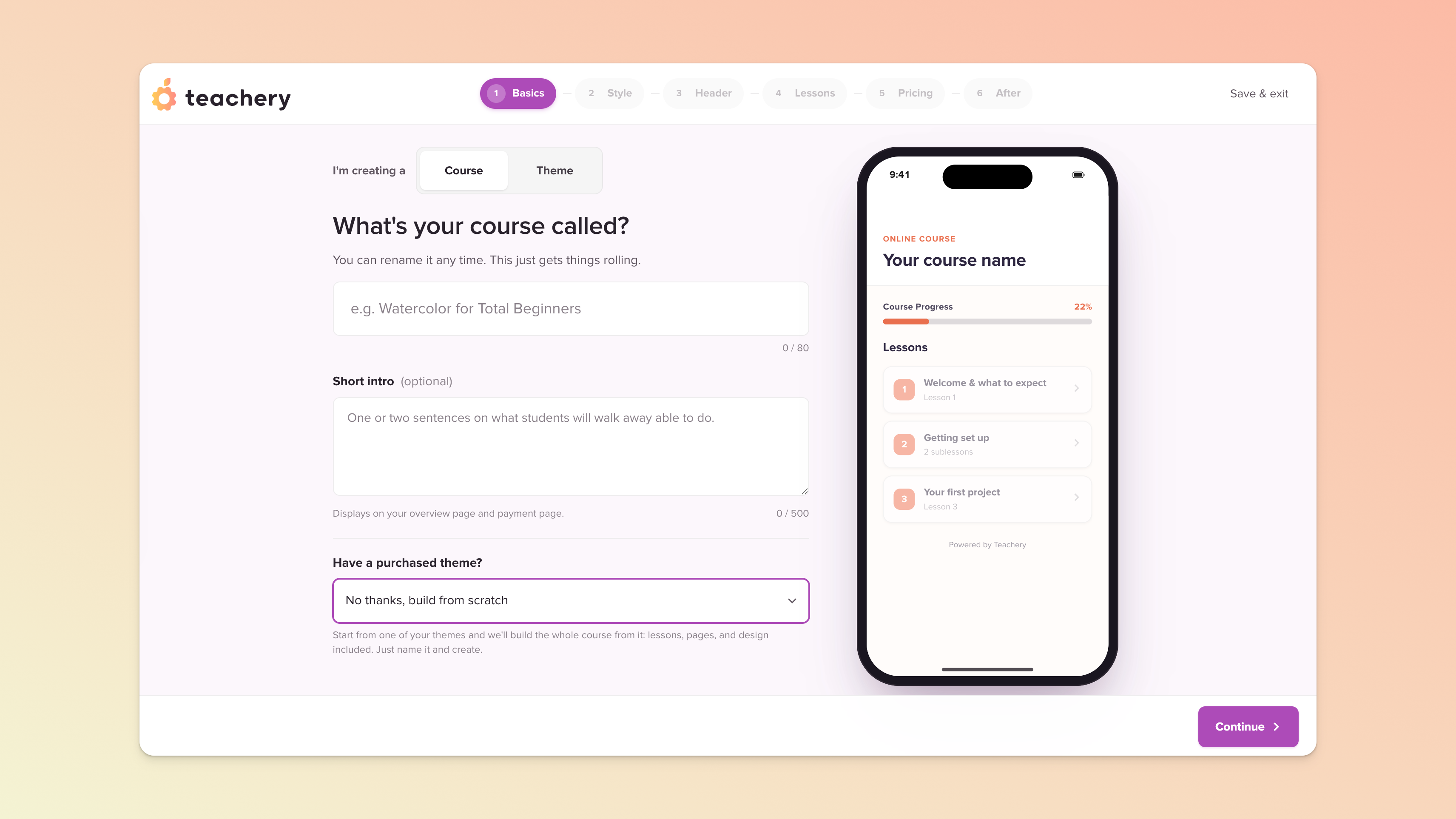
In the first step, you’ll be prompted to select a theme. This is optional and you can instead choose to begin with a clean slate. If you choose that option, you’ll be able to change some basic elements, like colors, fonts, etc. in an upcoming step (and even more so later, via the styling section of the full course editor).
If you’d like to see demos of some of the free themes we offer for free, please visit this page. You also have the option to apply any theme you may have purchased from another Teachery creator via our Marketplace.

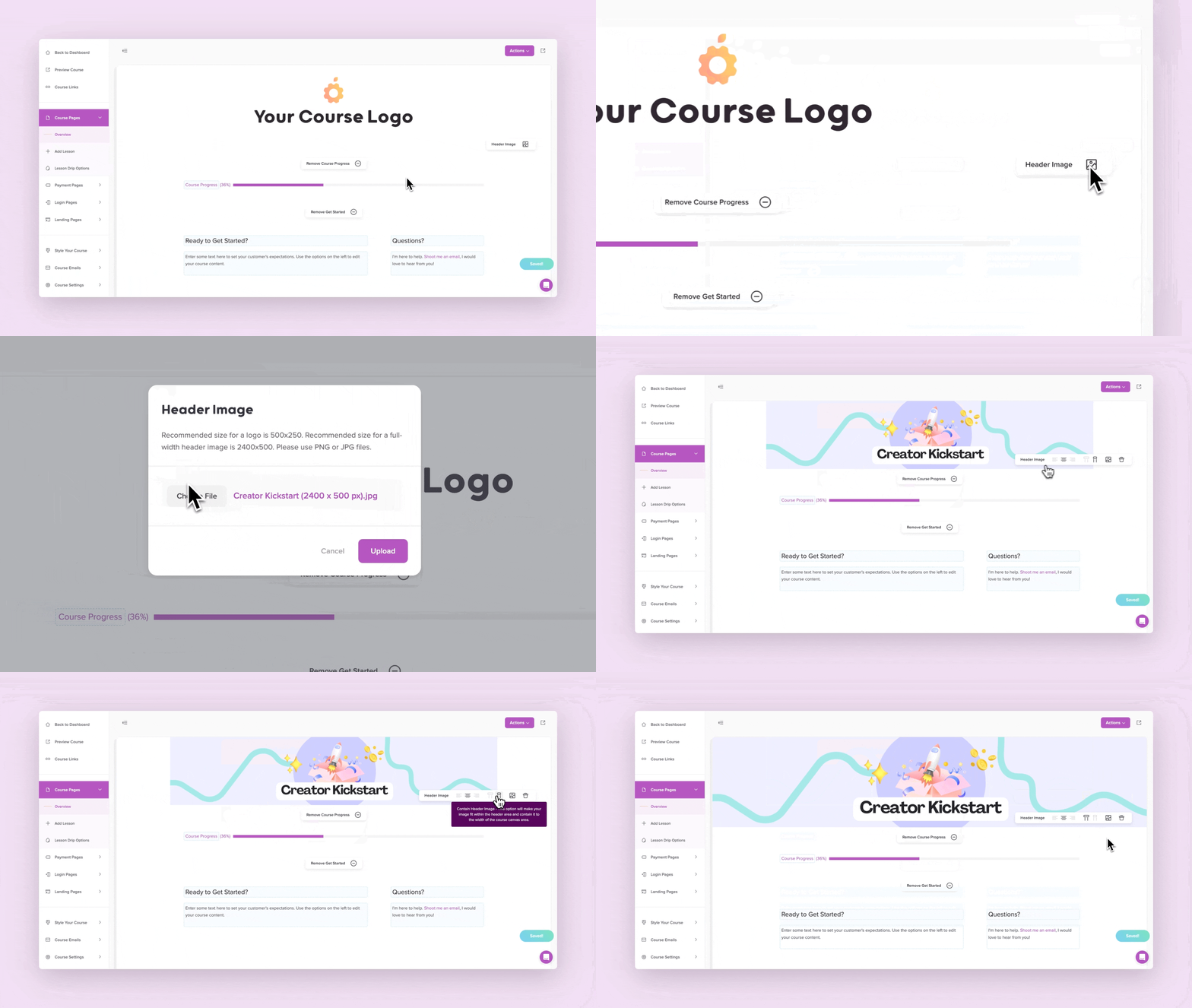
The quickest way to give your course personality is with a branded header image. Click the image icon in the header region and choose a file to upload.
Header images can only be set on the course’s Overview page but will apply to all lessons and sublessons, and other key course pages e.g. the login page.
Get more tips and design inspiration by visiting this dedicated help doc (includes a gallery of some of our other creators' images).

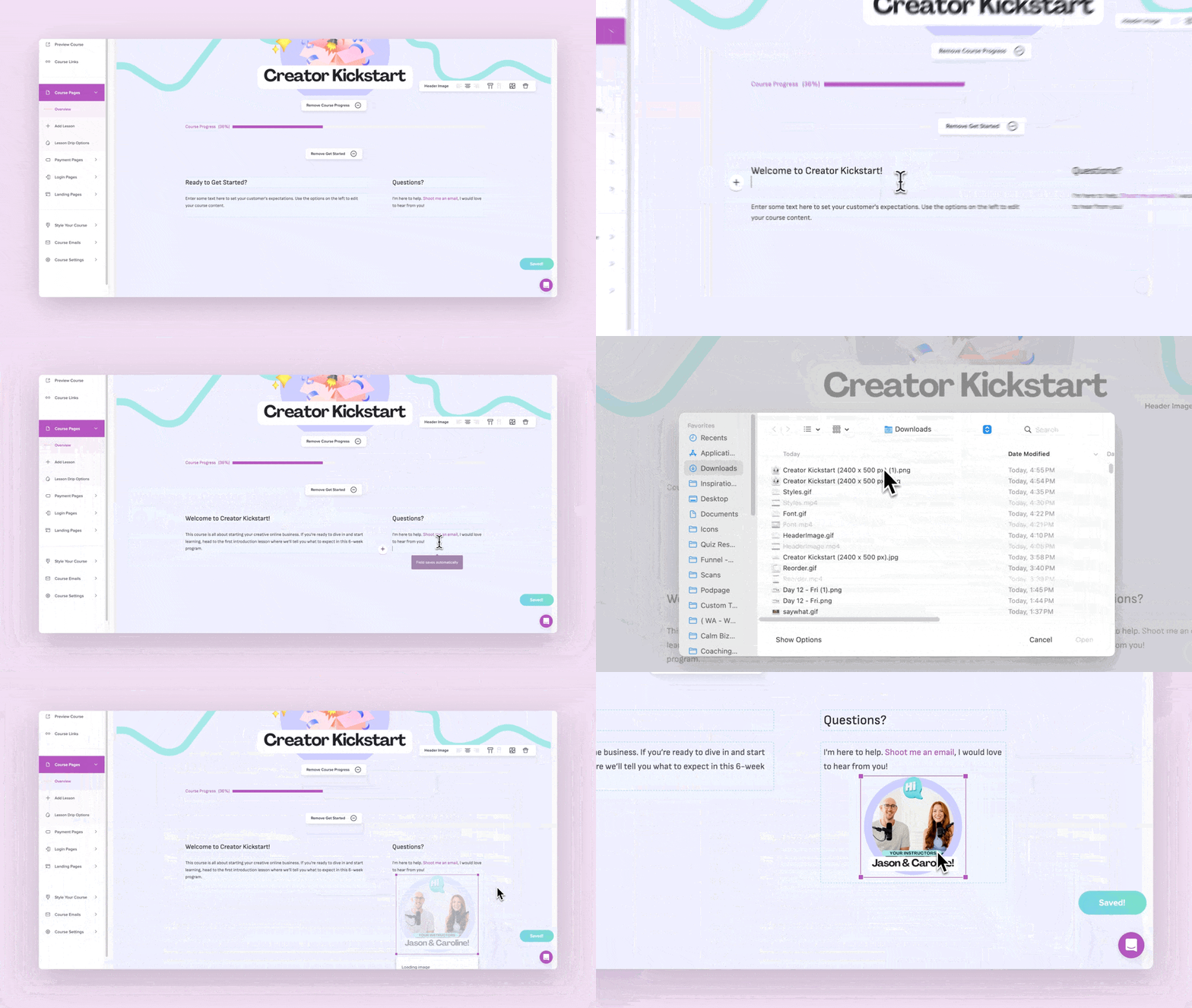
Your Overview page is your course’s main/landing page (a.k.a dashboard).
You can customize the "Get Started" area by hiding the text blocks, hiding your student's progress bar, or updating the text blocks (recommended) with images, videos, and useful info/links for your customers.
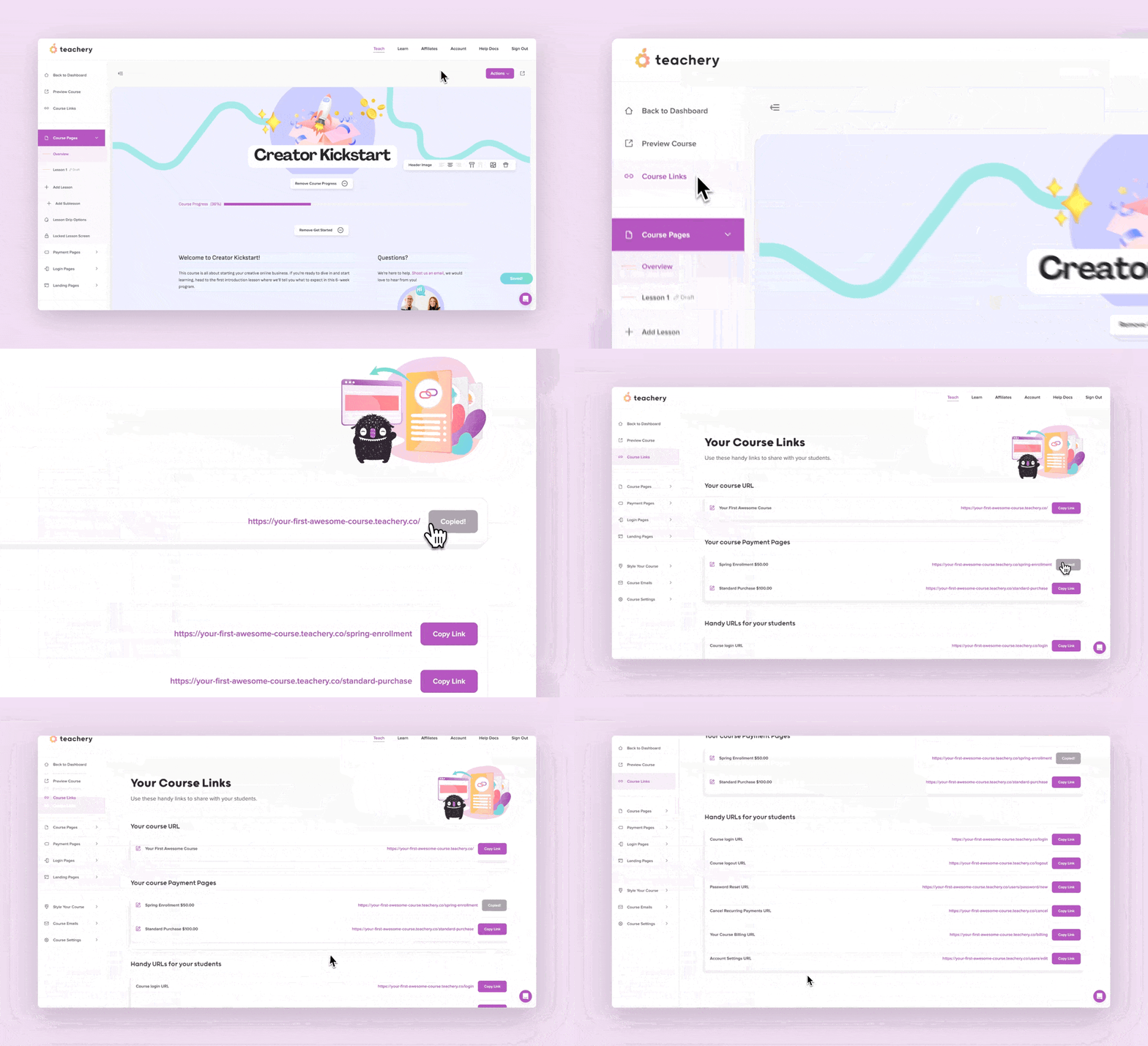
You may want to include a support contact as well as direct links to the course logout and password reset page, in case customers need it at any point. You’ll find many handy links in the relevant course’s Course Links page (available in the left sidebar menu of the course editor).
Setting your header image (this image will be applied to all lessons too)
Setting a Course Start Date (this is optional - if you don’t set a start date, your customers will simply have full access from their purchase date)
Setting a Course Expiration Date (optional)
Creating a Lesson Locking (Drip) Schedule (related to the course start date option)
We've done some of the fun stuff on your Overview page, but now it's time for a very important step - we need to fill out your lessons 💪.
Once you’re inside a lesson, the first three text blocks on the page are dedicated to:
the lesson name,
the lesson title/heading, and
the lesson intro text.
These three key text/content blocks are also discussed in the video walkthrough here.
The lesson’s intro text is the text that will appear on the course Overview page and will serve as a preview of the lesson’s content. If you don’t want any text to appear on the Overview page, leave this block blank and add additional content blocks below is, as described below.
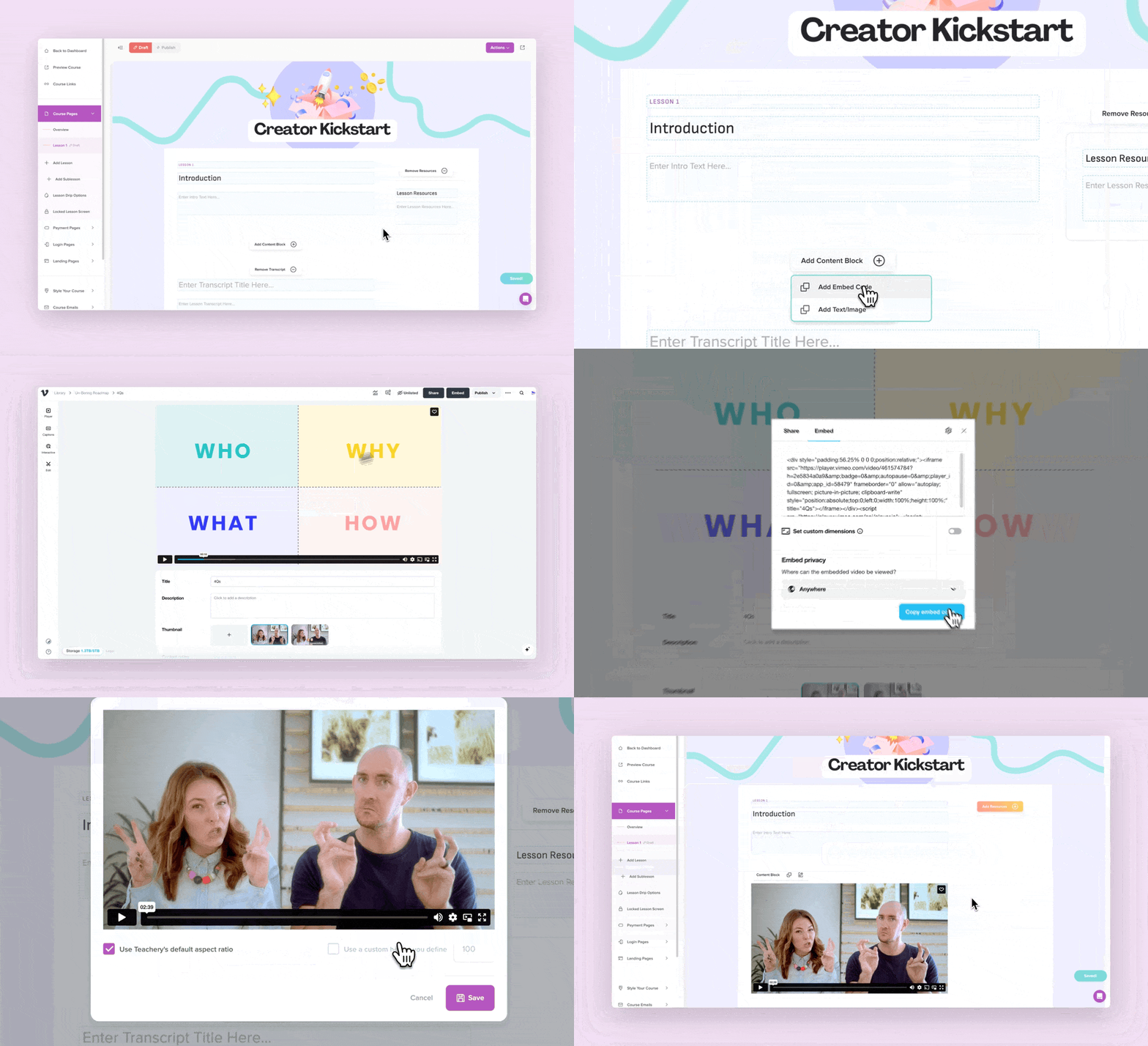
To start simple, let's add a lesson video by adding an embed content block to a lesson.
Scroll to find the + Add Content Block button and click it
Then choose + Add Embed Code
In the dialog window, you'll paste in the embed code from your video provider
Don't forget to click the "Preview embed" button before saving just to double-check your video embed code was added correctly 😉
Click Save and you've added a video!
After you add any lesson media, you can use the content blocks to add additional text, a transcript, or links to lesson resources.
And remember, if your lessons get too long or have multiple videos, you can always split them up into Sublessons.
What makes Teachery different from most platforms out there is YOU get to decide how to order your lesson content.
Want text first, then a lesson video? You got it. ✔
Want an audio lesson, then a worksheet? You can do that. ✔
However you want to structure your lessons, you can do that. ✔✔✔
If you want to add quizzes, comments, diagrams, etc. to your lessons, you can add just about anything that has an embed option (and provides you with iframe embed code). Use our embed content block to drop your code in and watch the magic unfold.
Let's start organizing your lessons. Teachery courses are structured using Lessons, and then Sublessons are nested underneath them.
In the left sidebar, you'll see your lessons listed under Course Pages. You can always organize your lessons by dragging and dropping them around in the sidebar!
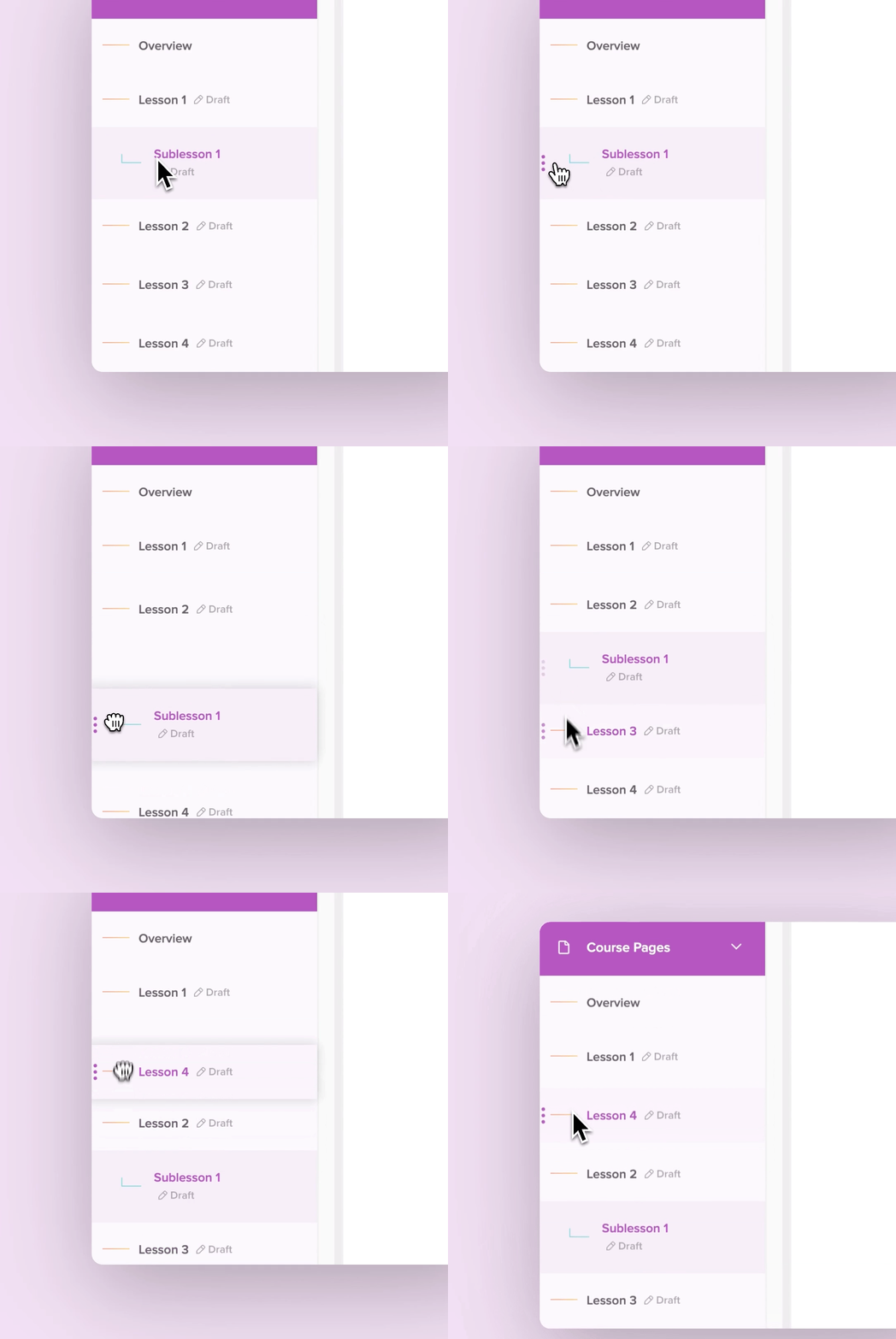
You've completed your Overview page, added your Lessons and the content within them, now it's time to style your course so it matches your brand!
To update your course font, head to your Overview page and from the Actions menu (in the top right), select Change Course Font.
Changing your course font will update your global font everywhere in your course 👍.
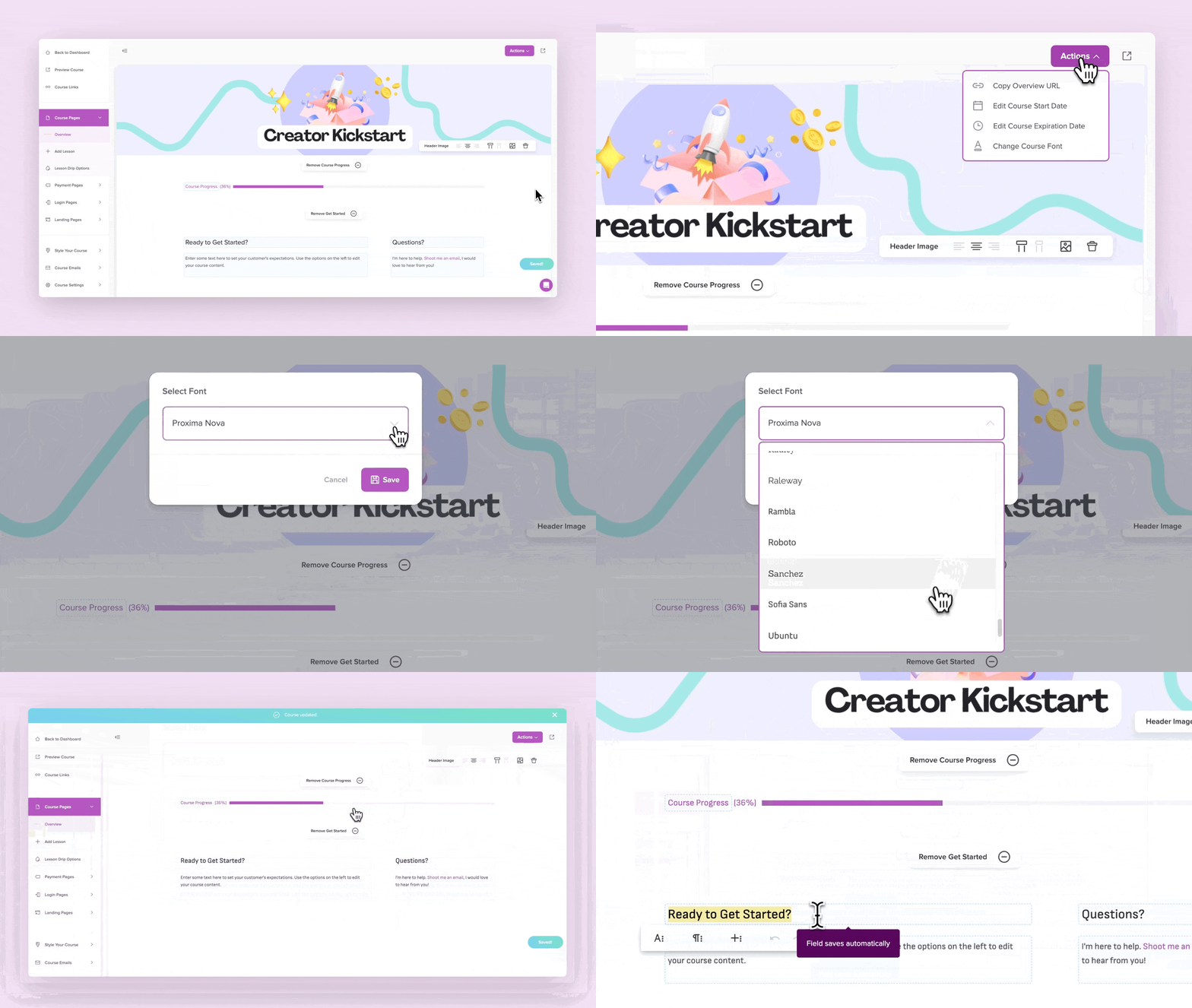
Select from our list of 50+ fonts, or click here to learn how to upload your own custom fonts.
Now let's update your course colors!
In the left sidebar, click on Style Your Course and you'll find our Style Editor where you can update every color of your course.
Our Style Editor is broken up into different sections, giving you maximum customization.

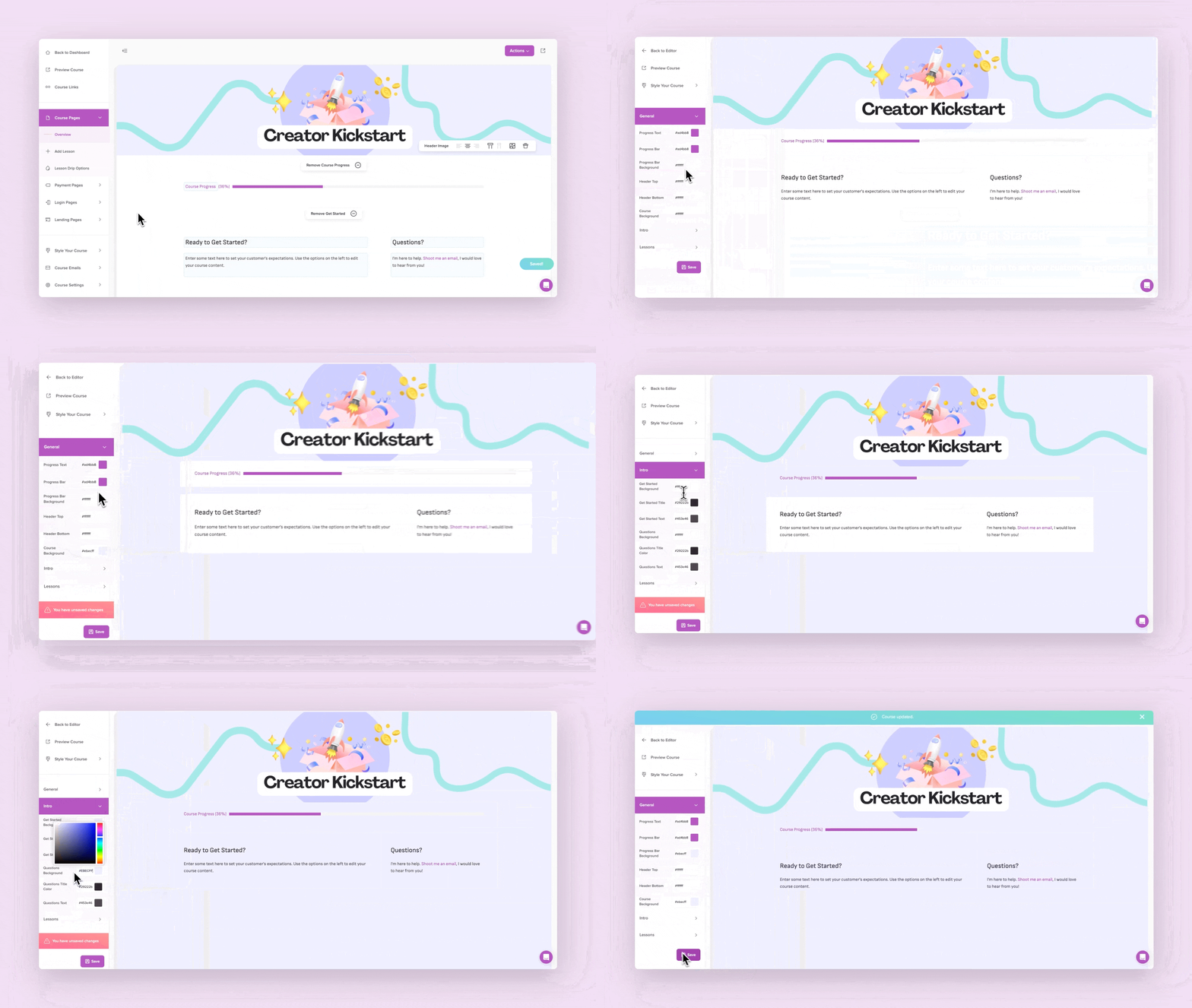
Look at you! You have a fully styled course, ready to sell to your customers!
First step, we need to make sure you've connected your Stripe account. If you haven't done that yet, go to your Account > Integrations area and scroll down to connect a Stripe account.
Now, let's create a simple Payment Page. From the Payment Pages section of the left sidebar, click + Add Payment Page.
Your course can have as many Payment Pages as you want! On these pages you can set:
💰 The price
💳 Whether it's fixed (ex: $20) or recurring (ex: $12/month)
💱 The currency
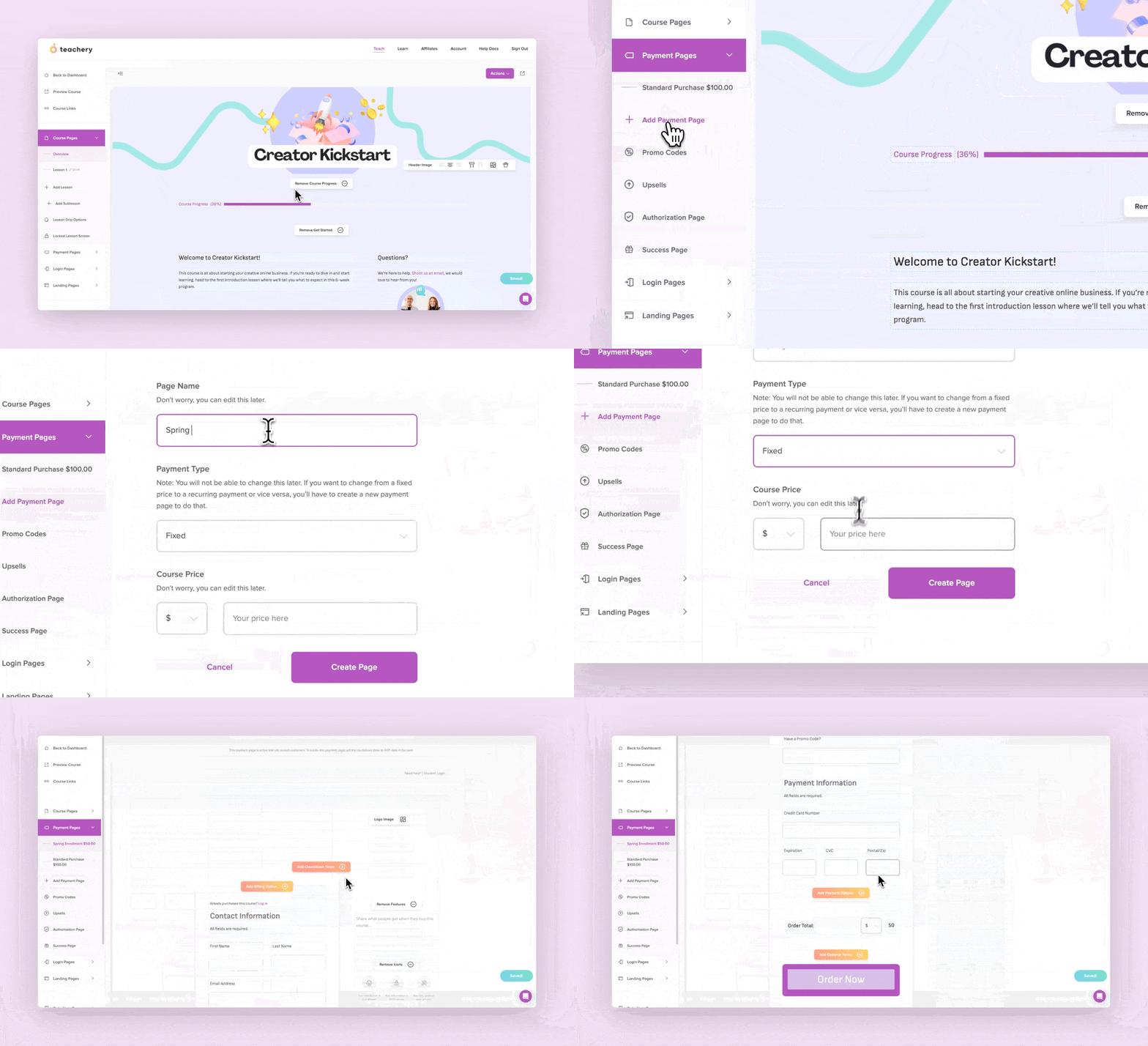
Once your Payment Page is created, you can add images, text, and style your Payment Page to match your branding.
You can also control what blocks are displayed like a countdown timer, gifting option, promo codes, and additional payment plans.
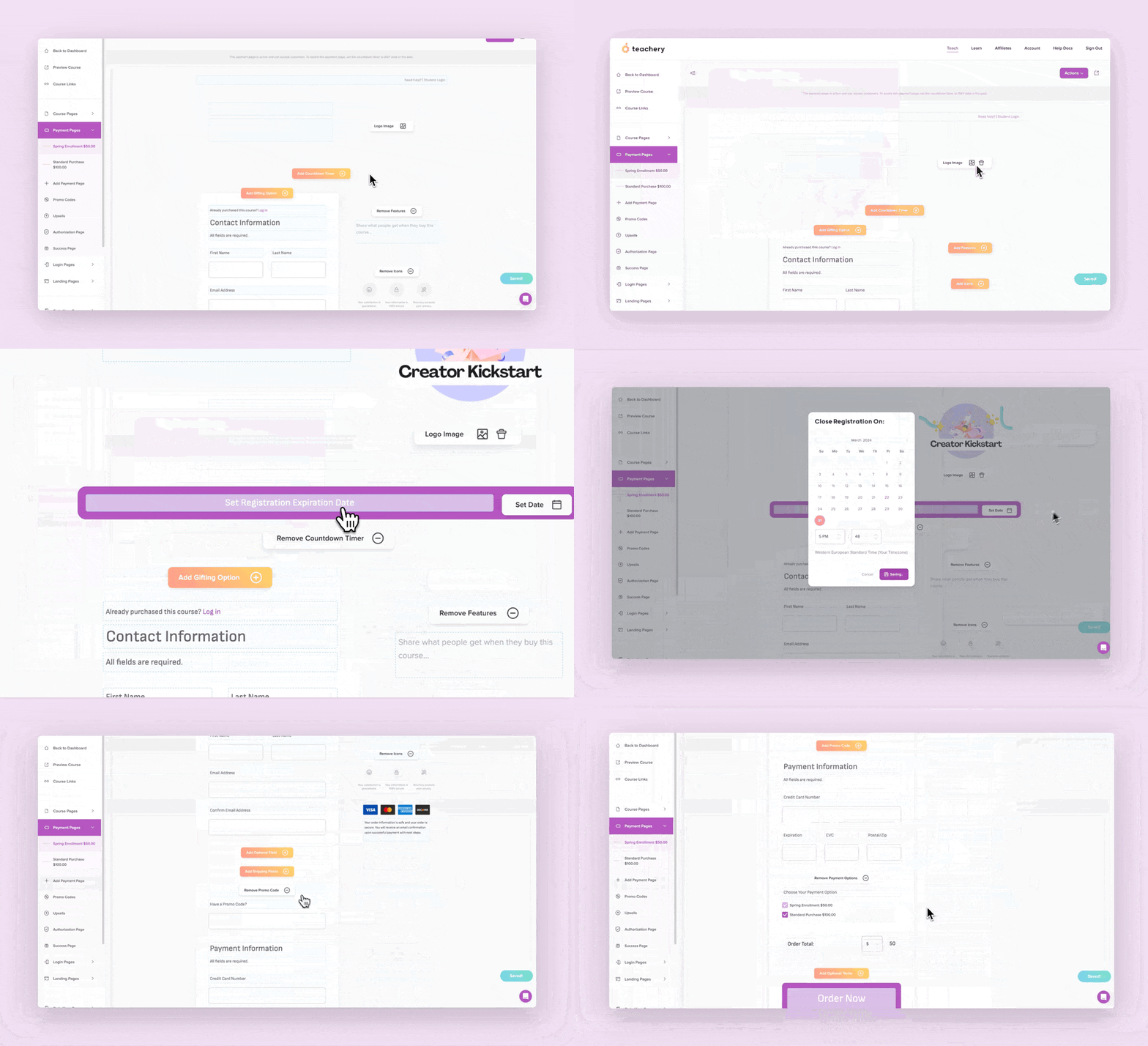
Once you're done customizing your Payment Page, your course is ready to buy!
If you're looking for more advanced features like Upsells, Affiliates, Gifting Courses and Promo Codes, click the links to learn more.
By default, we send a new customer a welcome email that you can customize. This email includes their purchase information and a “smart” login and/or download link (depending on the course/product) which ensures a smoother onboarding. You can add your logo, change the email background and link color, and customize the text in this email.
Last step—once your course is ready, it's time to tell your audience all about it!
You have a few options:
1⃣ You can send people directly to your Payment Page to buy.
2⃣ You can create a Landing Page using Teachery and promote that.
3⃣ You can create a sales page with any page builder of your choice (Squarespace, Lead Pages, etc.) and link your buy buttons to your Teachery Payment Page.
4⃣ If you want to add a few beta testers, you can manually add customers too.
For a handy place to find your shareable links, check out the Course Links page in your sidebar!
💬 If, at this point, you hit any hurdles/doubts and can’t find the answers elsewhere in our help center, please use the support chat bubble* in the bottom right of your screen. Make sure to include course/product info, customer info, helpful screenshots, or anything else that may be relevant to your query.
* Support hours are 09:00 to 17:00 GMT.
