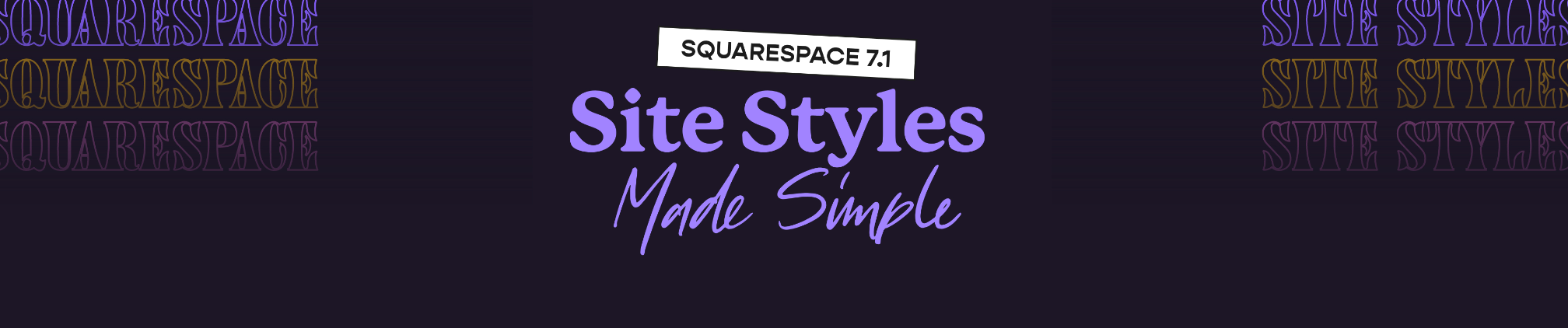
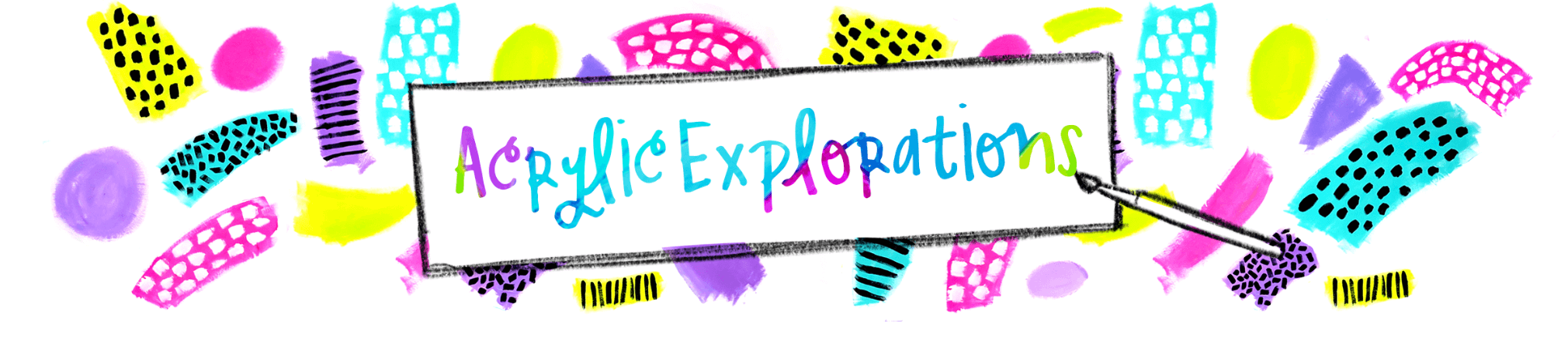
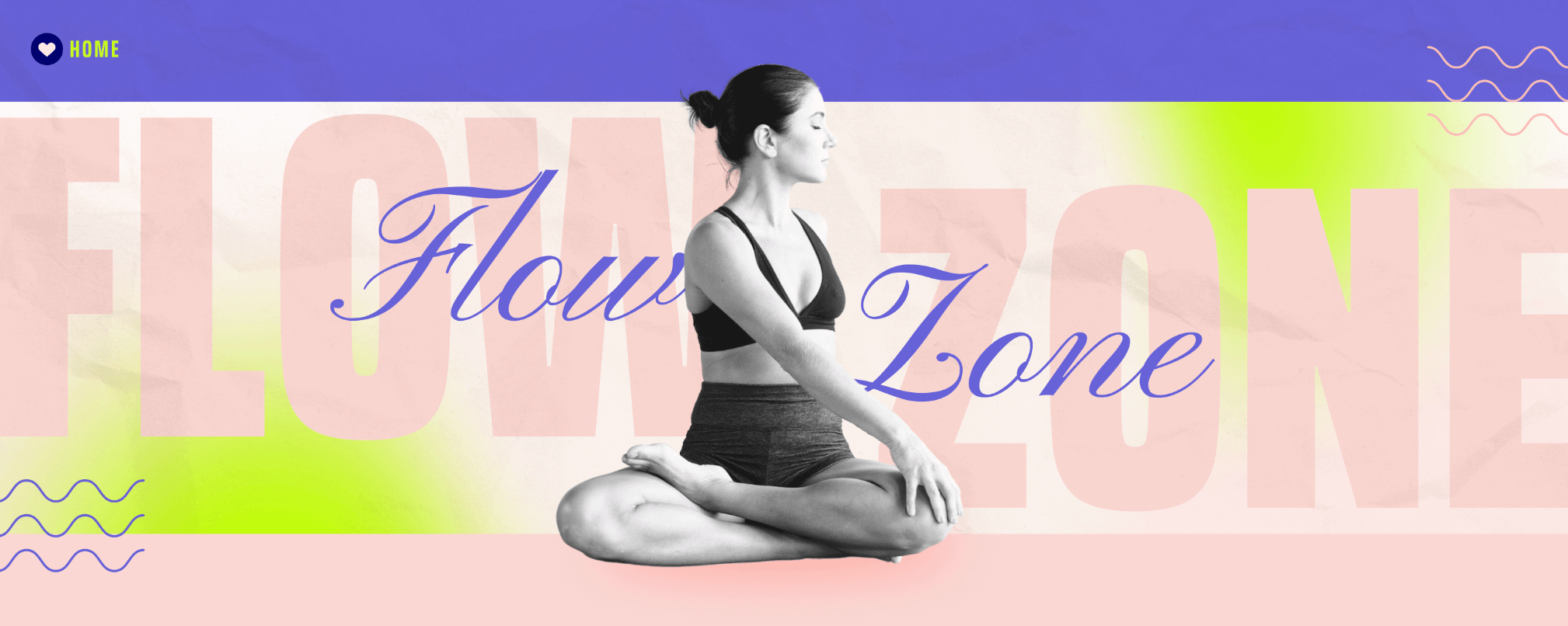
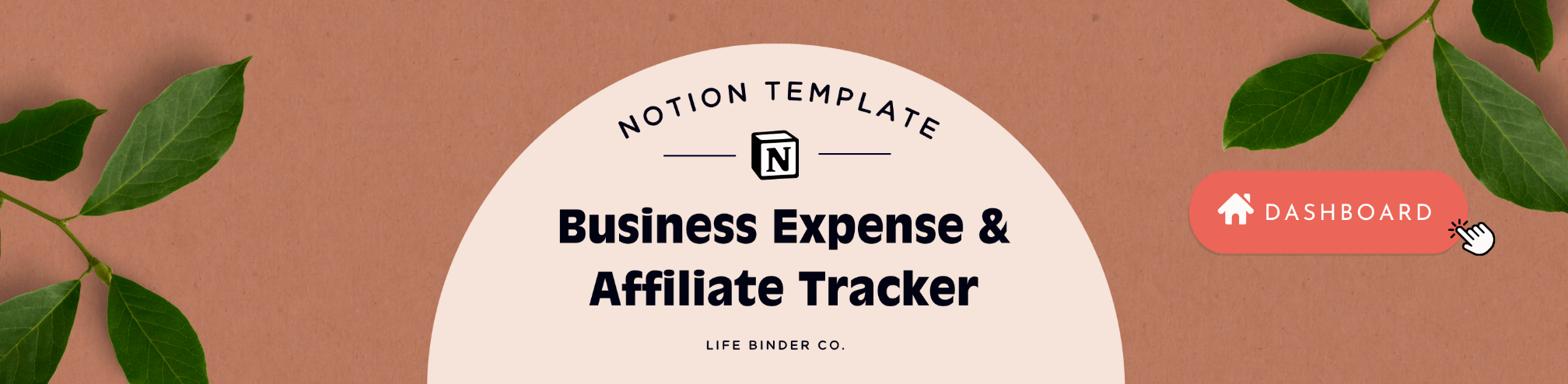
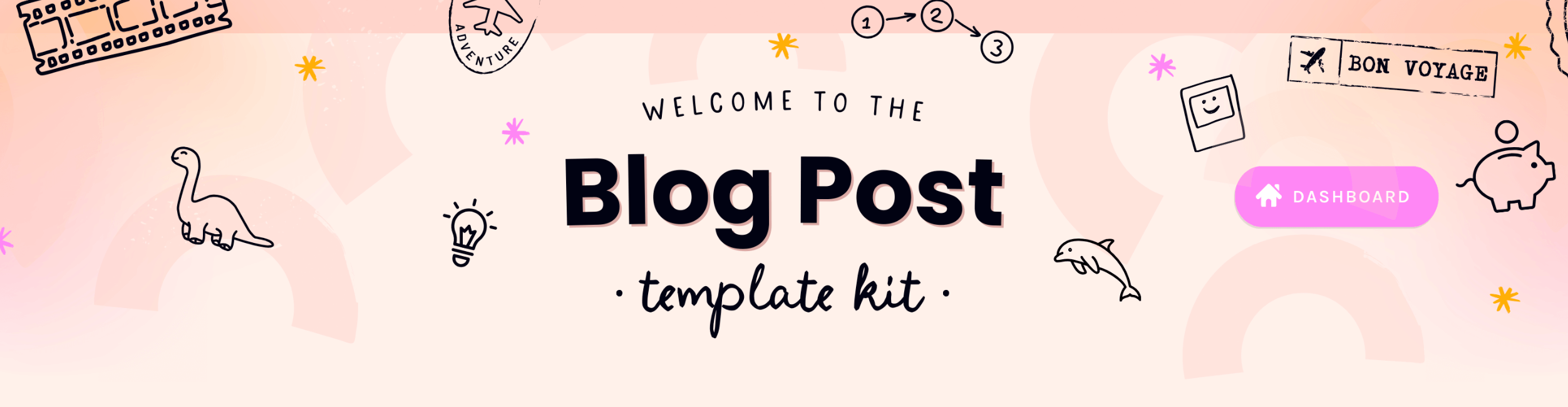
As you'll see in the example header images below, your creativity can run wild and create a lovely branded experience for your course!


The header image also serves as a way for a customer to return to the Overview page from within any lesson simply by clicking it. You'll see in the examples below with fake "Home" or "Dashboard" buttons, it helps create a branded “back to Overview page” experience.
The course header image you add to your course’s Overview page has a lot of visual real estate. Because of that, it's not the best image to use on the Course Card (what you see on your dashboard of courses in your Teach page - pictured below - and what customers will see on their Learn page) and it's not always the best for social sharing applications like Facebook, Twitter, LinkedIn, etc. Learn more about preview images here.
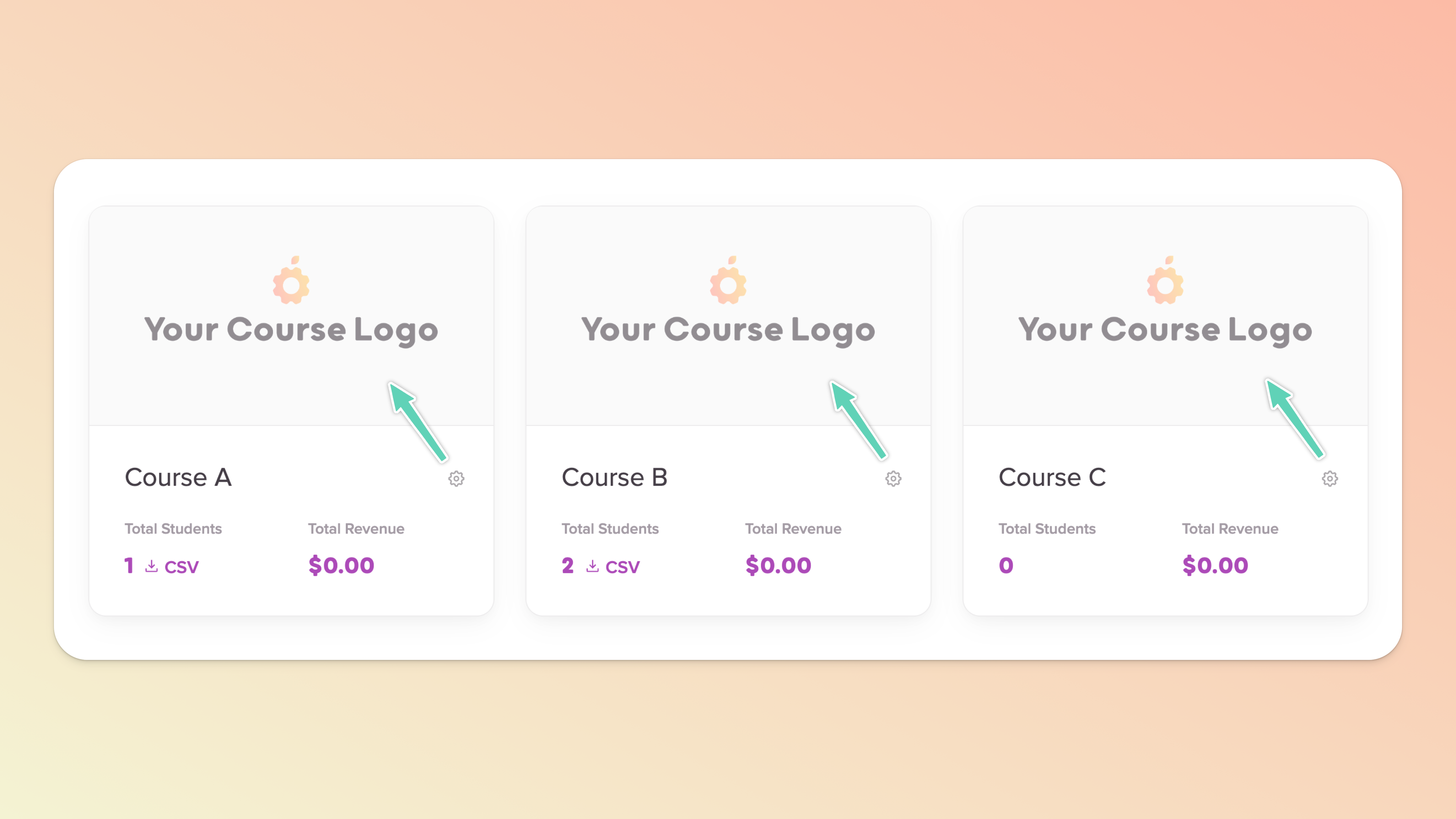
Admittedly, our header image feature is best suited for a nice, wide image that creates an immersive experience for your course customer.
But, if you want to add a logo only, you absolutely can do that and you can set the alignment to left, centered (our recommendation), or right.
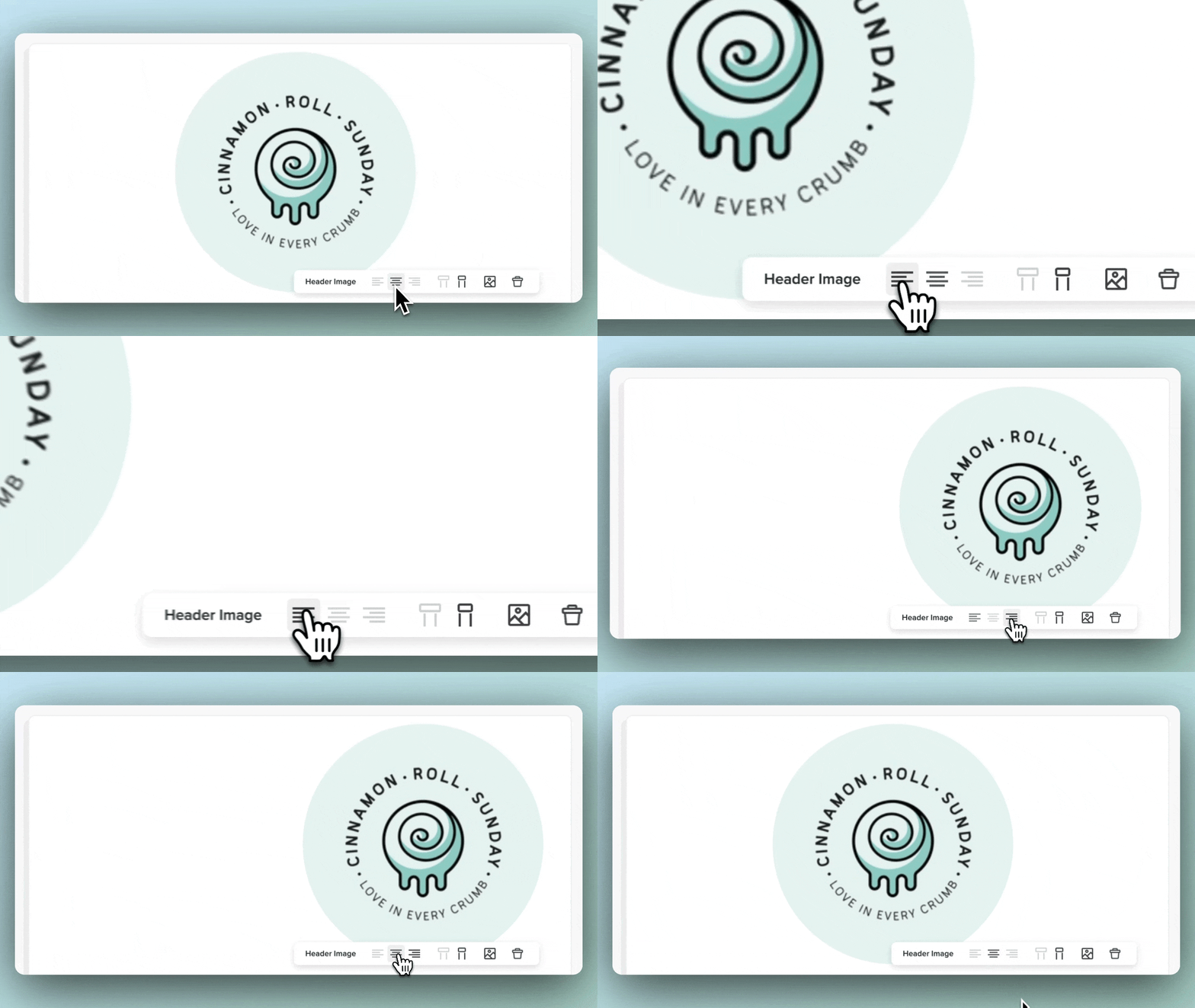
If you are only using a logo, we would still recommend creating it within a wide aspect ratio image (2400px wide by 500px tall). This will ensure you can size the logo perfectly to your liking AND control the height of the logo.
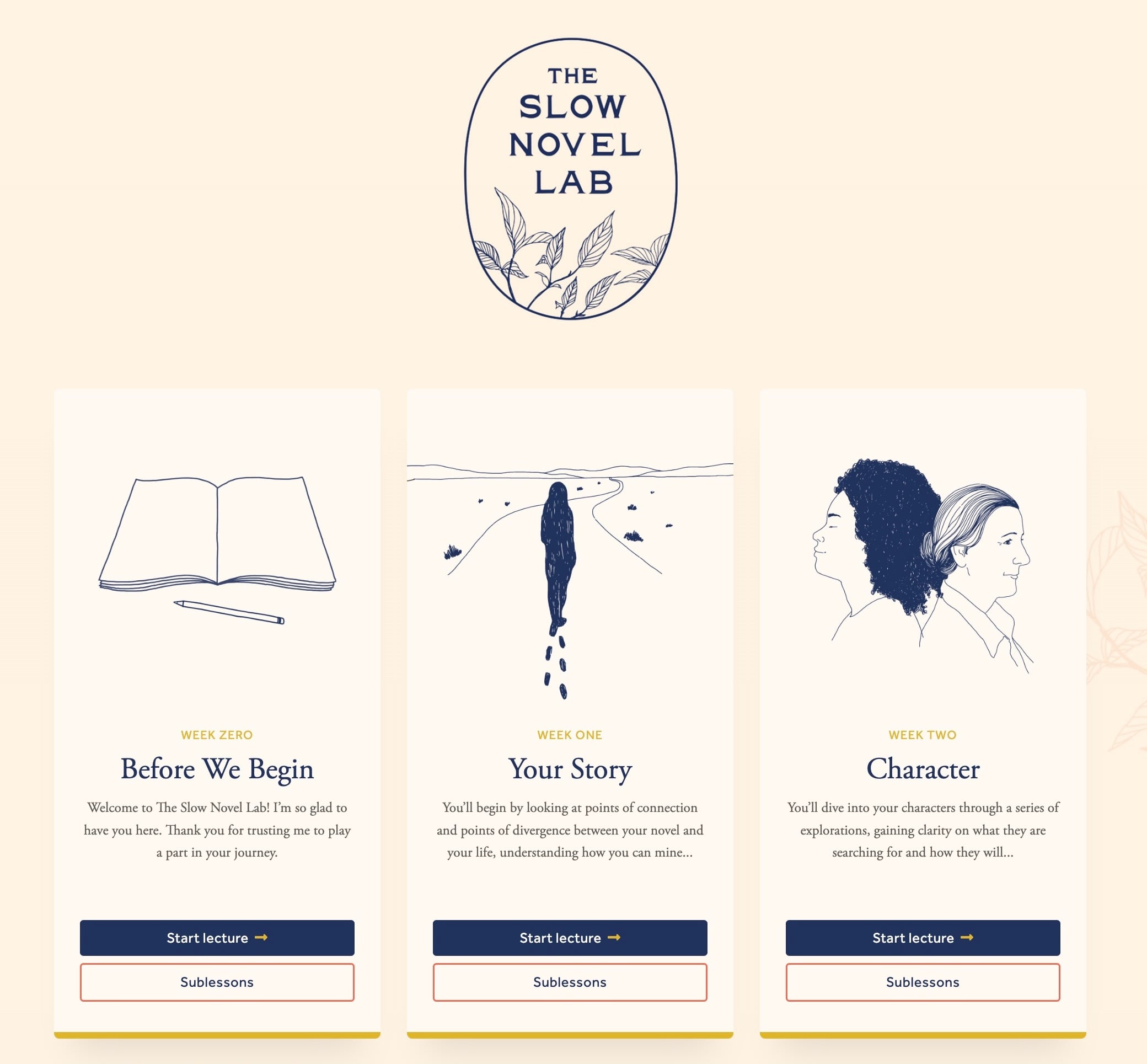
Here's an example from a Teachery user who has their logo placed within a wide image (you can't even tell, but it makes sizing the logo much easer):
There are two different width options you can choose for a header image:
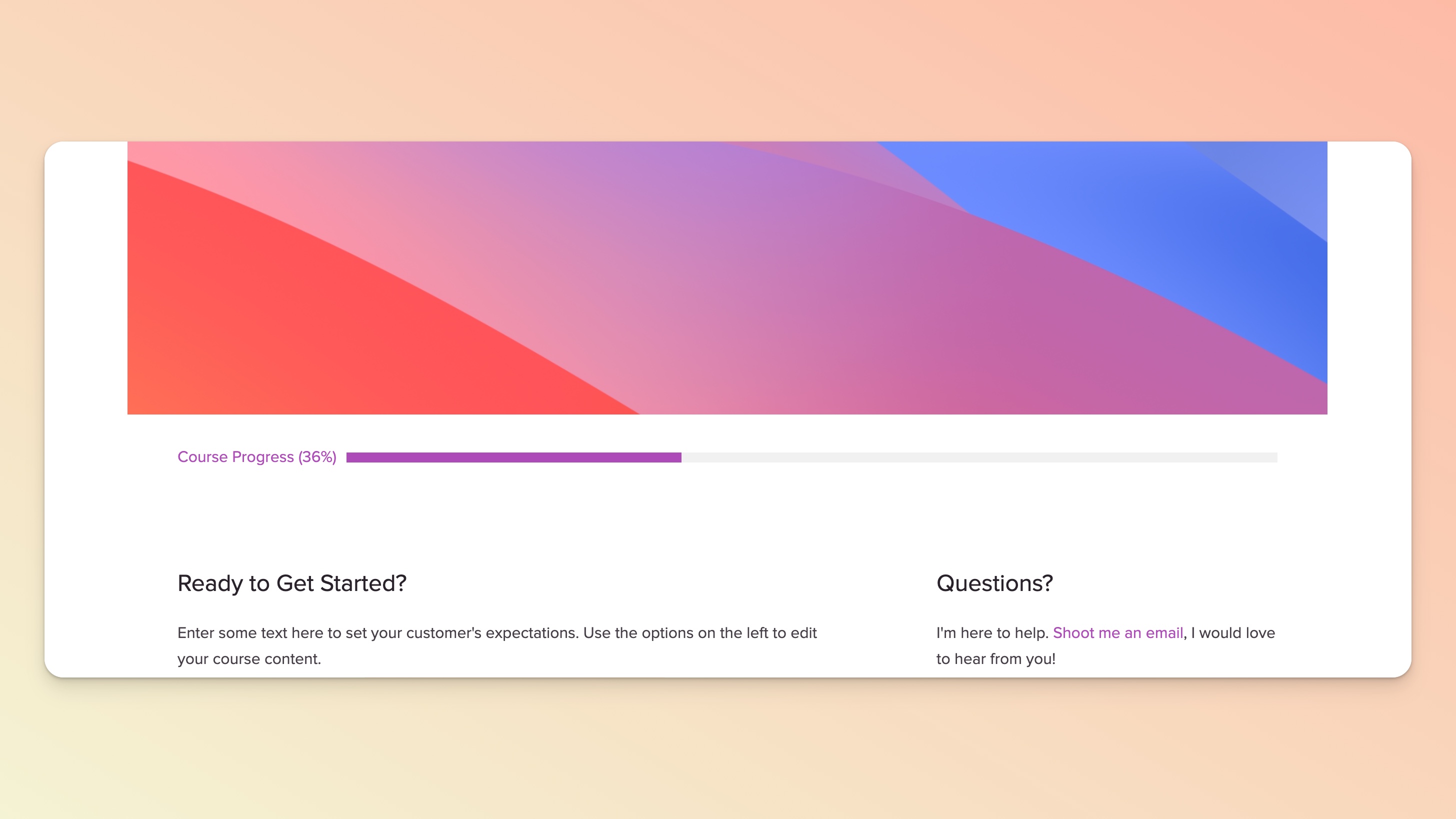
Container - This setting goes to edge to edge with your course page.
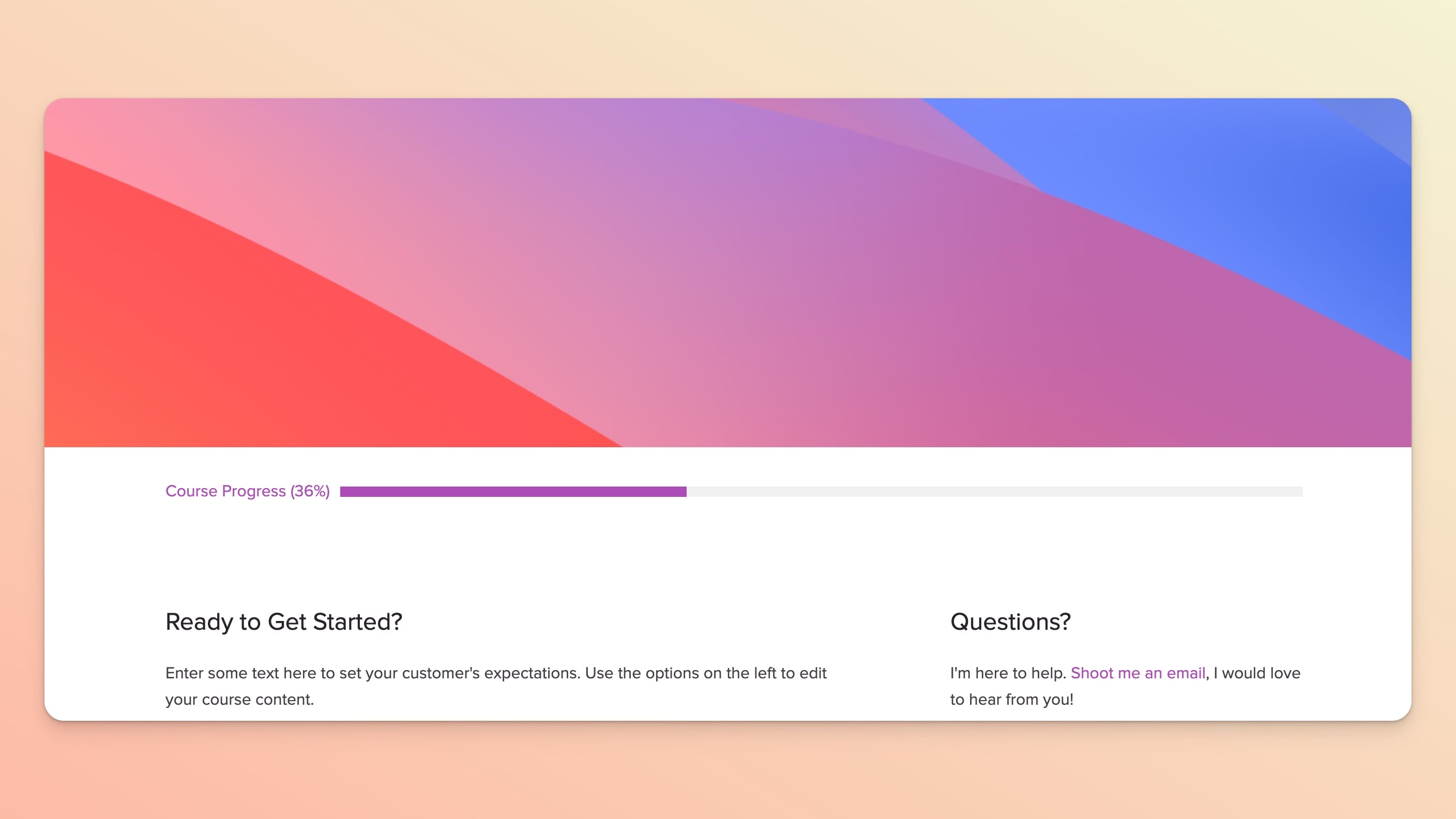
Full-Width - This setting will fill 100% of the browser window.
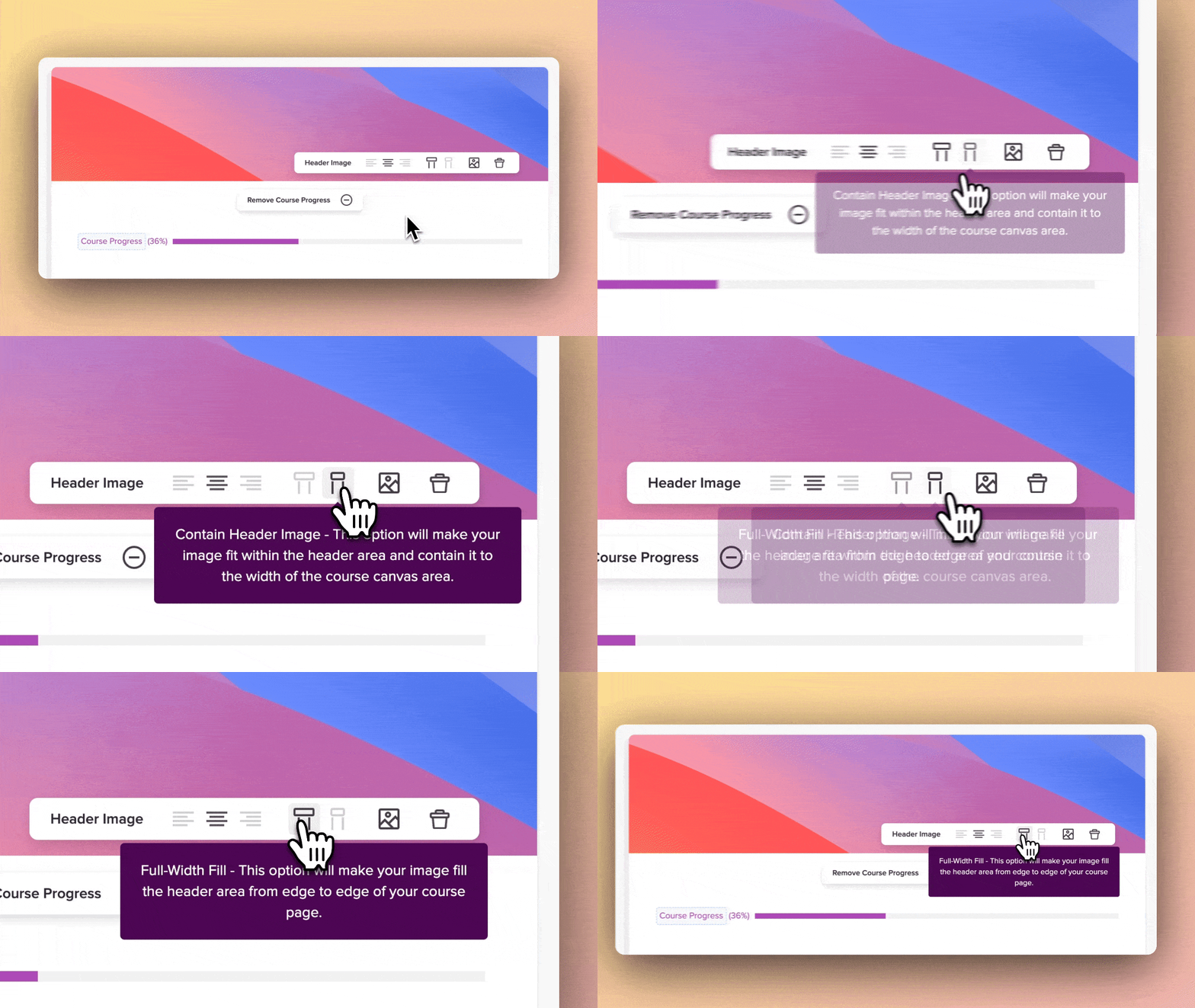
Here's the Container version (note the white space to the left and right of the image):
Here's the Full-Width version:
We wanted to share a handful of examples to show you just how imaginative and awesome your header images can look in your course(s).
The examples below can be created in your design tool of choice (Canva, Photoshop, Affinity, etc).





As mentioned earlier in this article, when you customer clicks the header image while viewing any page within your course, they will be taken back to the Overview page.
Many users have designed fake buttons that say "Back to Overview" or "Dashboard" or "Home" in their header images. We think this is very smart and fun!
Hope these inspire your next design...





This one is easy! Just click that trash can icon and you can choose to upload a new header image or you can delete it completely and NO image will be shown on your course at all.
