If you aren't familiar, an "Upsell" is a way to create an add-on purchase opportunity during the checkout process for your customer.
We have three separate help docs related to Upsells:
Introduction to Upsells (and step-by-step for a simple Upsell)
Selling something outside of Teachery as an Upsell (like a 1-on-1 coaching call)
Upsells + Affiliates (how to enable Upsells for your Course Affiliates)
In this help doc, we'll cover how to create a bundle of courses using an Upsell. This could be especially useful for memberships.
For all you Teachery users that are looking to bundle a handful of courses together, this is the option for you! This is where our Upsell feature gets interesting! 🤩
You can sell multiple courses/products at a one-time (ex: $100) OR recurring price (ex: $10/month).
Hopefully, you read through our Introductions to Upsells and have clarity on how our Upsell feature works. Now, let's share an example bundling scenario where you have five courses you want to sell as a bundle.
Your Main Course: Ted Lasso's Biscuit Recipe Course
Course #2: Roy Kent Fanclub Course
Course #3: Keeley Jones' Branding & Marketing Bonanza Course
Course #4: Sam Obisanya's Guided Meditations
Course #5: How To Work Anywhere with Leslie Higgins
You want to take all FIVE of these courses and give someone access via ONE PURCHASE - We can make that magic 🪄 ✨ happen with just one Upsell!
Be sure to read our Introductions to Upsells doc so that you’re familiar with the steps of creating and using Upsells.
The quick bullet points to recap creating your Upsell are as follows:
In Your Main Course (ex: Ted Lasso's Biscuit Recipe Course) create a new Upsell
Name Your Upsell
Pick Your Course(s) - In our example, you'd add four courses
Set Upsell Price - This is where you have two options (with examples):
🅰 You can charge $X for your Main Course (ex: $250) + $100 for your Upsell
🅱 You can charge $X for your Main Course (ex: $350) + $0 for your Upsell
Either option works, the reason for the second option is especially useful if you want to charge a recurring payment for the entire bundle since an Upsell cannot be sold as a recurring price itself.
So.... is it A or B? There's no right answer here, you have two choices! Let's go over both!
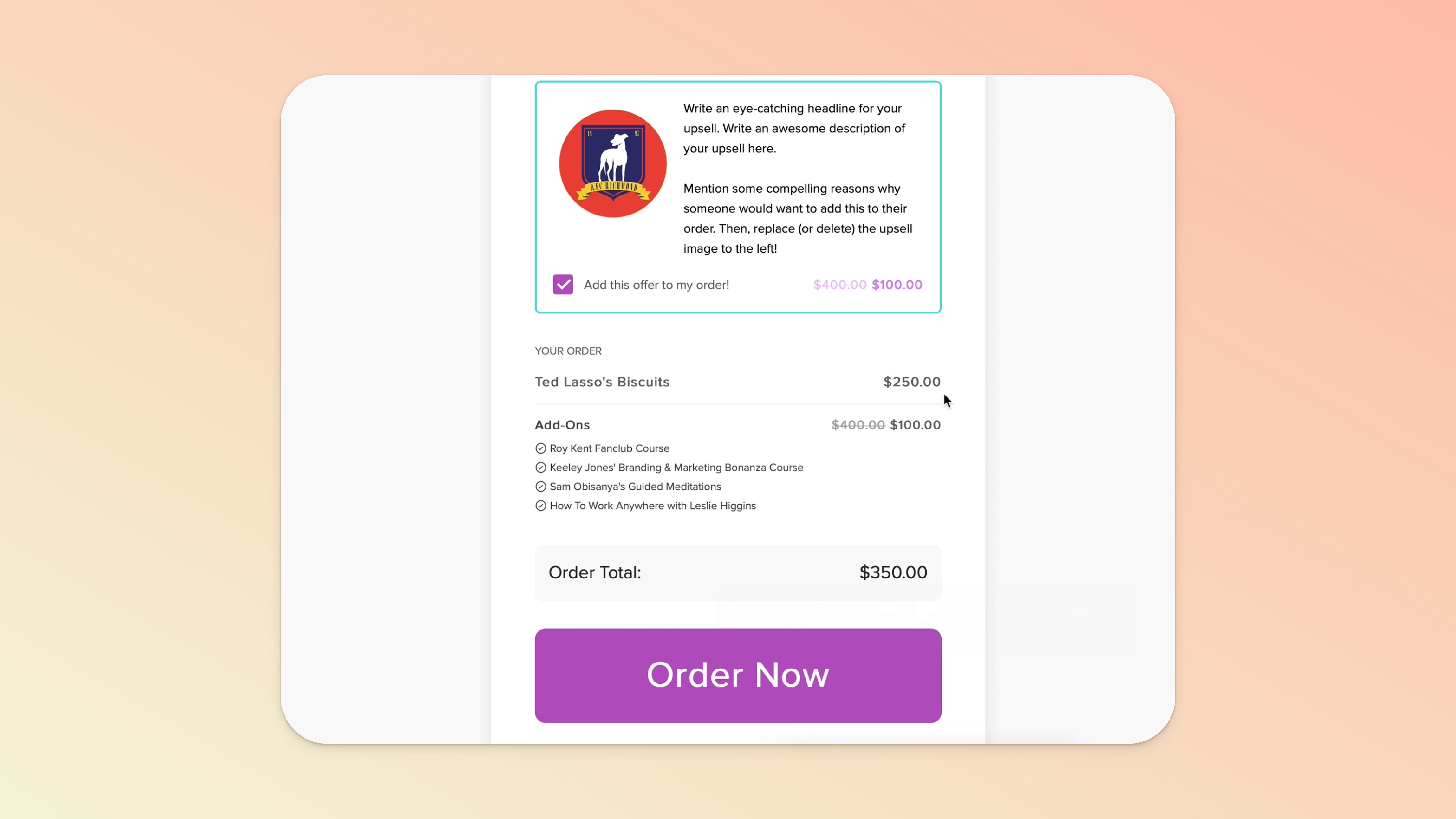
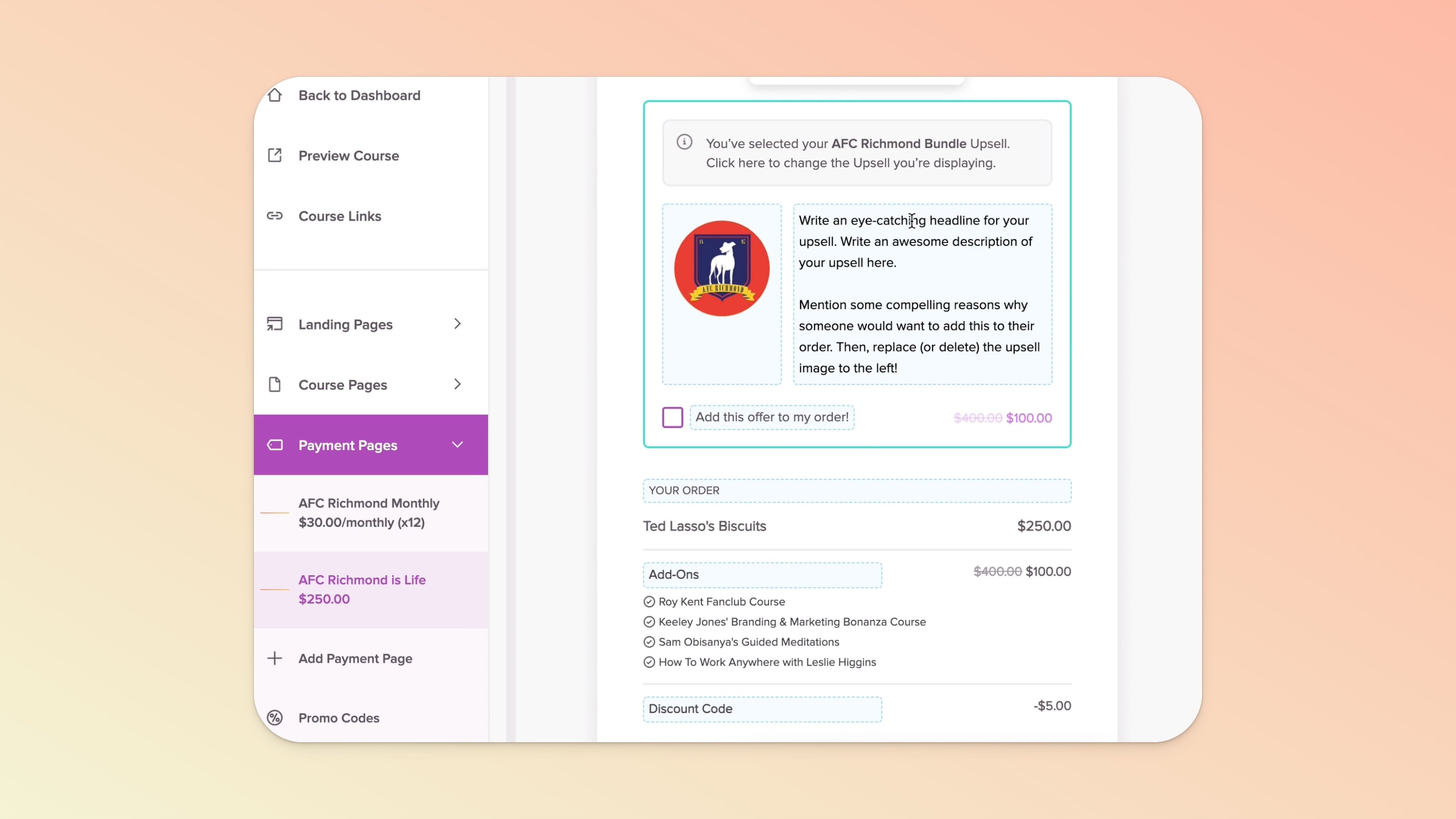
For this first choice, you're going to use the Upsell itself to price your bundle of courses. Here's our example:
You have a $250 payment page for your Main Course
You have a $400 Upsell Bundle (discounted to $100) of 4 additional courses
The TOTAL amount of revenue you're trying to generate with this bundle of 5 courses is $350
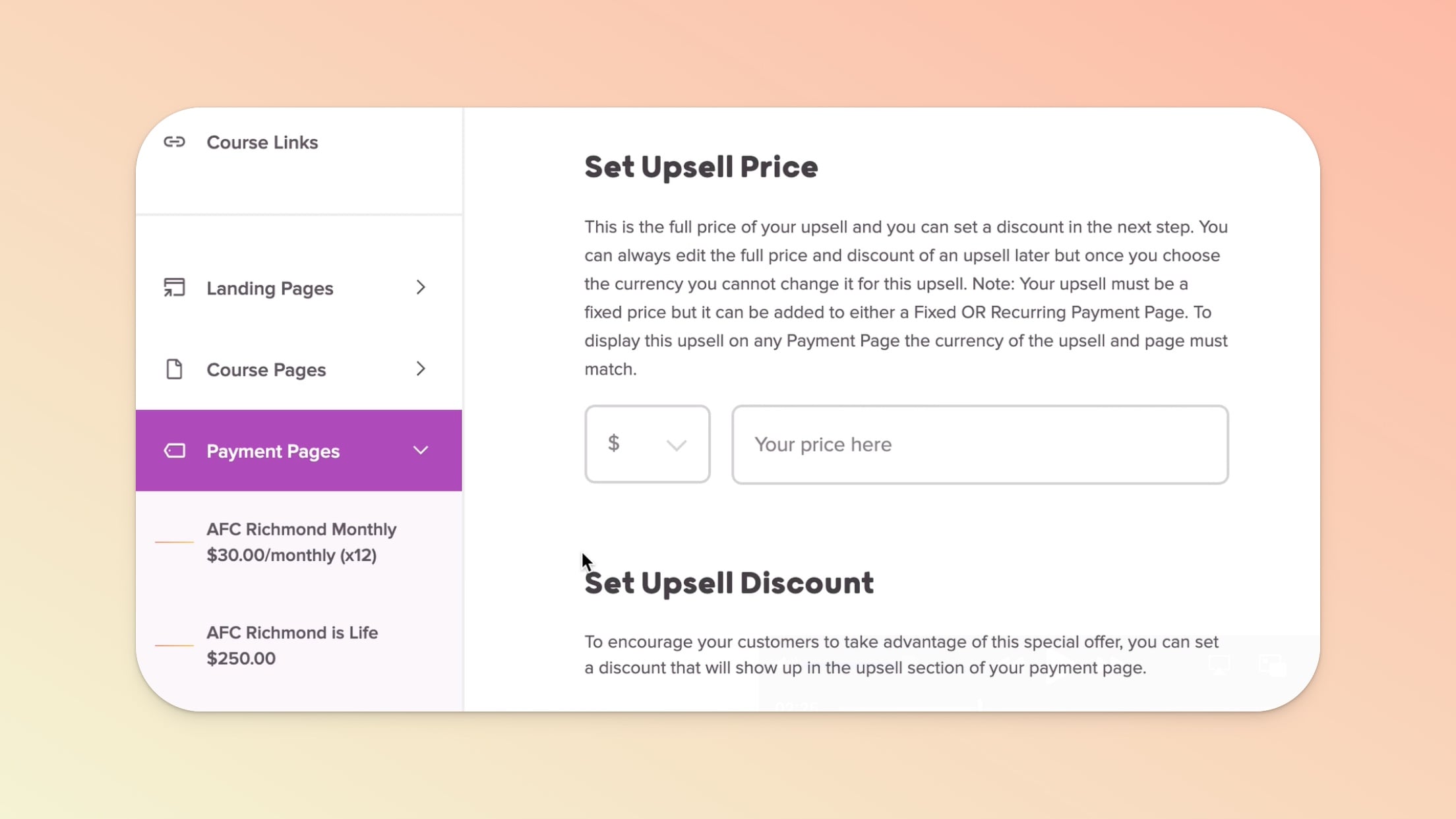
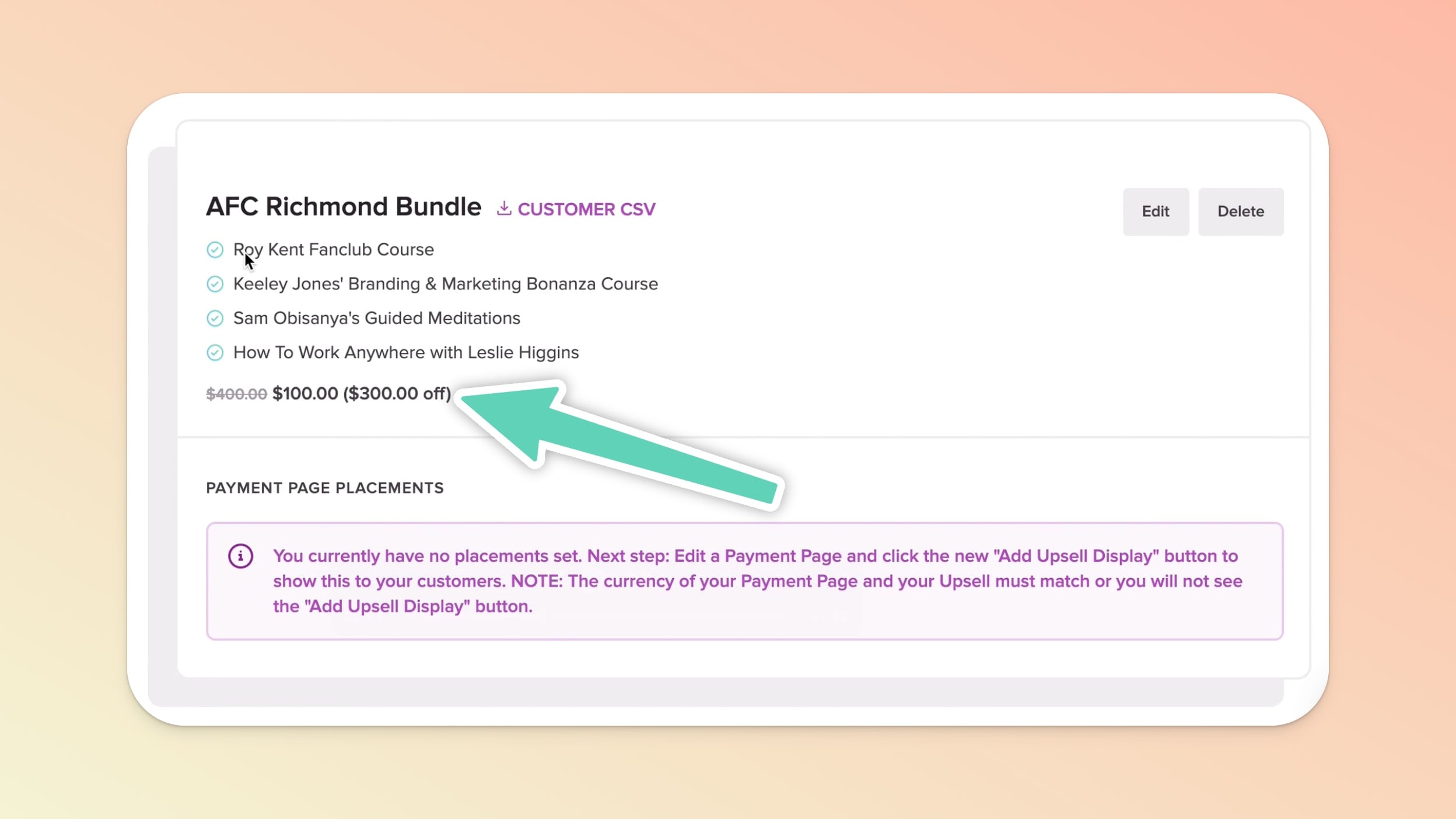
All you would have to do is set your Upsell Price to $400 and Upsell Discount to $300 OFF.
After you set the price and click the "Create Upsell" button, you'll have this Upsell ready to go:

If the $250 payment page hasn't been created yet in your Main Course, go ahead and do that. If the payment page has been created, you're one step ahead.
Either way, once you have your $250 payment page you can edit it and scroll down to find the "Add Upsell Display" button, and add your Upsell Bundle:
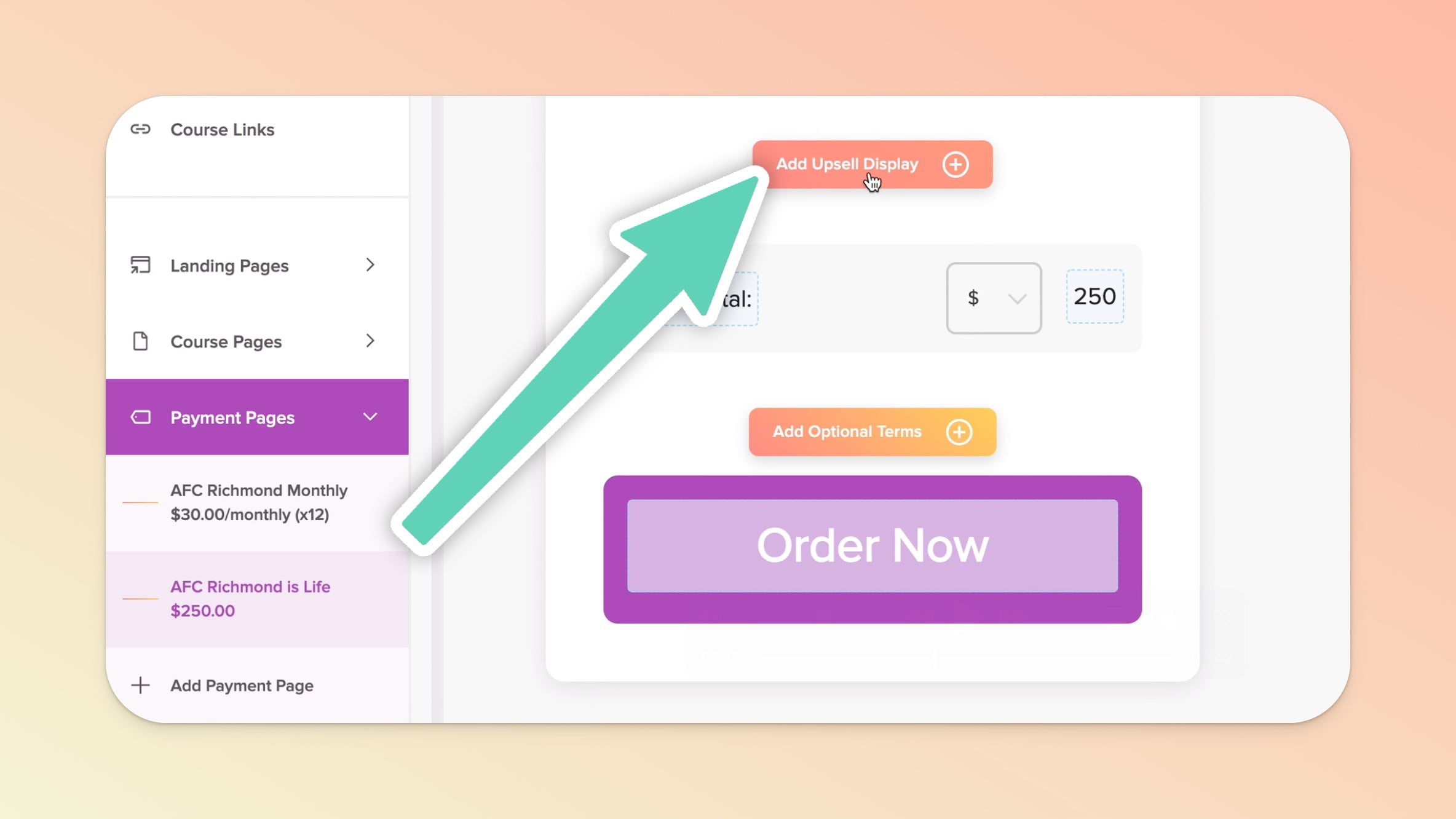
Don't forget to customize your Upsell Display with an image and some helpful text to show how amazing your bundle offer is.
Once that's done, you are ready to promote the payment page and your Upsell Bundle of 5 total courses! 🎉
This option is especially useful for recurring payment bundles!

For this second option, you're going to use the payment page itself to price your bundle of courses and your Upsell Price will be set to $0.
Here's our recurring payment example:
You have a $30/month (x12 months) recurring payment page for your course
You have a $0 Upsell Bundle of 4 additional courses
The TOTAL amount of revenue you're trying to generate with this bundle of 5 courses is $360 over 12 monthly payments
With this option, when you are creating your Upsell Bundle, you will set the Upsell Price to $0 (and leave the Upsell Discount blank).
Once you hit "Create Upsell" your Upsell Bundle will be ready for placement:
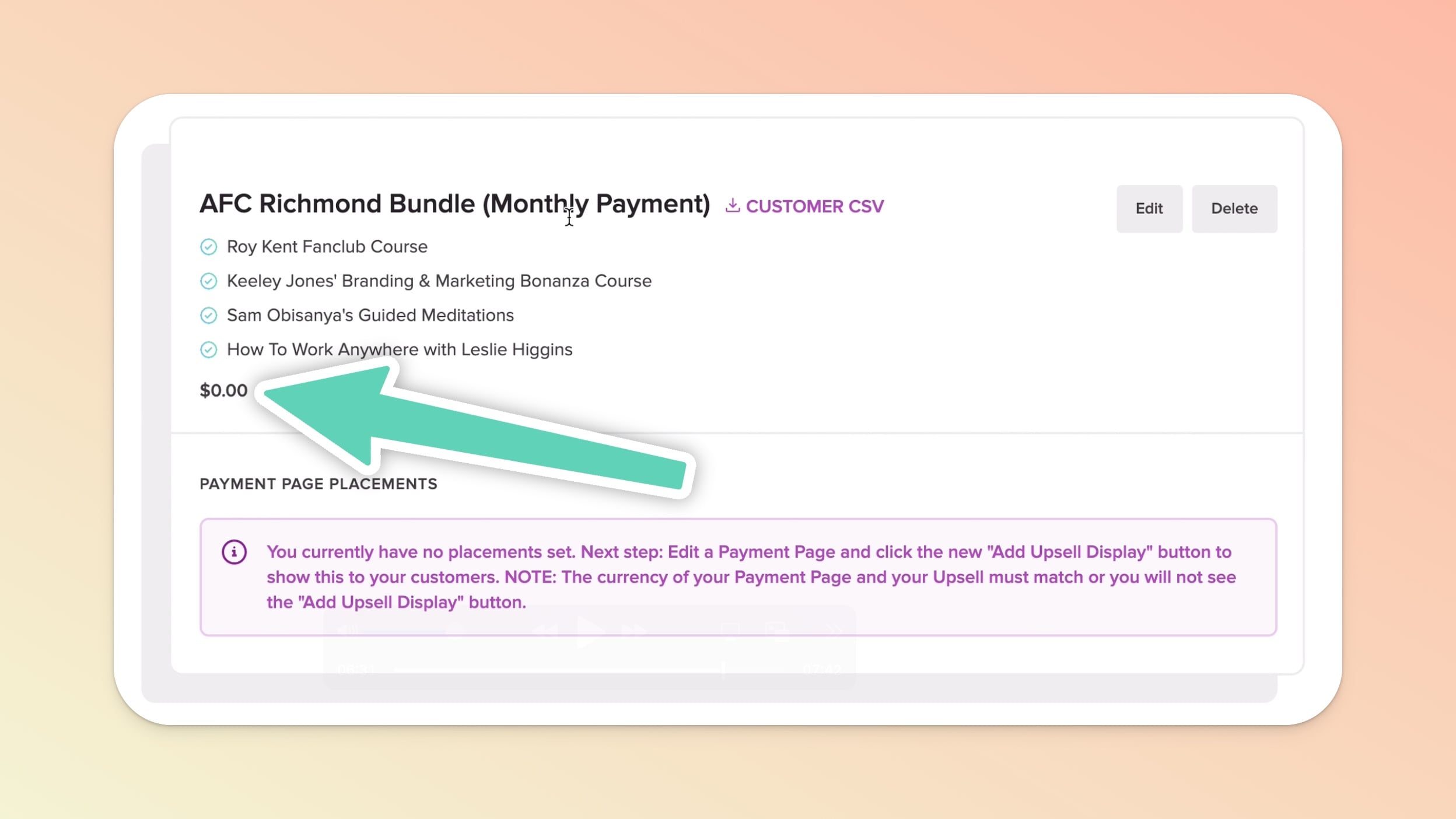
If this payment page hasn't been created yet, go ahead and do that in your Main Course.
If the payment page has been created: on your $30/month (x12 months) payment page scroll down and click the "Add Upsell Display" button and add your $0 Upsell Bundle.
Once added, you can Preview your payment page and this is what your Upsell section will look like:
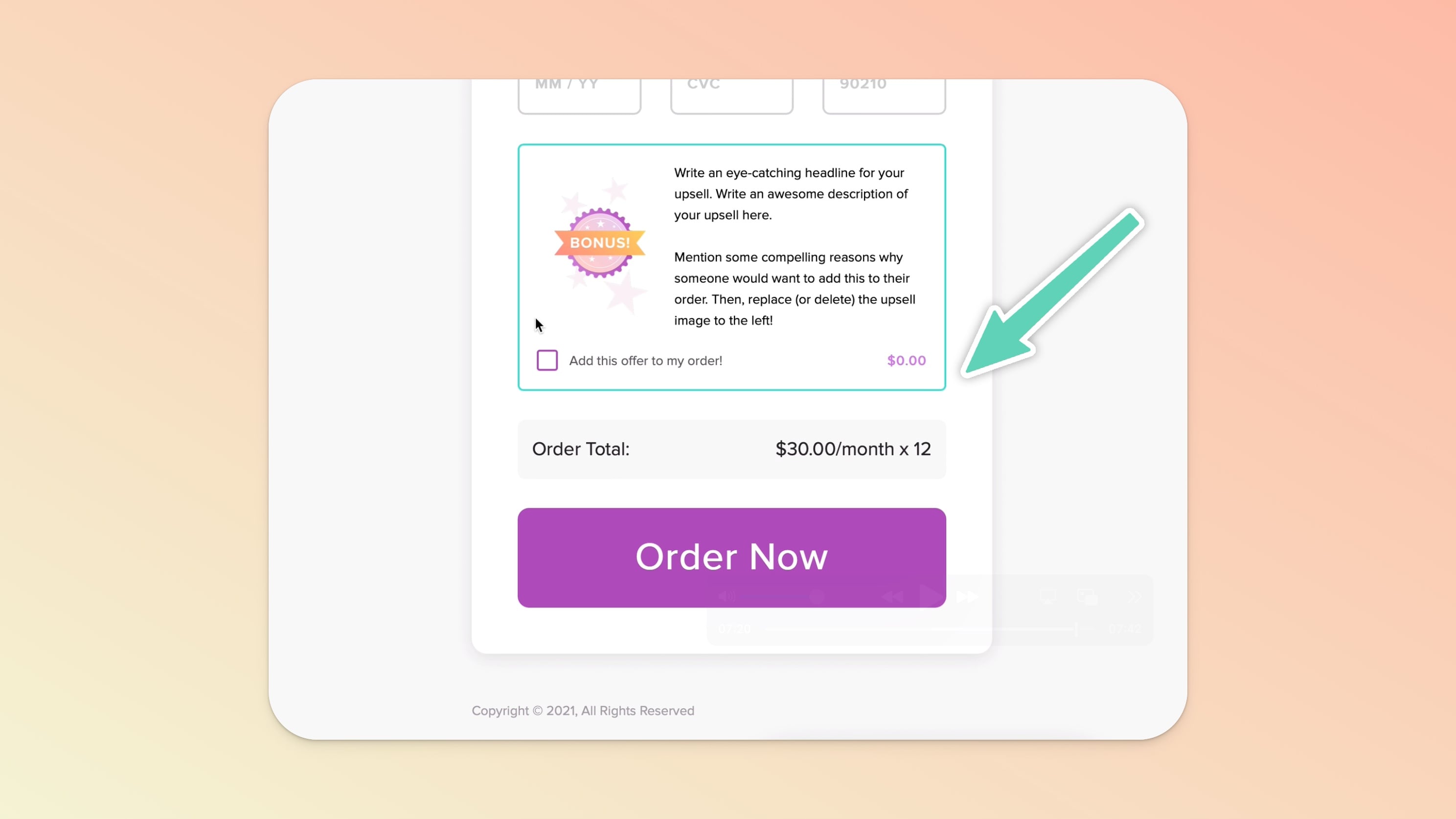
Grab the URL for your payment page, share it with your customers, and when a customer purchases (and checks the Upsell box!) they get your Upsell Bundle!
Once you have an Upsell created and placed on a payment page, you can pre-check the Upsell box by appending a small bit of text onto the payment page URL:
While editing your payment page (that has an Upsell placed on it), click the Actions menu (purple button) in the top right.
In the Actions menu, click Copy Page URL.
Paste your URL somewhere and now add ?upsell=true to the end of the URL (example: your-course.teachery.co/purchase?upsell=true)
Share that URL! That'll pre-check the Upsell box for your customer.
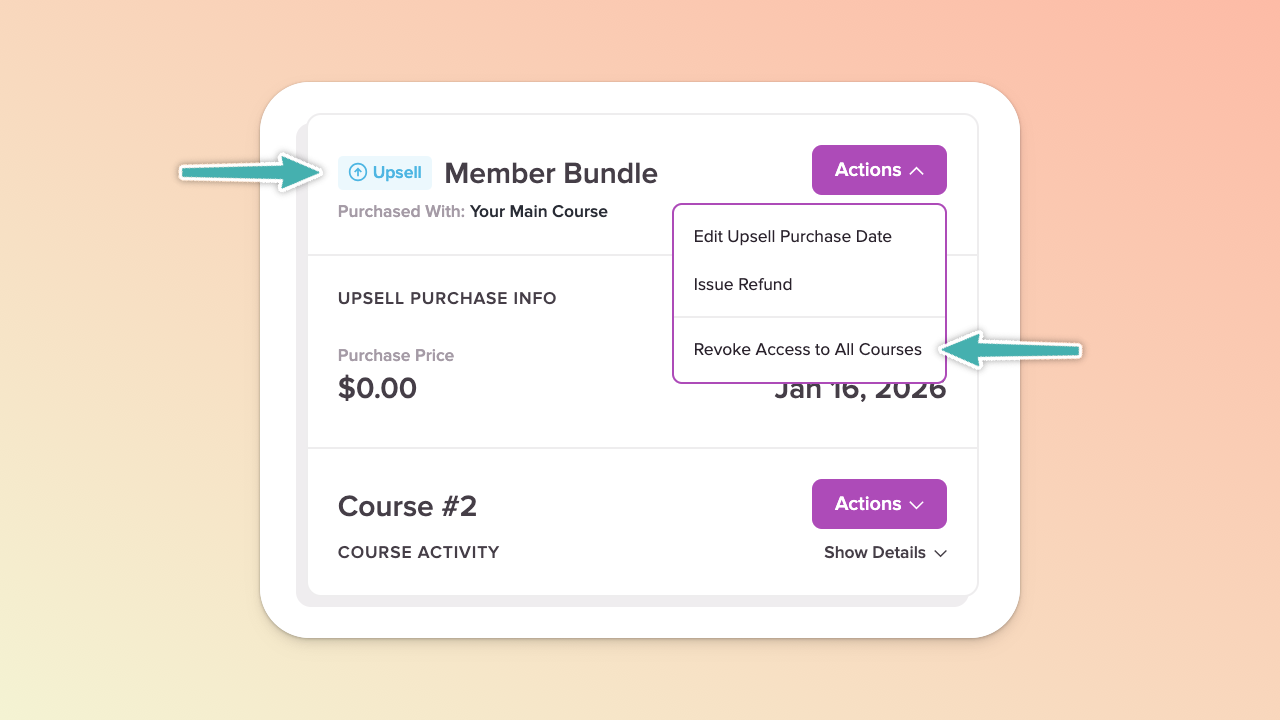
If ever you need to revoke a user’s access from all courses included within a bundle, including your main course, it’s a two-step process:
Find the user in your Customers page.
Open their profile and find the main course.
In the main course's Actions menu, click Revoke Access.
Still in the user’s profile, find the Upsell (the other courses in the bundle).
In the main course's Actions menu, click Revoke Access to All Courses.
💬 If, at this point, you hit any hurdles/doubts and can’t find the answers elsewhere in our help center, please use the support chat bubble* in the bottom right of your screen. Make sure to include course/product info, customer info, helpful screenshots, or anything else that may be relevant to your query.
* Support hours are 09:00 to 17:00 GMT.
