Another way to generate revenue with your online course/product is to offer the option of gifting. 🎁 It takes only a matter of minutes to turn this feature on and set it up.


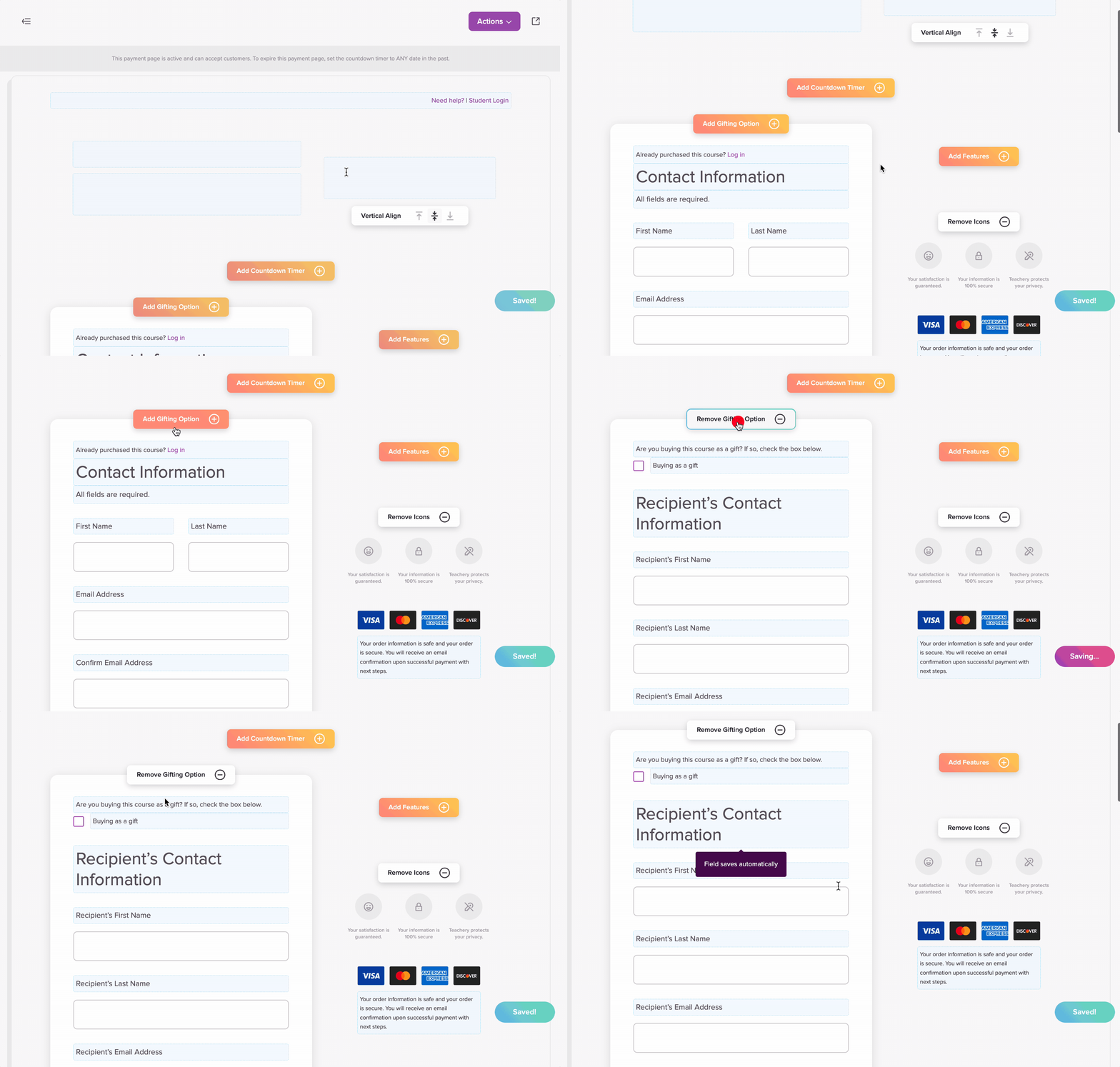
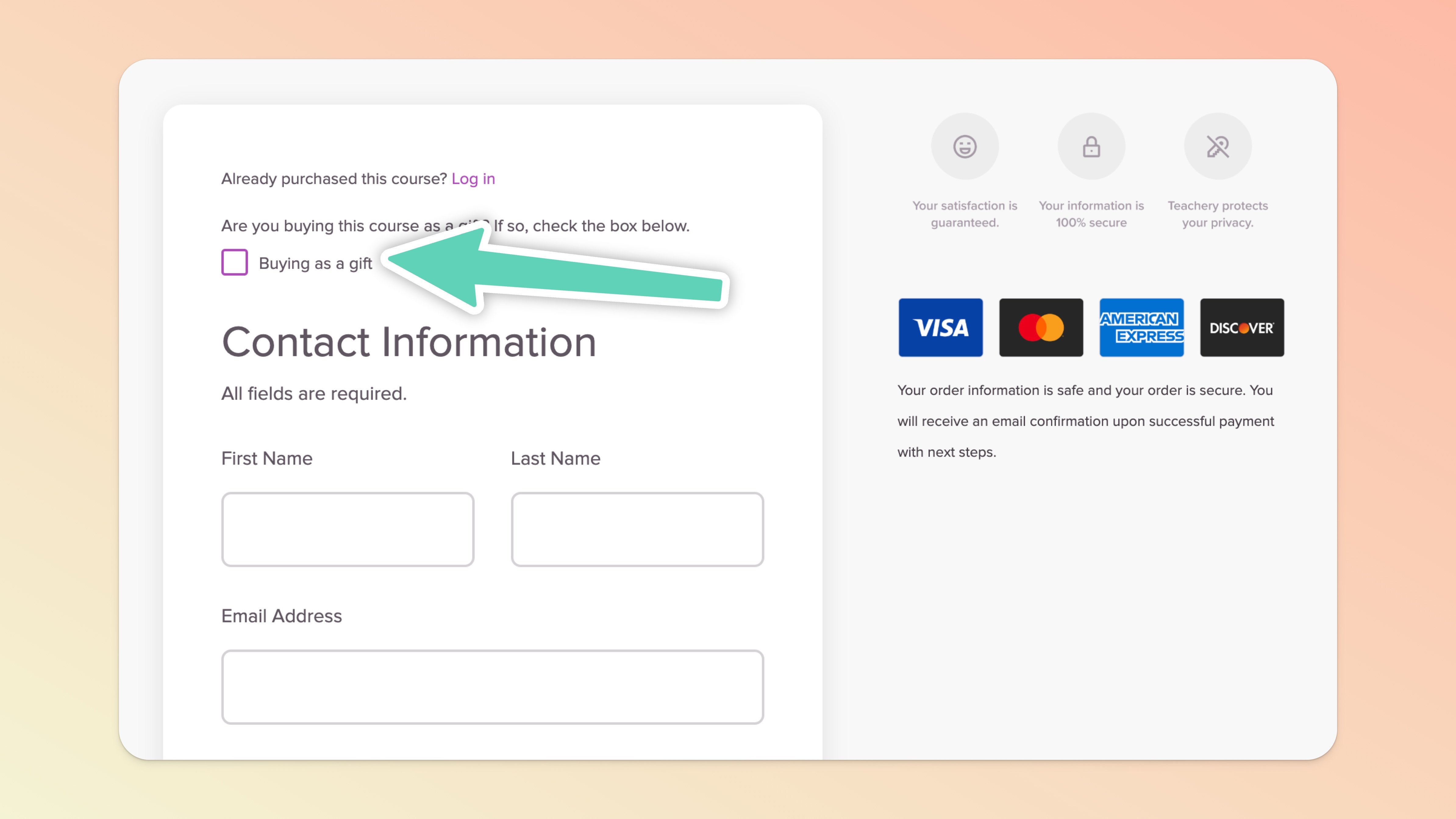
Toggle ON the "Add Gifting Option (+)" button and customize the course gifting text that goes along with the checkbox a customer will click.
If you need to include any specific terms and conditions, simply hyperlink that checkbox text to any page on your website or a document you want a gift purchaser to read before buying.
Note that any custom checkout fields added in the Checkout > Checkout Fields section of our new payment pages will not apply to gift purchases.
For the time being, here is a workaround for when you need customers to accept your terms and conditions during a gift purchase:
In the Product > Gifting section, you can include, for example, in the “Gifting option checkbox text” field, a hyperlink to your T&Cs. An example of what you can include in that field: “Yes, I'd like to buy this as a gift. By proceeding, I accept the <a href="#" target="_blank">Terms and Conditions</a>.” - where # should be replaced with the link to your T&Cs.
Once you've toggled ON the "Gifting Option" your customers will have a checkbox to click on your payment page. When they click that ☑ a new set of fields will immediately appear in the payment page.
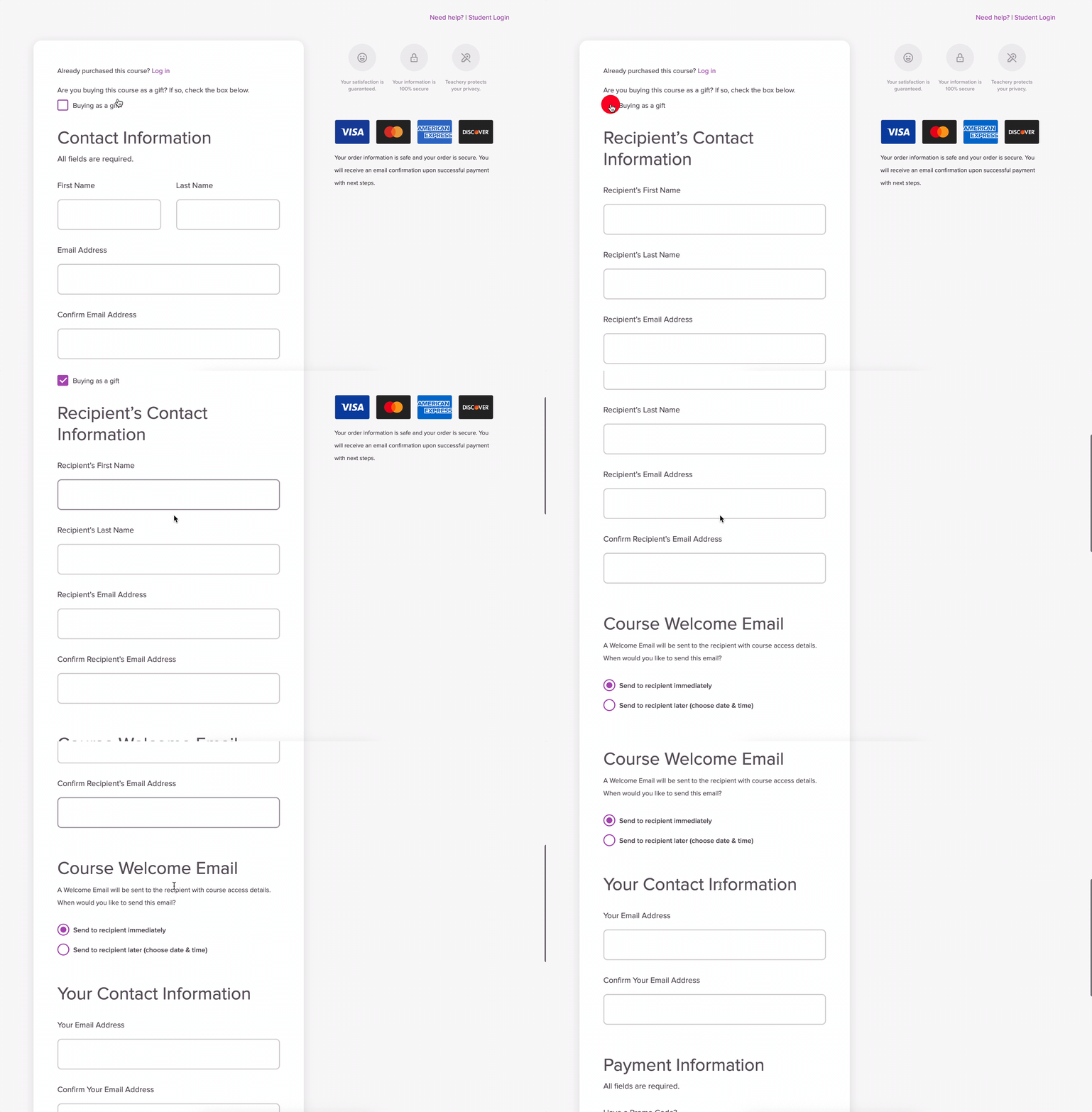
The new fields that appear are:
Recipient's First Name
Recipient's Last Name
Recipient's Email Address
Confirm Recipient's Email Address
Course Welcome Email (Send Now or Schedule Later)
Your gifting customer will fill out all the payment page fields, and purchase information, and will end up on a "Success!" page (a.k.a purchase confirmation screen).
Here's an example of what the default text looks like (the page will include your course header image above this text, if you have one). In the left sidebar of a course editor’s Payment Pages section, you'll find a "Success Page" where you can customize the text.
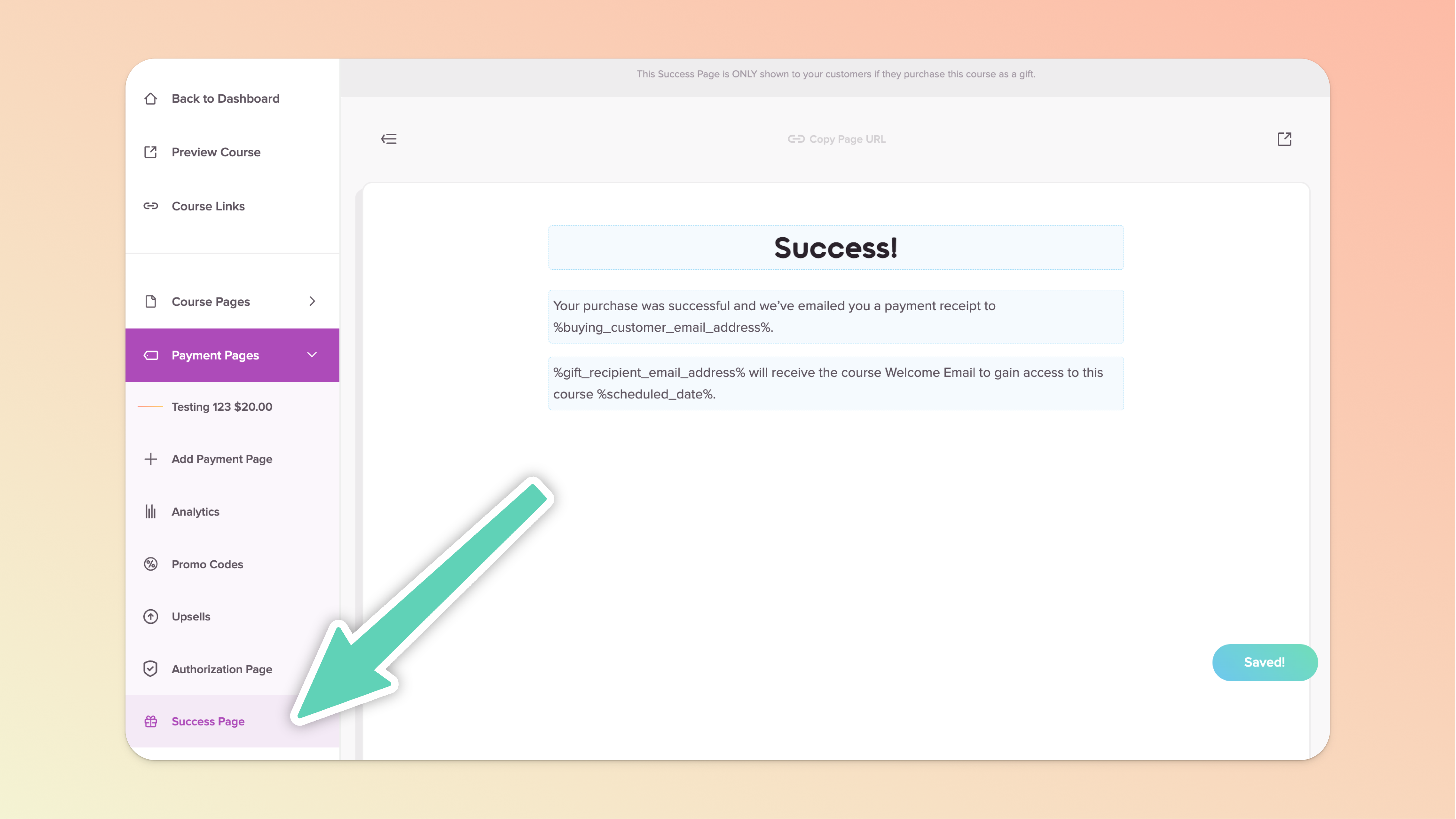
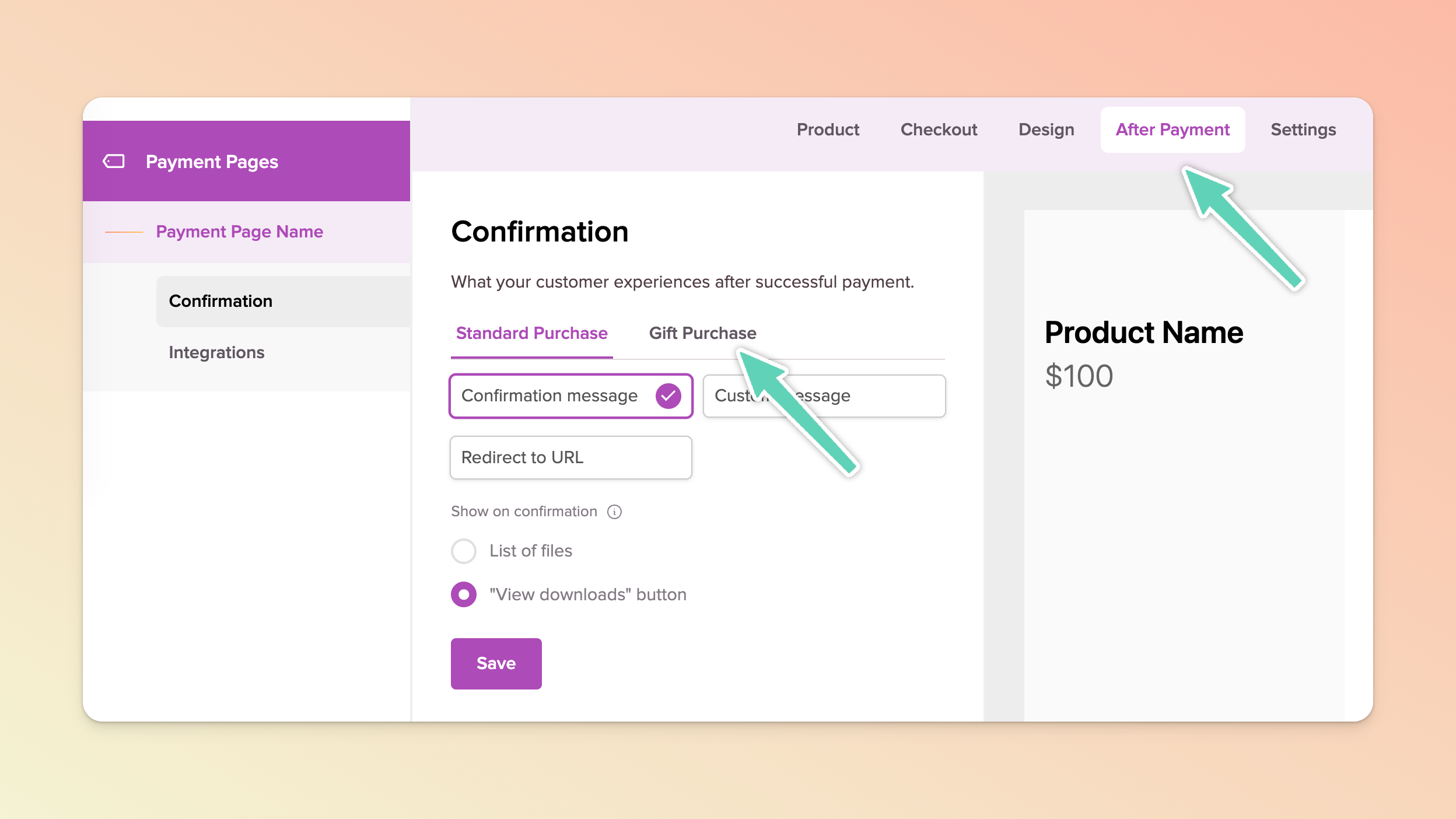
If you’re using our new Payment Page Builder or building a Product, the confirmation page/text is available in the Product > Gifting section of the payment page. Once enabled, note that if a customer makes a gift purchase, they will not see your standard purchase confirmation screen but a dedicated gift purchase confirmation screen (see screenshot below). Be sure to update both when setting up your payment page.
A purchase confirmation (with Teachery branding) will immediately be sent to the gifting customer from us. This email cannot be customized, but it is very simple and contains the information the gifting customer submitted on the payment page.
Note that it is the gift recipient’s email address that appears in Stripe as they are the ultimate end customer/student (i.e. the customer that actually gets created in Teachery). However, it’s the gifting customer that will receive the Stripe receipt email, assuming you have Stripe checkout receipts turned on.
The gift recipient will receive a (standard Teachery) welcome email to access the course/product based on the schedule chosen by the gifting customer:
If the welcome email was scheduled for immediate delivery, the gift recipient will have immediate access granted.
If the welcome email is scheduled in the future, Teachery will send that welcome email at the specified date and time (and that's when access will be granted to the gift recipient).
When viewing your Customers Page, in the activity feed you'll notice a "Gift from: [email address]" in the FLAG column for any gifted purchase.
If you need to issue a refund to the gifting customer, you can do so in the gift recipient’s customer profile just like any standard customer.
If you need to revoke the access of the gift recipient (the customer that actually gets created in Teachery) that can also be done in the Actions menu of that customer profile.
If you’re using any of our integrations (Kit, Flodesk, Mailchimp, MailerLite) to capture email subscribers, note that only the gift recipient will be added to your list of subscribers. The exact workflow may be different depending on which third-party tool you’re using and whether you make use of double opt-in. Please consult the respective help docs.
Affiliates will still get credit for any gifted purchase with no extra work required on your part. A gifted purchase OR a direct (standard) purchase are treated the exact same way. Easy peasy!