If you’re using our Stripe integration as your payment processor in Teachery, you can now enable Stripe Tax with our new Payment Page Builder (Stripe Tax is unavailable if you’re using our original payment page template).
Essentially, as your customers populate your payment page, Stripe will automatically check for what sales tax may be applicable e.g. depending on the region, the currency, your tax settings, etc.


If this is your first time working with Stripe Tax, please review and complete these instructions:
Enable Stripe Tax in the Stripe Dashboard.
Set up your tax settings in the Stripe Dashboard. You can set your default tax category and if tax is included or excluded in your product prices.
Add your tax registrations in the Stripe Dashboard. Tax registrations are locations where you’re registered to collect and remit taxes.
If you already have Stripe Tax set up within your Stripe account, visit the Checkout > Stripe Tax tab of your payment page and:
Enable Stripe Tax for that particular payment page.
Visit your tax settings within Stripe to confirm all is configured to meet your context/circumstances.
Test your payment page(s).
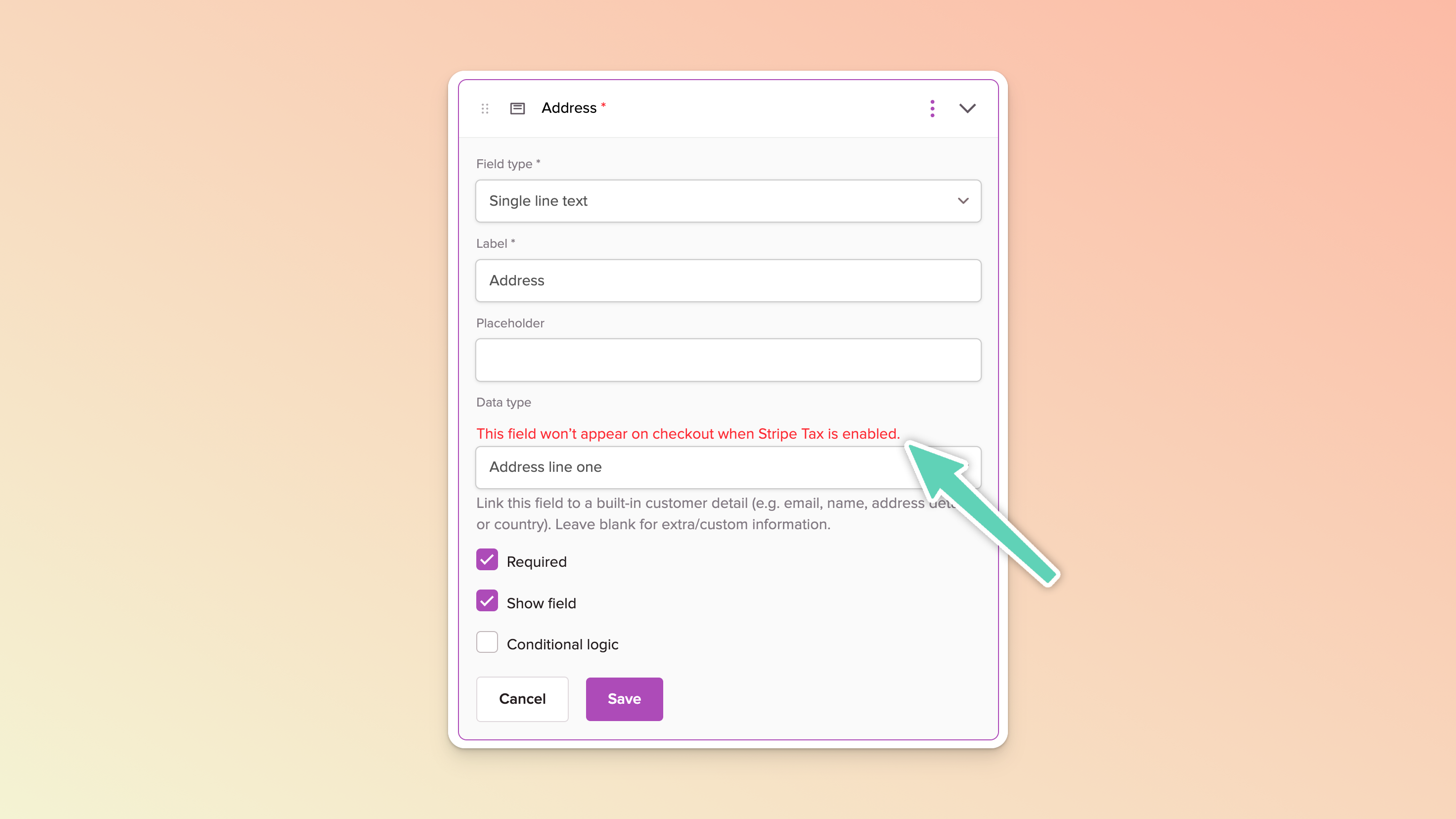
Note that once you’ve set up/enabled Stripe Tax, additional fields will automatically appear in your payment page as these are required by Stripe in order to accurately calculate and capture tax e.g. address fields.
This means that it may also override any version of those same fields in the list of existing/custom checkout fields that you’d set up in your payment page. You’ll see an alert (like the example below) within the settings of some of your fields but this is expected - the data you need will still be captured.
The VAT ID field is optional for your customers to complete. If one is provided and validated, it will be used to apply in the case of, for example, the EU the reverse charge mechanism and Stripe will zero-rate the transaction.
Once you’ve enabled Stripe Tax, it will not impact any pre-existing recurring payment plans your customers have with you. This will require intervention on your part and directly within a customer’s subscription in Stripe. Please consult Stripe’s documentation or Stripe’s Support team for any additional assistance.
You can manage a range of Stripe notifications directly within your Stripe account. Visit your Stripe dashboard and navigate to the following areas:
Settings > Business > Customer Emails: enable receipts to be sent to customers on successful payment.
Settings > Billing > Subscriptions and Emails: enable additional notifications for customers with recurring payments.
Settings > Billing > Invoices: if you choose to make use of Stripe invoices for recurring payment plans, ensure your invoices are displaying as you’d prefer e.g. to include your VAT number on invoices, be sure to set the relevant VAT number you’ve set up on Stripe as the Default.
Settings > Communication preferences > Transactions and Balances: enable the alerts you want to receive, including failed payments.
Stripe provides you with any reports you might need in your Tax Registrations dashboard. For more information, please refer to Stripe's documentation.
We cannot stress this recommendation enough. If you want to see the exact experience (you and) your customers will have (and confirm that taxes are being accurately displayed and captured in Teachery and Stripe), purchasing your own course will be useful. You will get to see both sides of the transaction and ensure everything is working as it should.

Click the Share URL button in the top right of your payment page
Click the Copy to Clipboard in the popup that appears
Open that link in an Incognito or Private Window
Put the payment page to the test (e.g. if you have multiple payment plans available, confirm the page reflects your selection) and complete the checkout
If you want to refund your purchase at any point, you can do so via your test user’s Customer Profile via the Customers page.
Instead of making a real payment, you can create yourself a 100%-off promo code just for testing purposes (be sure to make it a tricky promo code and/or consider limiting it to one use). But we still strongly recommend placing an order with a real payment to ensure welcome emails, Stripe receipts, refunds, taxes, etc. are all rendering/working as they should.
With some high-level understanding of what to expect, we think you’re ready to start building. Here are some additional guides to read and bookmark:
