Now you can access all your Canva designs directly inside Teachery! 🙌
To get started, just connect your Canva account in the Integrations section of your Account page. Once you’re set up, simply pop open your file manager (wherever you can add an image or file in Teachery) and start importing designs.
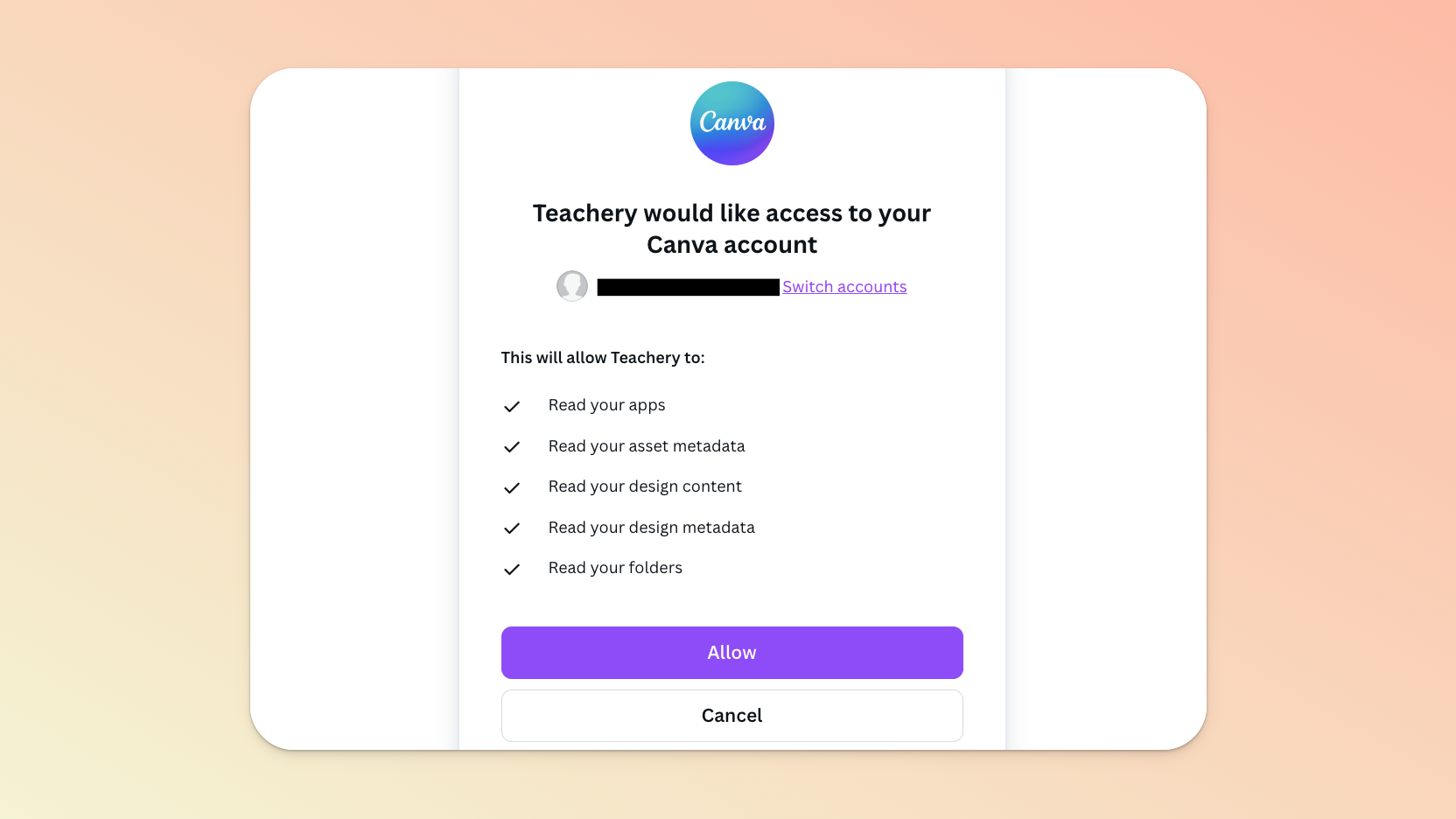
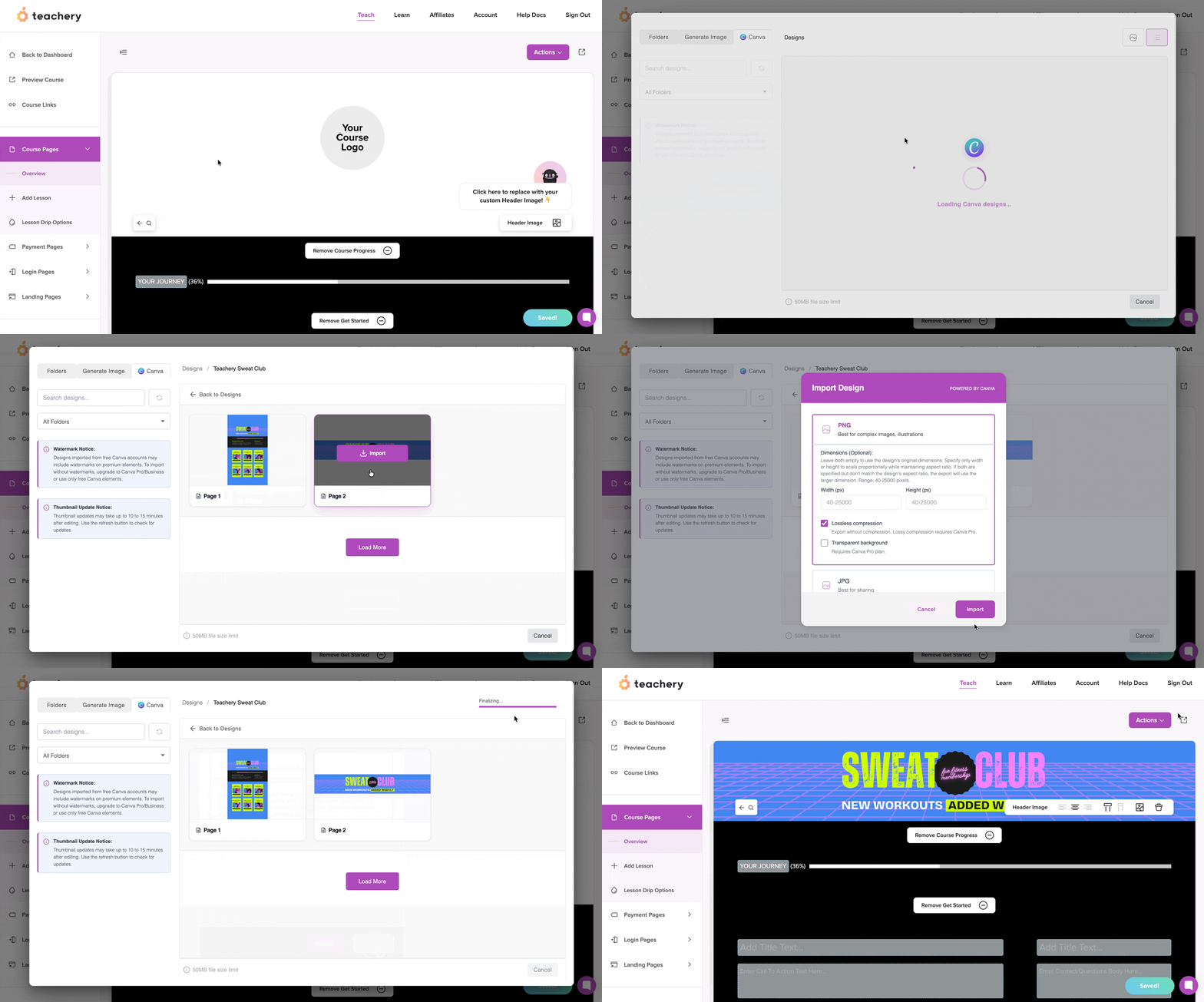
Once you’ve connected your Canva account, you’ll find all your Canva designs in your file manager.

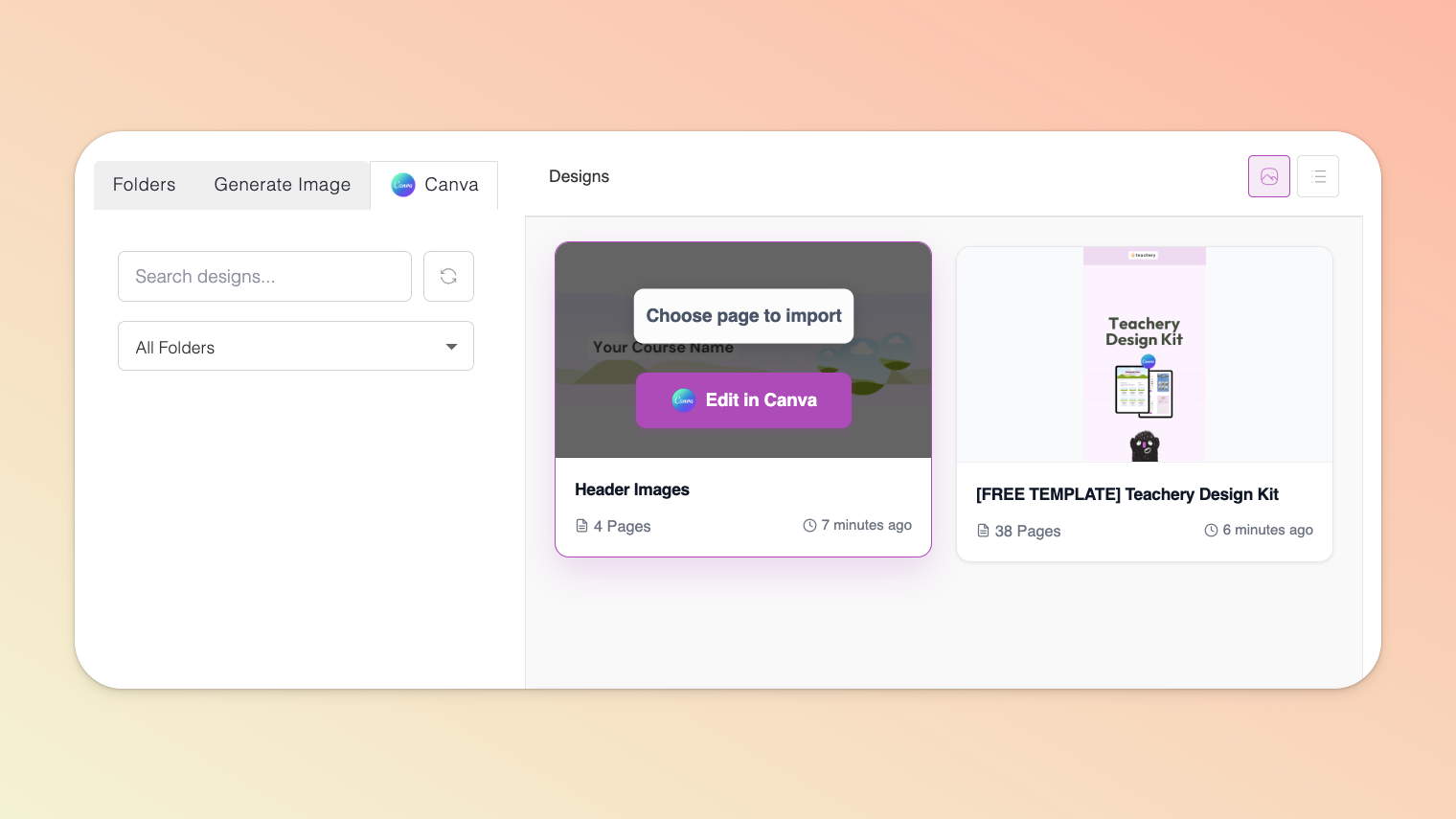
To save and use a Canva design in your file manager, hover over the relevant Canva file and click the Choose page to import button.
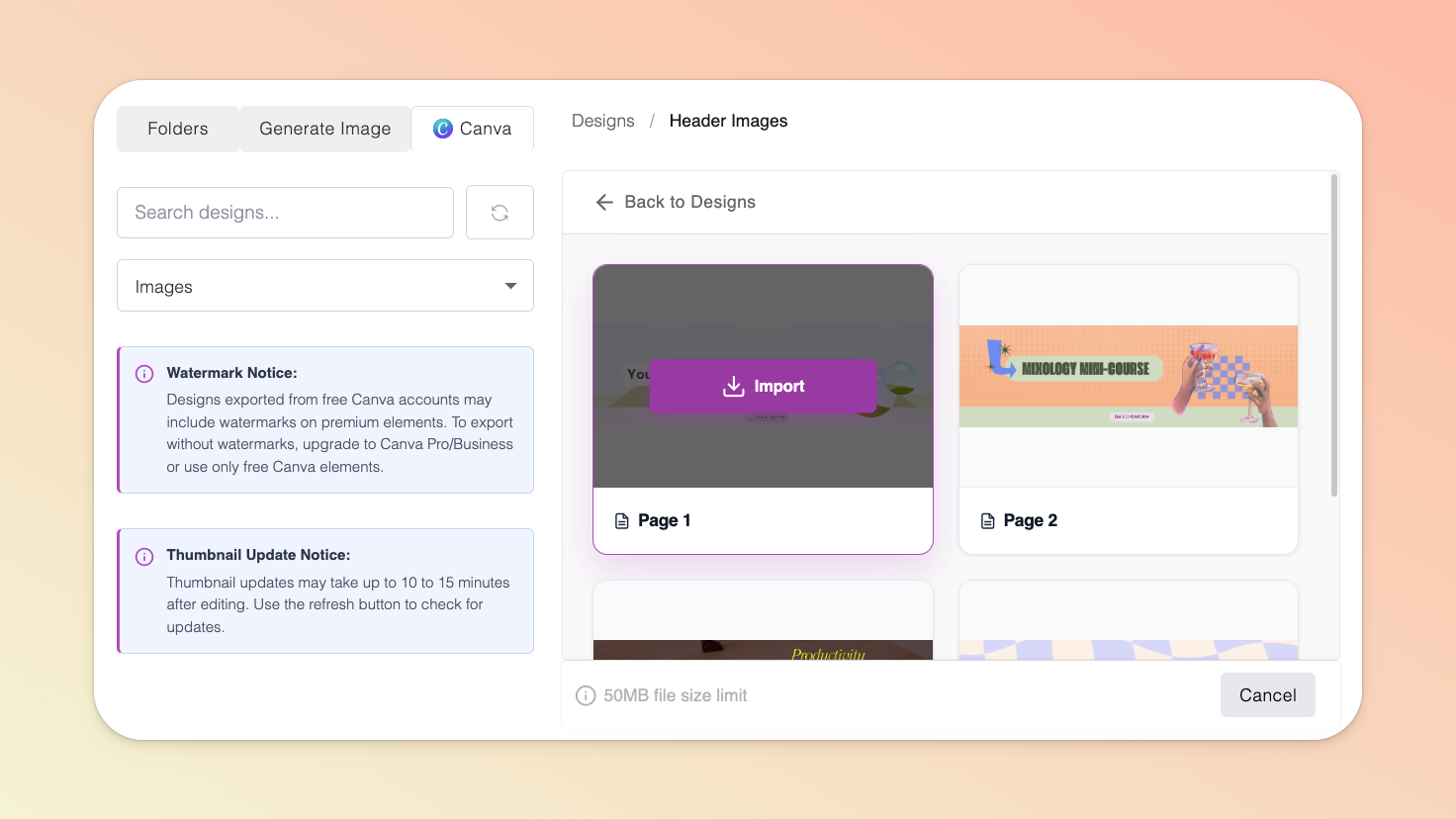
Then, hover over the page/design asset you need and click the Import button.
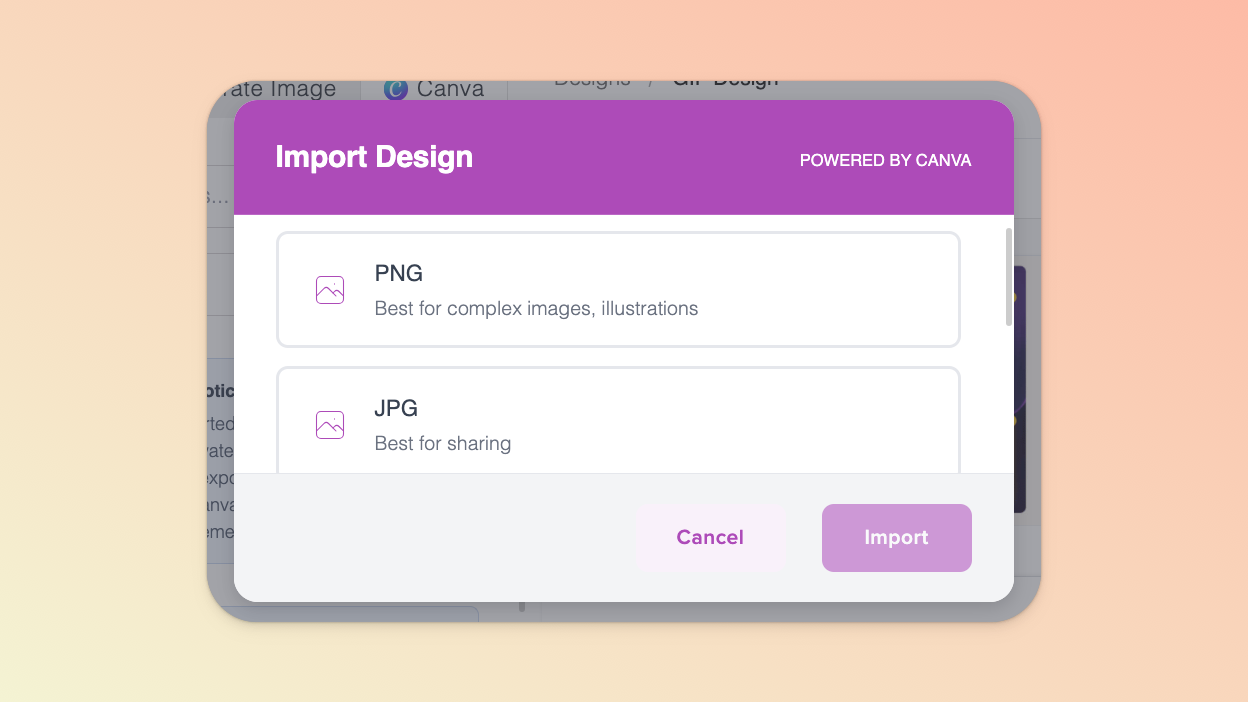
In the popup that appears, you will be prompted to first select a format in which to import your Canva design e.g. .png, .jpg, .gif, or .mp4. Depending on which format you select, you may need to define a few more settings, after which you can click the Import button.
As soon as the file is imported, your file manager window will close and the image/video will be inserted into your content. To find, rename, delete, or move the imported image/video, reopen your file manager. You will find the file in the Folder tab and in whichever (sub)folder you were in at the moment you imported the file.
Files imported from FREE Canva accounts may include watermarks on premium Canva elements. To export without watermarks, upgrade to Canva Pro/Business or use only FREE Canva elements.
Importing saves a static version of a file to your file manager so you won’t need to import it again - unless you make any updates to that asset in Canva and want to use the newest version.📍Any updates you make to an asset in Canva will NOT directly reflect in Teachery. You will need to re-import the file into Teachery.
Canva videos need to be embedded. Please see our help doc about video embeds.
If you want to import a video file as a .gif (max. 50MB), you need to ensure that, before opening your file manager, you choose the option to insert an image (and not a video) from within your content.
If you realise you need to make some updates to your Canva file before importing, hover over the relevant Canva file and click the Edit in Canva button. This will open Canva in a new browser window. Once you’ve made your changes, return to your Teachery file manager and click the refresh button in the Canva tab and then proceed to import what you need.

We highly recommend creating one Canva file per course. Then, each page in that course can be related and resized to different images you want to add into your course pages, for example:
a page for the header image,
a page for the preview image (which appears on your Teach page or a user’s Learn page),
individual pages for individual lesson images,
etc.
Canva makes it so easy to have a file with copious amounts of pages, so keeping each course to its own file with lots of pages is how we've found customizing your course via Canva works the smoothest!
You can use our Style Files which have existing Canva templates to help you create custom course images faster.
