This is an advanced feature of both our old payment page template and our new Payment Page Builder.

Navigate to your course and select the payment page you want to edit and follow the steps below, depending on which template you’re using:
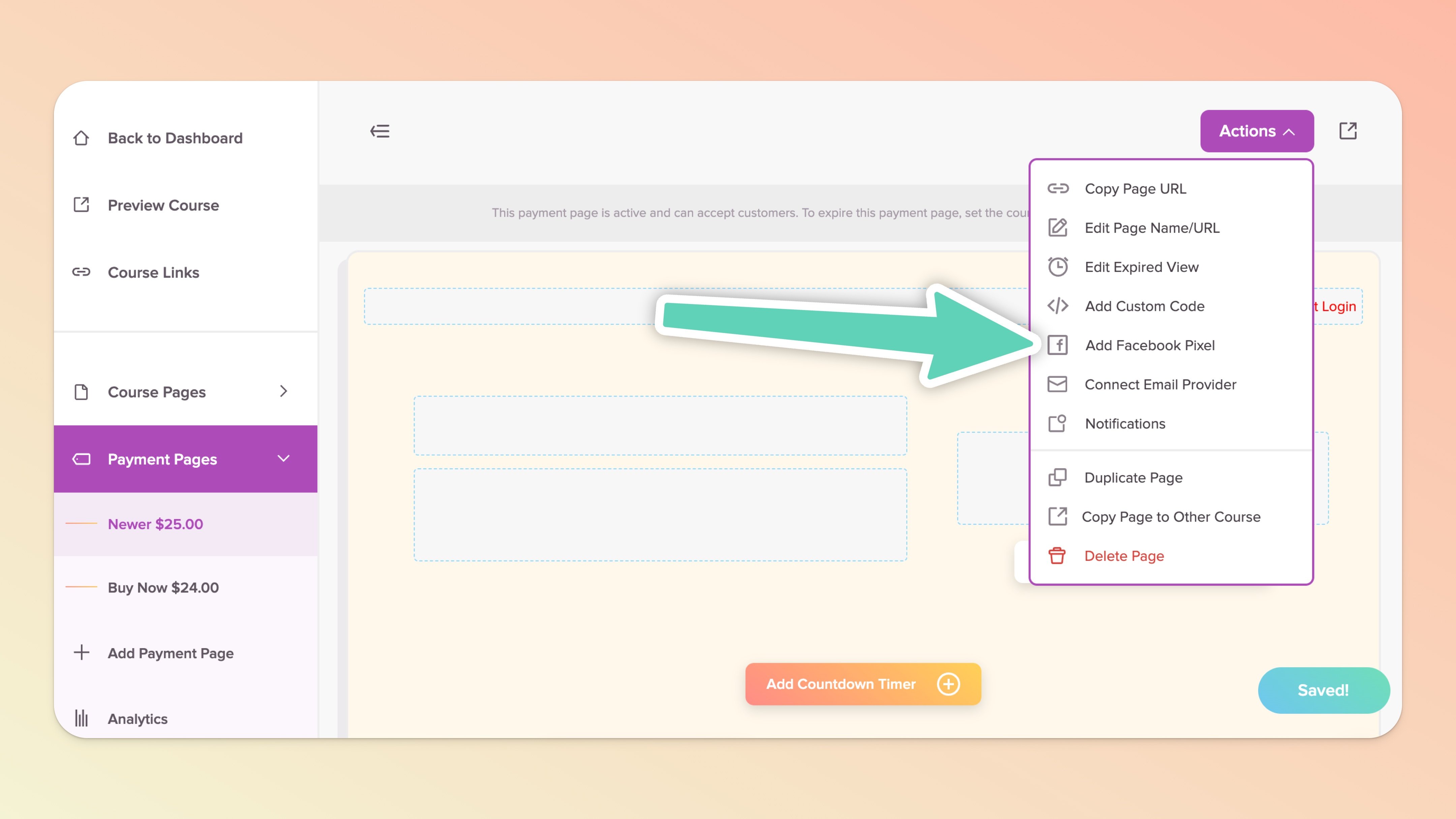
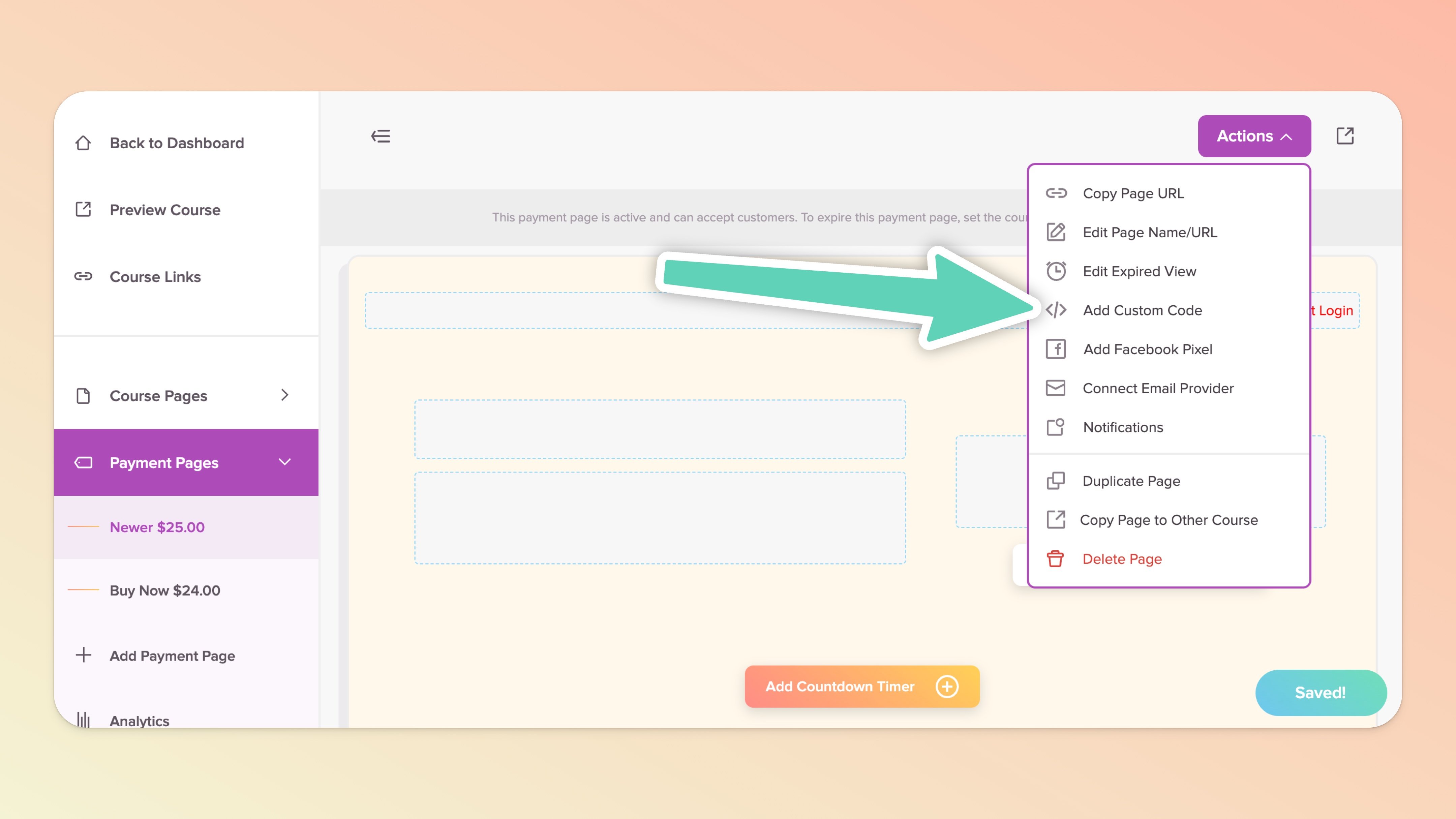
Click the Actions button in the top right
Click Add Facebook Pixel
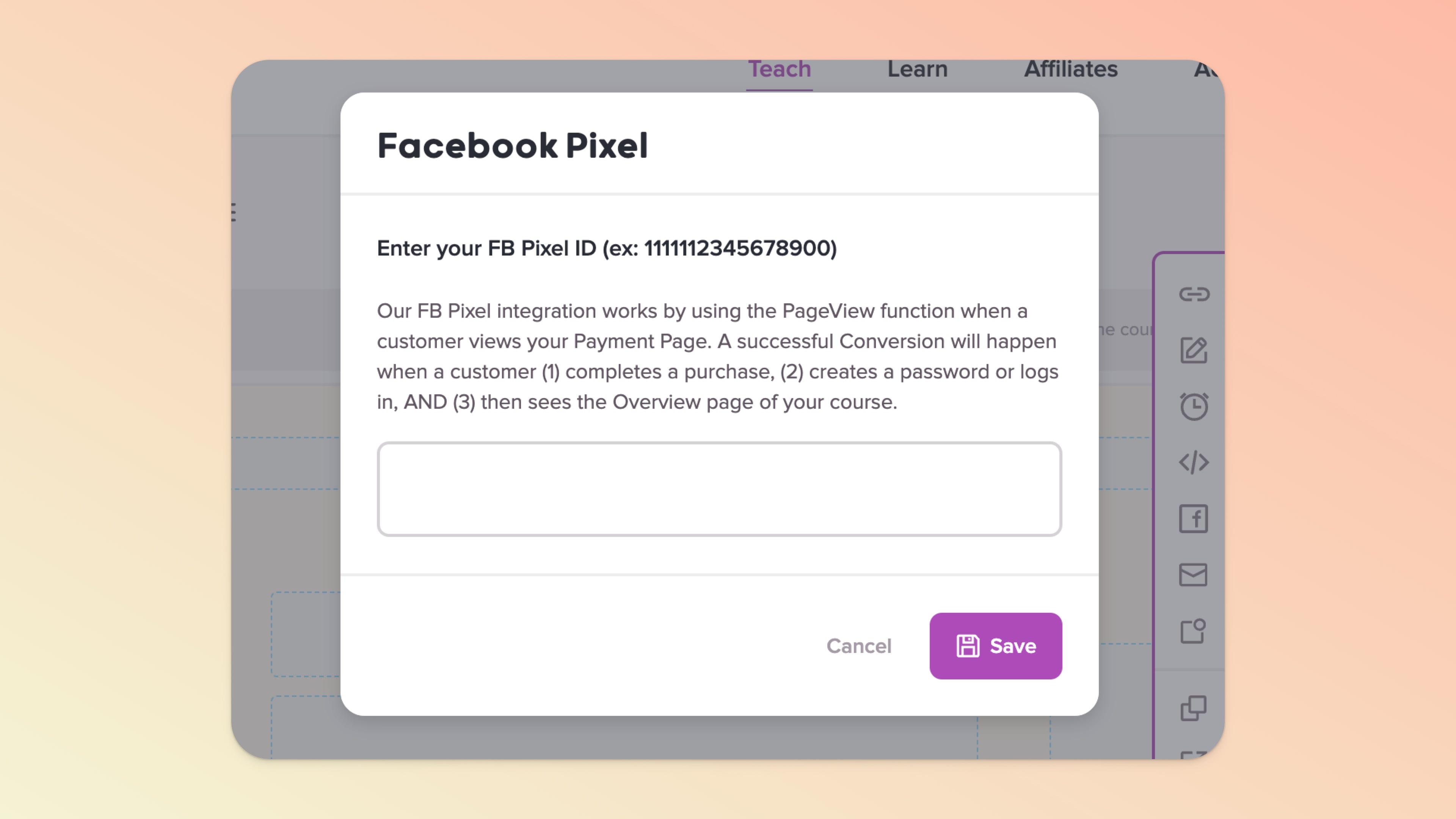
Paste in your Pixel/Dataset ID number only (no script code required)
Hit Save and then proceed to check your installation and then test it

Navigate to the Settings tab and then click Facebook Pixel in the left sidebar menu
Paste in your Pixel/Dataset ID number only (no script code required)
Hit Save and then proceed to check your installation and then test it
Install Google Chrome's Meta Pixel Helper extension and visit your Payment Page URL. Pop open the extension and you should see a green indicator, meaning that the pixel is installed and active.
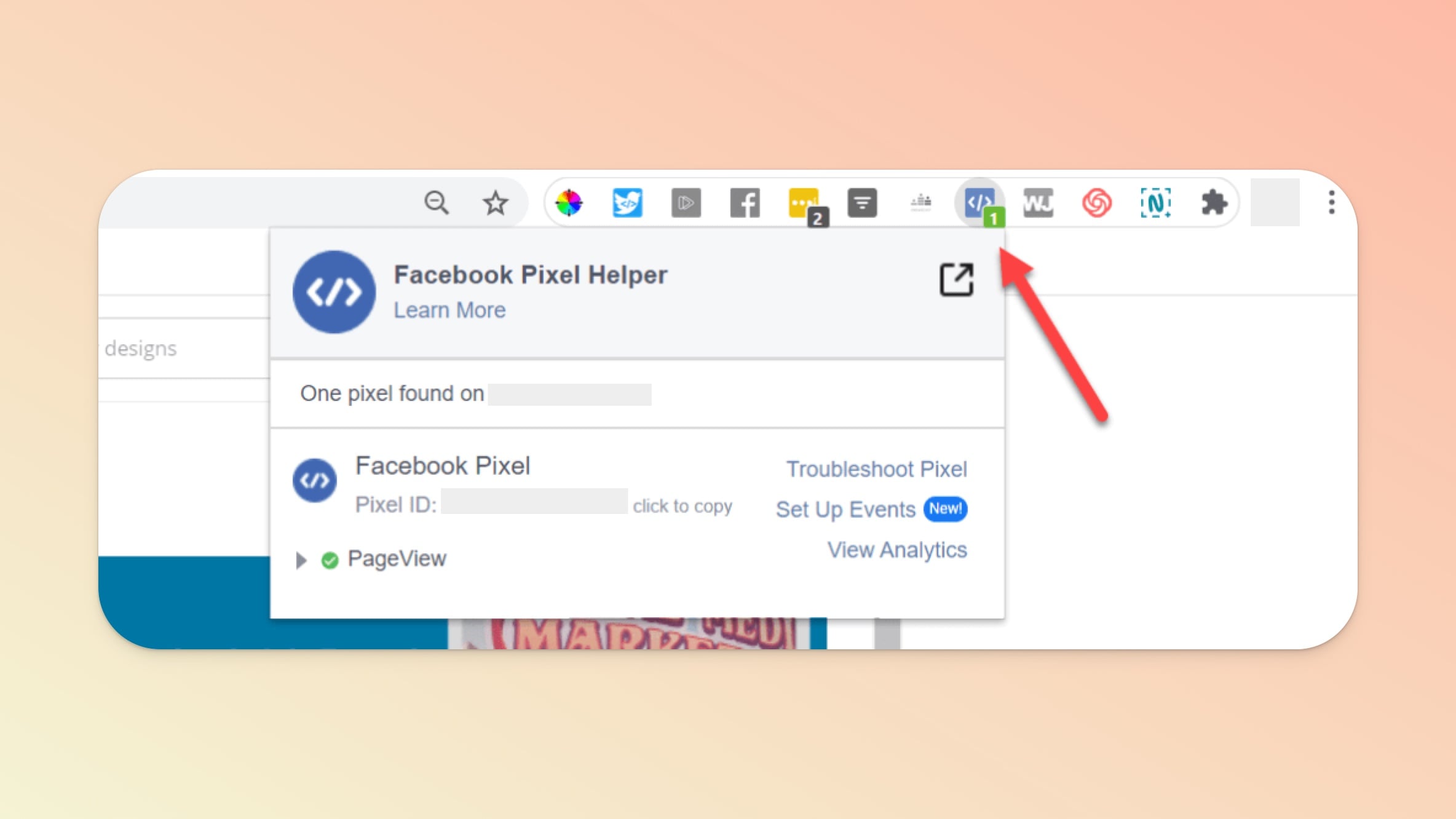
If you don’t see a green indicator, look out for any warnings - refer to any troubleshooting and testing tips that might appear within the extension’s panel.
We recommend adding your course URL to the list of allowed URLs inside your pixel/dataset’s Settings tab. Even if the URL isn’t on your blocked list, this additional step might be what it takes to get the tracking fully functional.
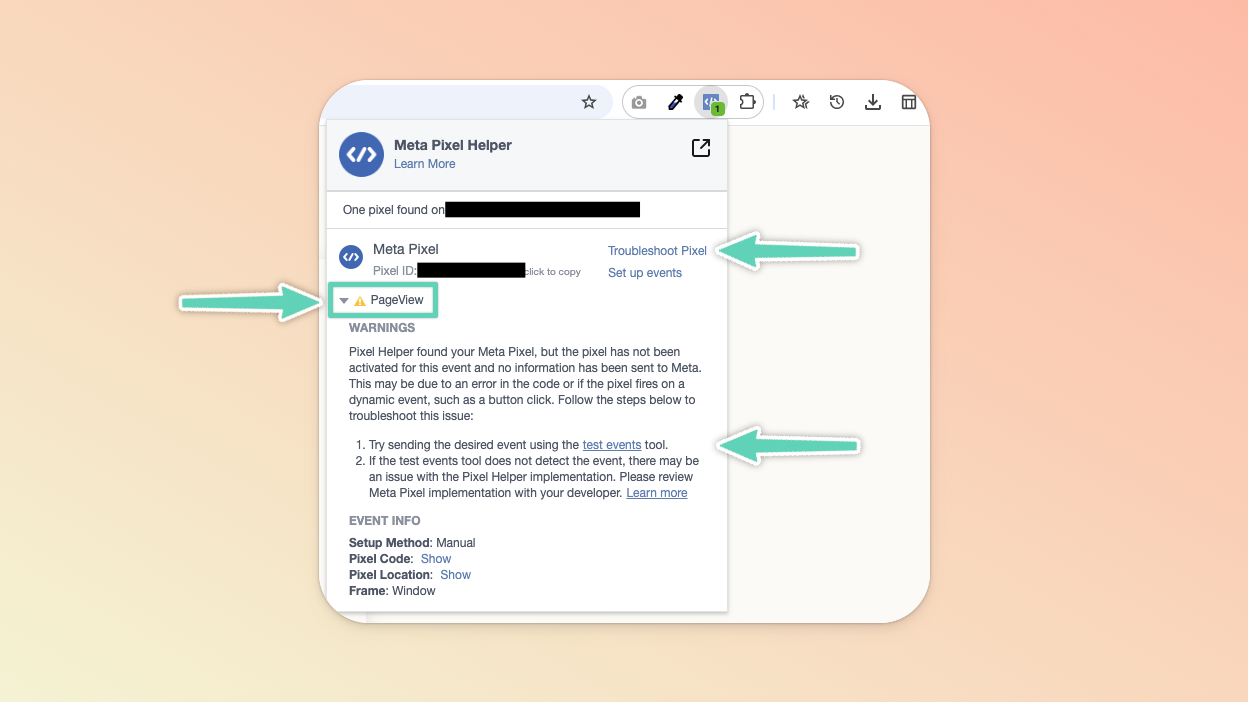
Once the pixel appears Active in the Chrome extension, we recommend you force some tests in your pixel/dataset’s Test Events tab.
At that point, run a live test on Teachery with a test user ensuring that you complete all the steps required to make it qualify as a conversion event. See more below.
Navigate to your course and select the payment page you want to edit and follow the steps below, depending on which template you’re using:
Click the Actions button in the top right
Click Add Custom Code
Paste your conversion tracking script in the field provided
Hit Save and then proceed to test it (see section below)
Navigate to the Settings tab and then click Tracking Conversions in the left sidebar menu
Paste your conversion tracking script in the field provided
Hit Save and then proceed to test it
Due to the complexity of managing a login system with your students in your course, we need to ensure they FULLY get into your course to accurately report the conversion.
👉 What this means is our conversion tracking will report a successful conversion after:
Someone fills out your Payment Page...
They submit their payment information completely...
They A) create a password if they are brand new OR B) login if they already have an account...
After creating a password or logging in, they land on your course Overview page (this IS the page we show directly after a purchase > password creation/login)
When you've added your conversion tracking code or FB Pixel ID, we recommend you make a REAL purchase of your course via your Payment Page in an Incognito or Private Browsing Window (one where you are NOT logged into your Teachery account).
We find this is the absolute best way to ensure your conversion tracking is working properly. You can read more detailed steps here.
Feel free to reach out to us if you are having issues, but know, we are not conversion tracking experts. We're helping-you-create-and-sell-your-online-course experts 😉.
