Should you use a custom domain or custom subdomain for your course (or product or hub)?
They're both fairly simple to connect to your course in Teachery, the key is deciding what you want your course URL to be:
mycoursewebsite.com = Custom Domain
course.mycoursewebsite.com = Custom Subdomain ✅
If you already have a website using your domain, then you'll almost definitely want to use a custom subdomain for your course/product/hub. 👍👍
If you intend to have or already have a lot of courses/products/hubs, give some thought as early on as possible to how you want to structure your domains or subdomains.
Here's how to setup your custom subdomain for your course/product/hub!
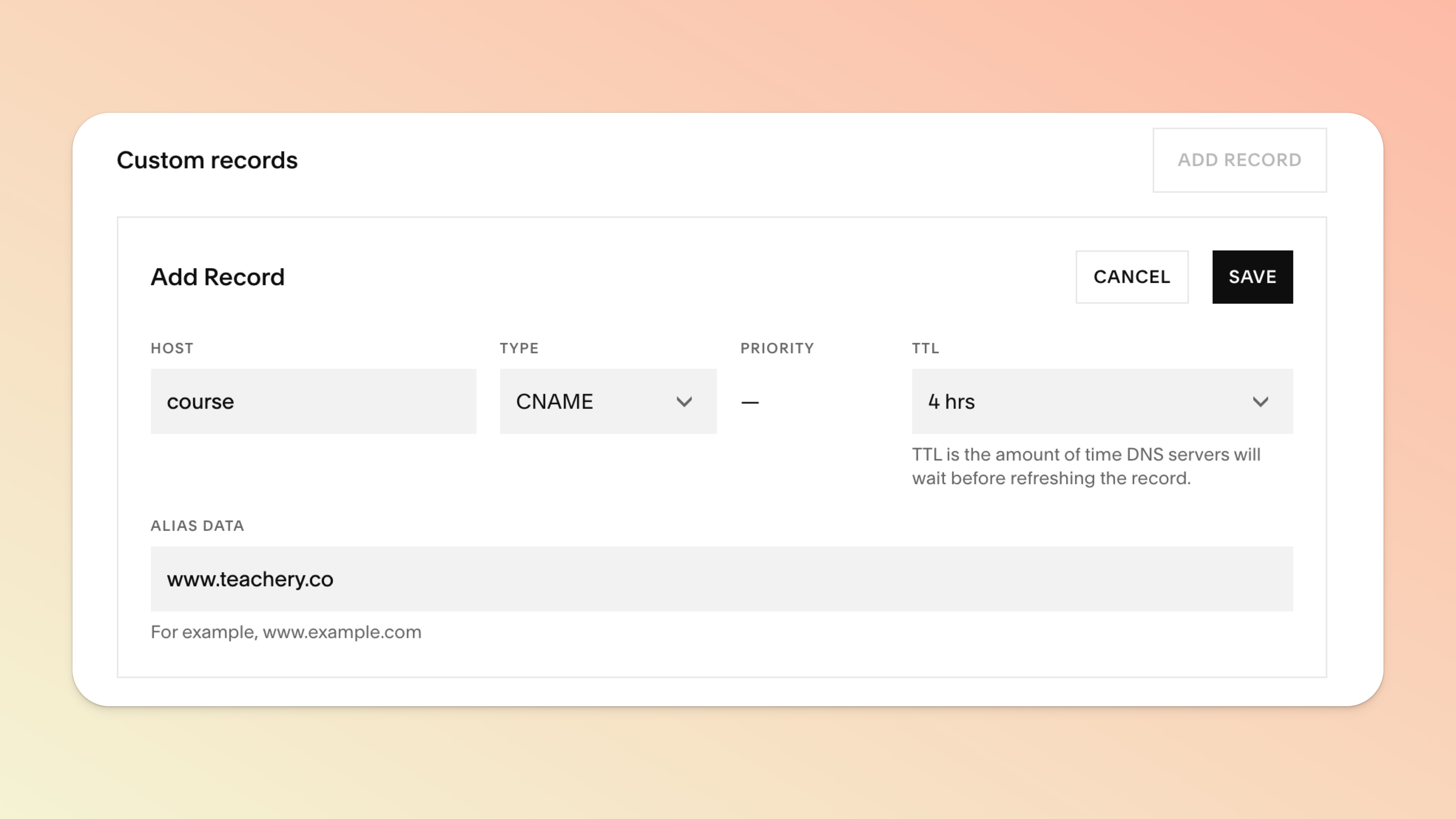
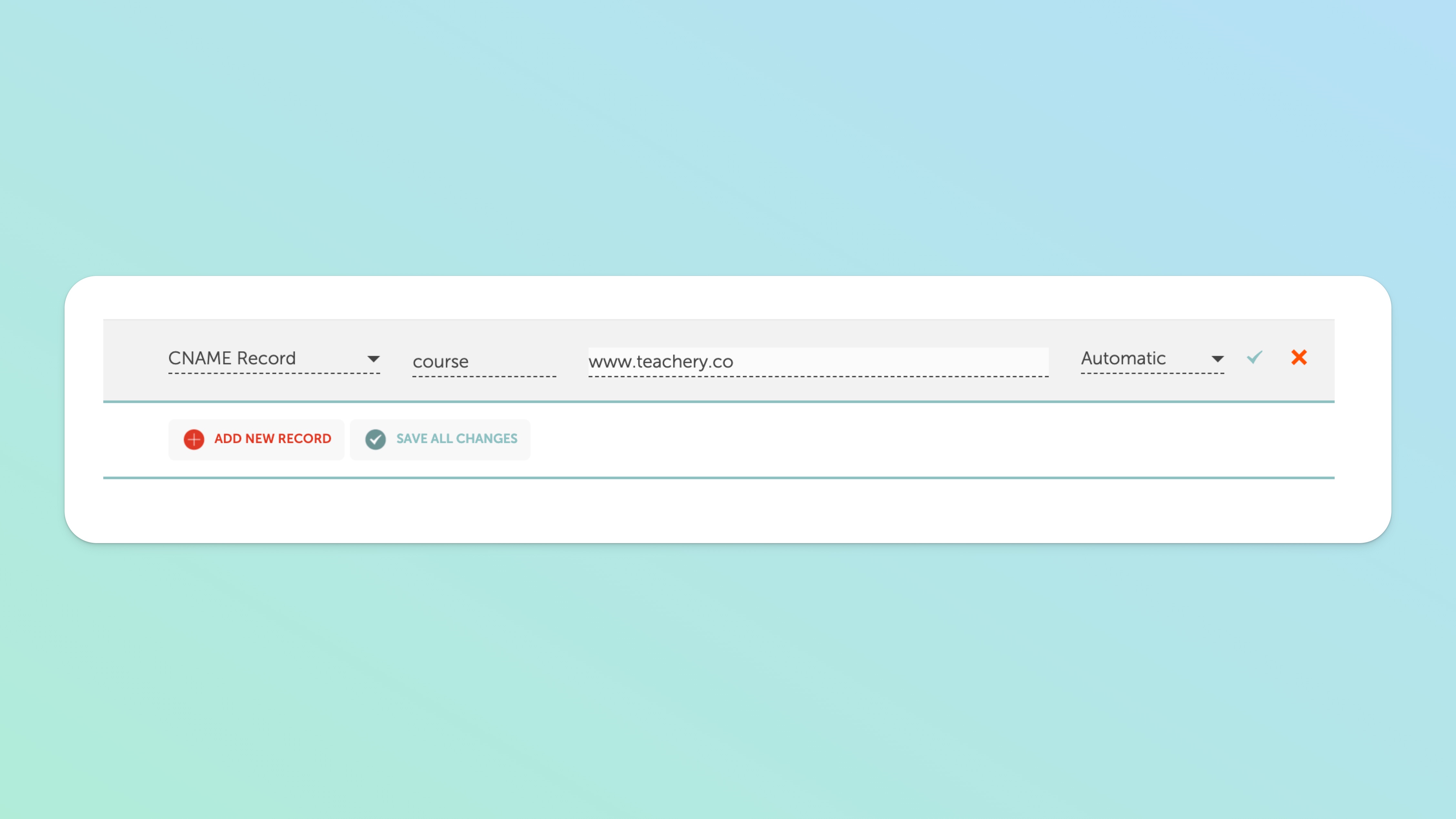
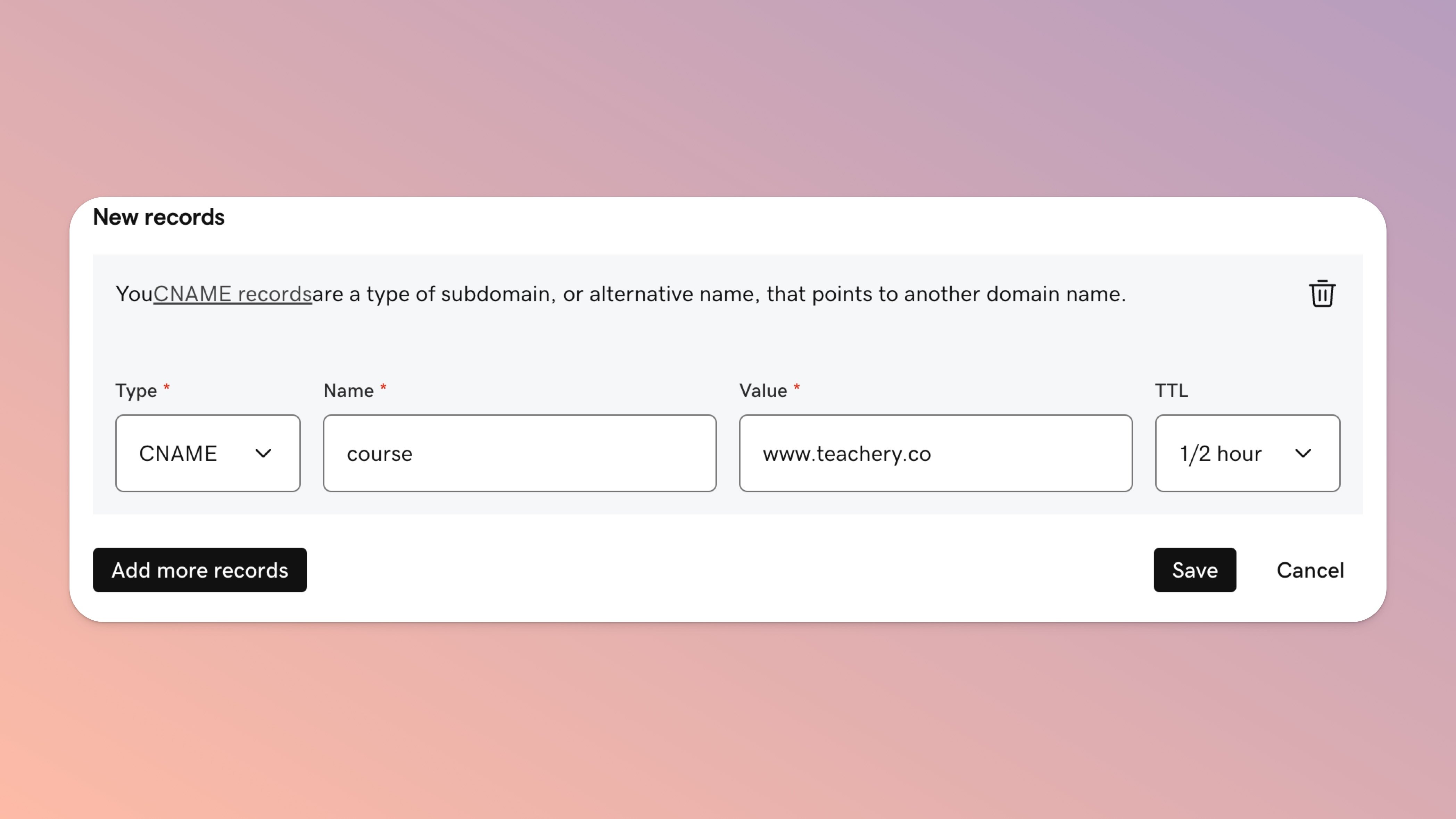
Example screenshots shown below for adding DNS records in Google Domains, GoDaddy, and Namecheap.
Login to your domain registrar
Create a new DNS record
Add course as the NAME ("course" is an example for your subdomain to be course.myurl.com - use whatever you want for your subdomain)
Change the TYPE to CNAME
Set the TTL to 1h
Set the DATA/VALUE to www.teachery.co
Click into the course/product/hub you want to set your subdomain for
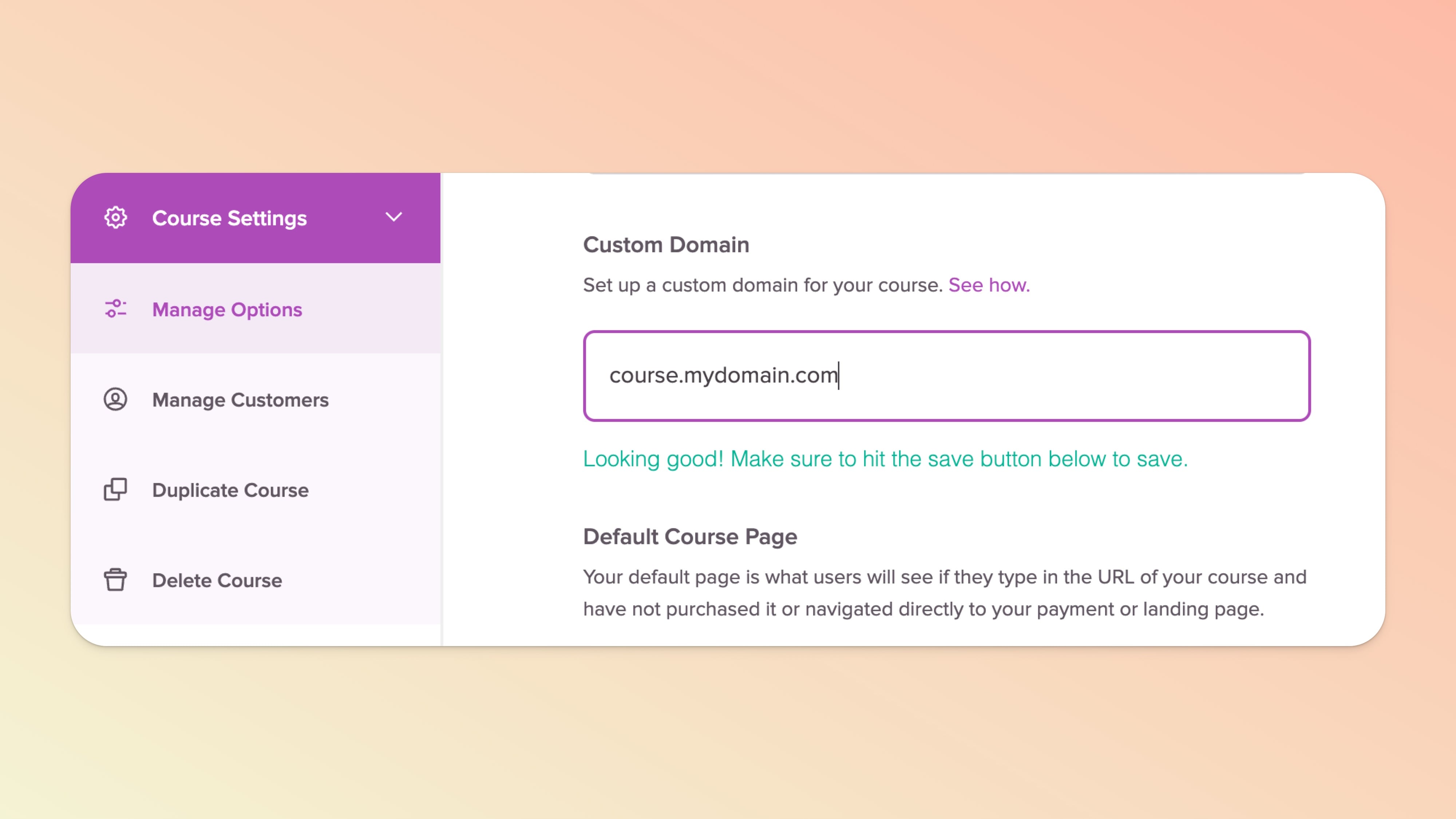
Click Course/Product/Hub Settings in the left sidebar, then Manage Options
In the "Custom Domain" field add your subdomain (ex: course.myurl.com)
🚨🚨 Double-check you typed your custom domain correctly, it should NOT include "www" when using a subdomain
Click the Save Options button
Then, wait patiently for your domain to propagate!
Setting up a subdomain does not affect the root domain (in the example above: myurl.com would NOT change or point to Teachery).
Every domain registrar is different, and if you can't access your DNS settings, contact support at your domain registrar.
Every course in Teachery can have its own unique subdomain (just repeat the steps above and pick a different subdomain for each).
Most domain registrars have their own help docs about DNS setup if you need help with your specific registrar.
Custom domains should be written in lowercase (awesome.domain.com, not Awesome.Domain.com)
Domain propagation simply means how long it takes for your new subdomain to point correctly to Teachery. It can take 24-48 hours for propagation to finish, so plan accordingly. You can check if your domain has finished propagating by using a site like DNSchecker.org.
Having a secure domain is important to us and at NO extra cost to you, we handle creating an SSL certificate for your custom subdomain once it's fully propagated to Teachery*. Yep, we've got your back!
If you aren't familiar with SSL, this just simply means we will force the domain to be https:// instead of http:// (that "s" is the fancy secure part!)
You can sleep easier at night knowing once your custom subdomain is fully connected to Teachery, your customers will have secure checkouts, logins, and an encrypted and safe browsing experience through every page of your course!
*Reminder: Domain propagation can take 24-48 hours.