If you need others to help you manage your courses and users, it’s pretty straightforward to get them set up! 🤝
Course admins need to have their own Teachery account but they don’t need to be on a paid plan. When you invite them, they will be redirected to a login (where an account can be created too).
Courses are not transferrable so if you’re an admin and creating courses from scratch, ensure you’re “impersonating” the primary/creator account before you begin.

To add collaborators, navigate to the Course Admin section of your Accounts page.
Insert the admin’s email address in the provided field and click the Set Permissions & Invite button.
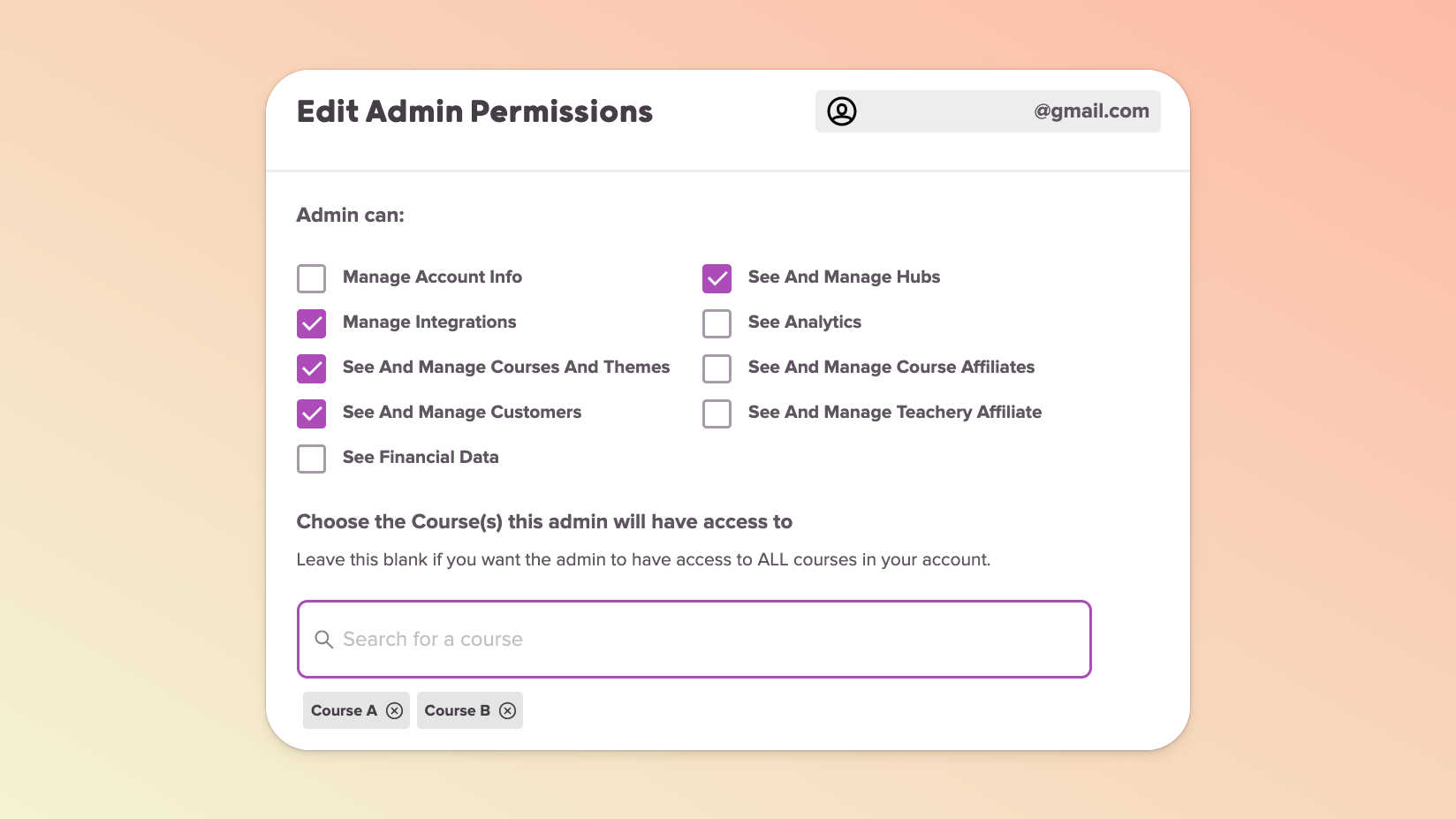
In the popup that appears, set the admin’s permissions and define which course(s) to grant access too (leave that field blank for access to all courses).
Click the Send button when you’re ready. The admin will receive an email and follow the prompts to create an account and accept the invite.
The admin will now appear in your Admins block with an Invite Sent status (which will switch to Active once the admin has accepted your invite).
If you’re the newly-added collaborator/admin, it’s super simple to switch between Teachery accounts:
You need to log into your own Teachery account with your own credentials and then visit the Course Admin section of your Accounts page.
In the Accounts Shared With You block, you need to click the email address of the primary user/creator you want to impersonate/”switch to”. That will essentially log you in as that user and enable you to make changes in their account.
You can switch back to your own account at any time by clicking the Switch to personal account button that’s always available to you at the top of your screen.
