If you ever want to expire (or deactivate) a Payment Page in Teachery, simply add a Countdown Timer and set it to ANY date in the past. This puts the Payment Page in expired status.

When a countdown timer on a Payment Page has expired, we give you options for the experience you want your customer to have:
Have the Payment Page show our default "Expired View"
Redirect the Payment Page URL to another Teachery Course Page
Redirect the Payment Page URL to an external URL
Let's go over each option!
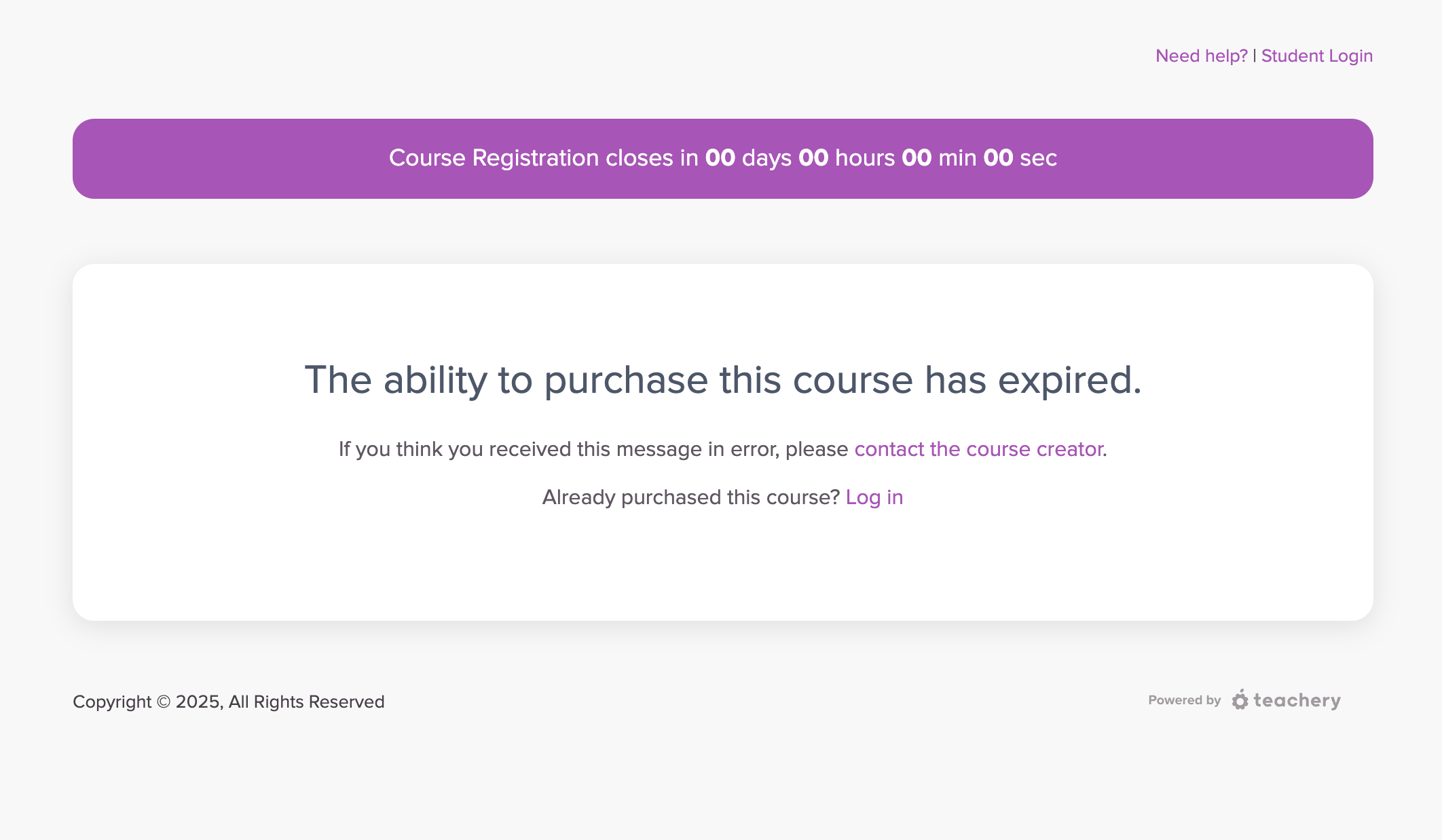
To make the payment page accessible to users again, go to the edit view of your payment page and simply remove the Countdown Timer or set the timer’s date to a future date.
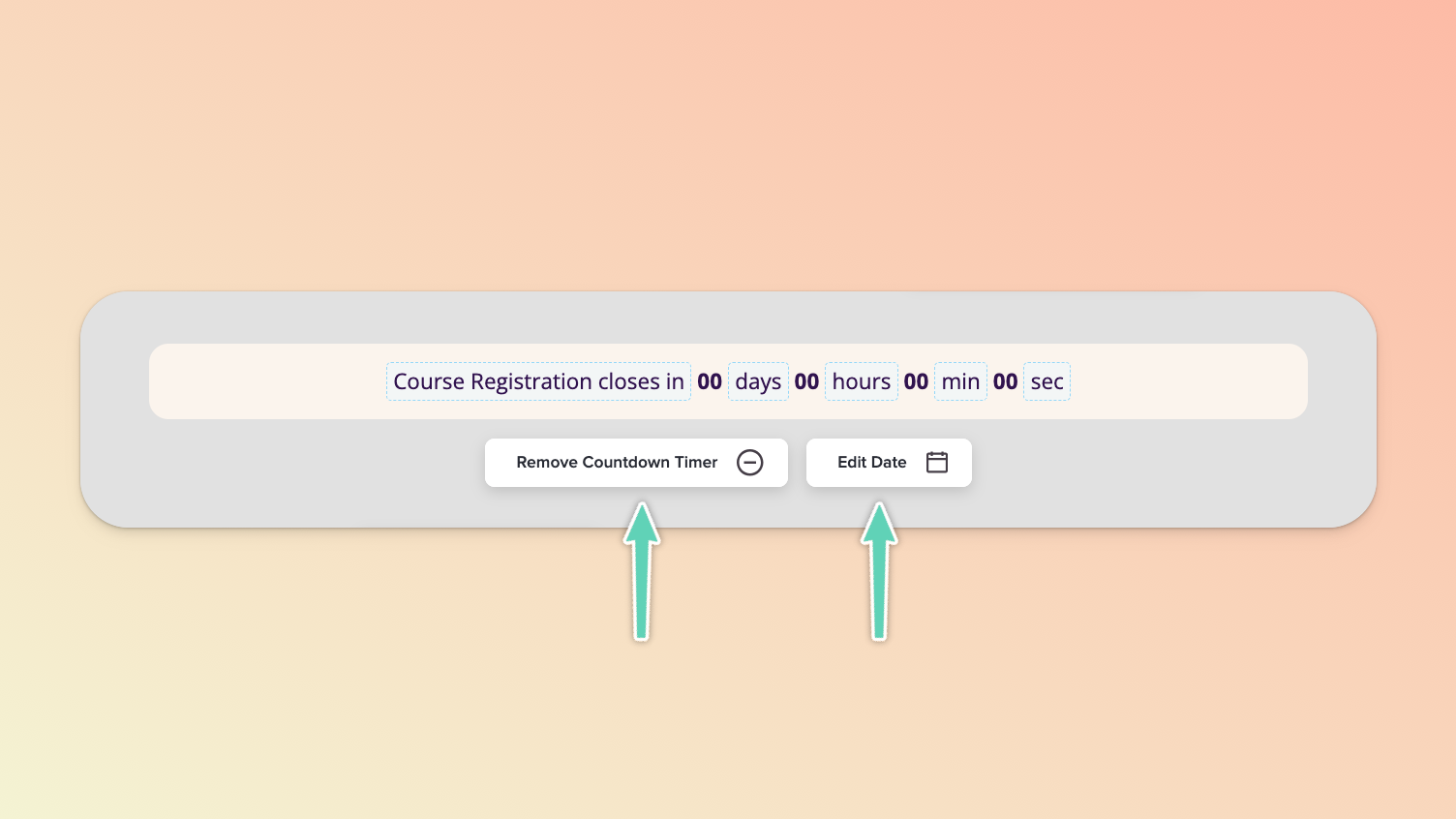
This is the easiest and most straightforward option. You don't have to do anything for our default "Expired View" to work. Once your Countdown Timer expires, this view will be shown.
If you want to customize this page, it's super easy! When editing your Payment Page:
Click the Actions button in the top right
Click "Edit Expired View"
Customize the sections to your liking! ✅
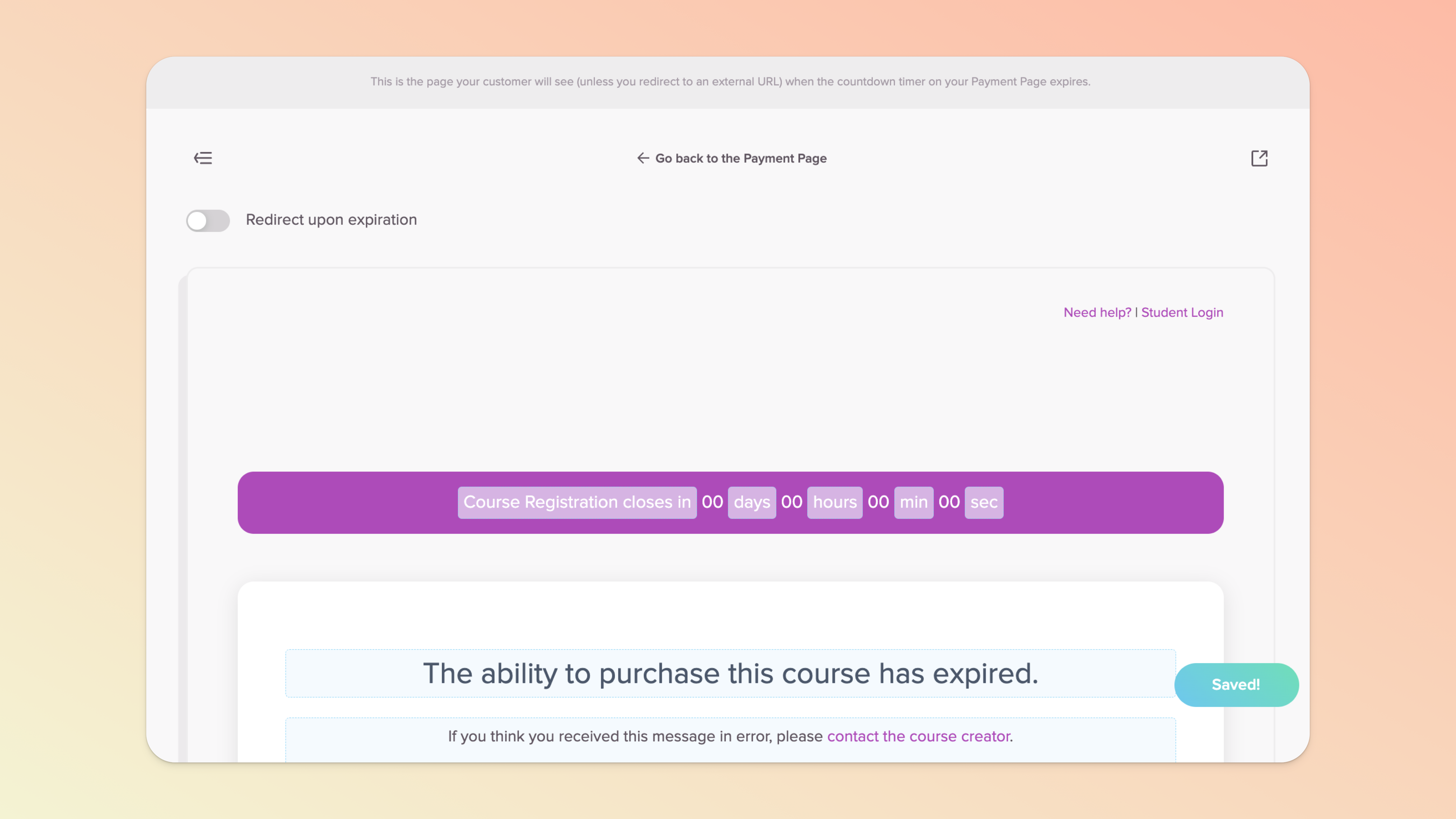
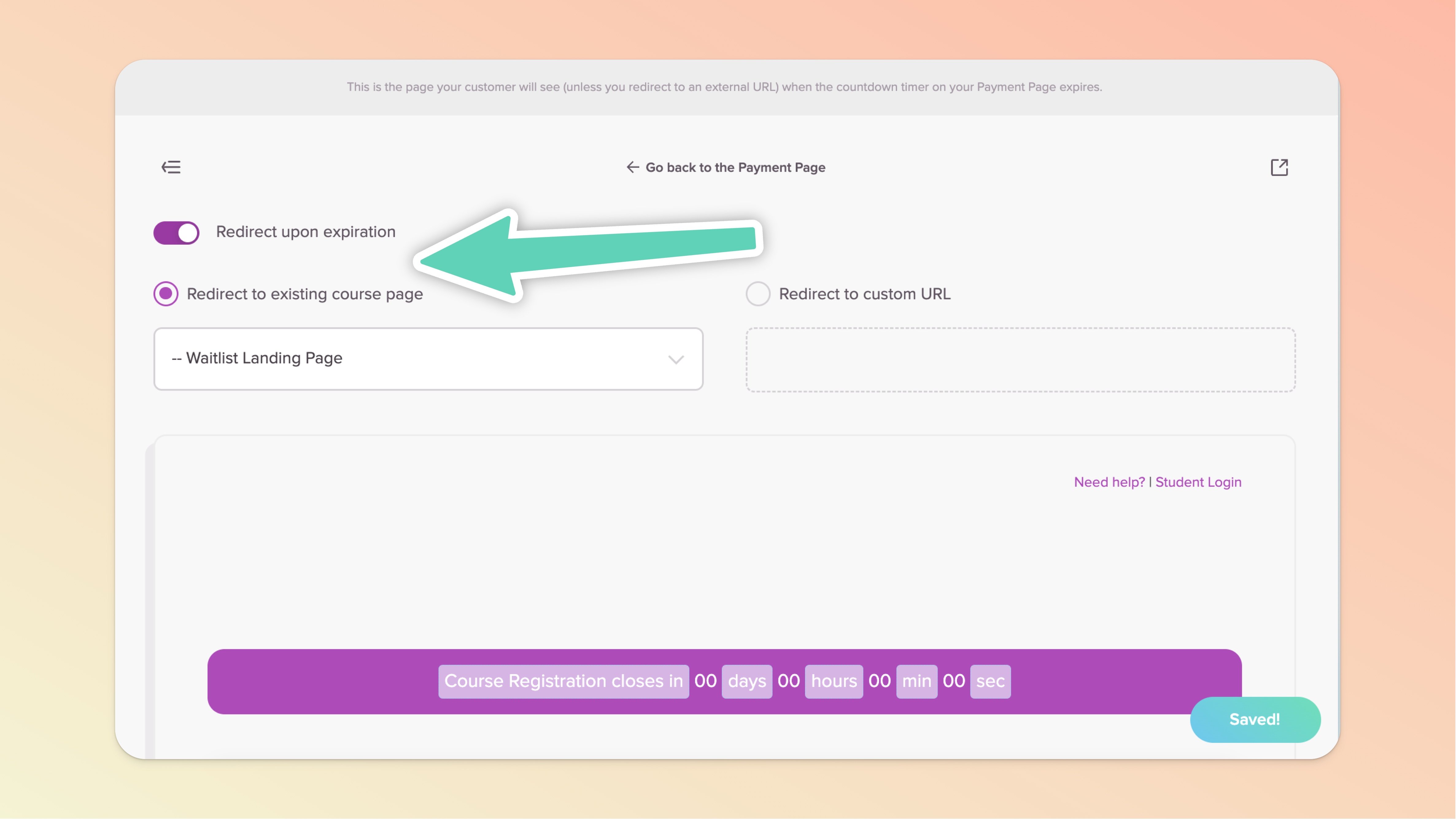
If you want your customer to be whisked off to a different Teachery Course Page in your course, this is the setting for you!
This is a great option if you use a Teachery Landing Page to collect email addresses OR if you want to redirect everyone to the Login Page.
To create the Teachery Course Page redirect, when editing your Payment Page:
Click the Actions button in the top right
Click "Edit Expired View"
Toggle ON the "Redirect upon expiration" option
Choose the Teachery Course Page you want to redirect to 👍
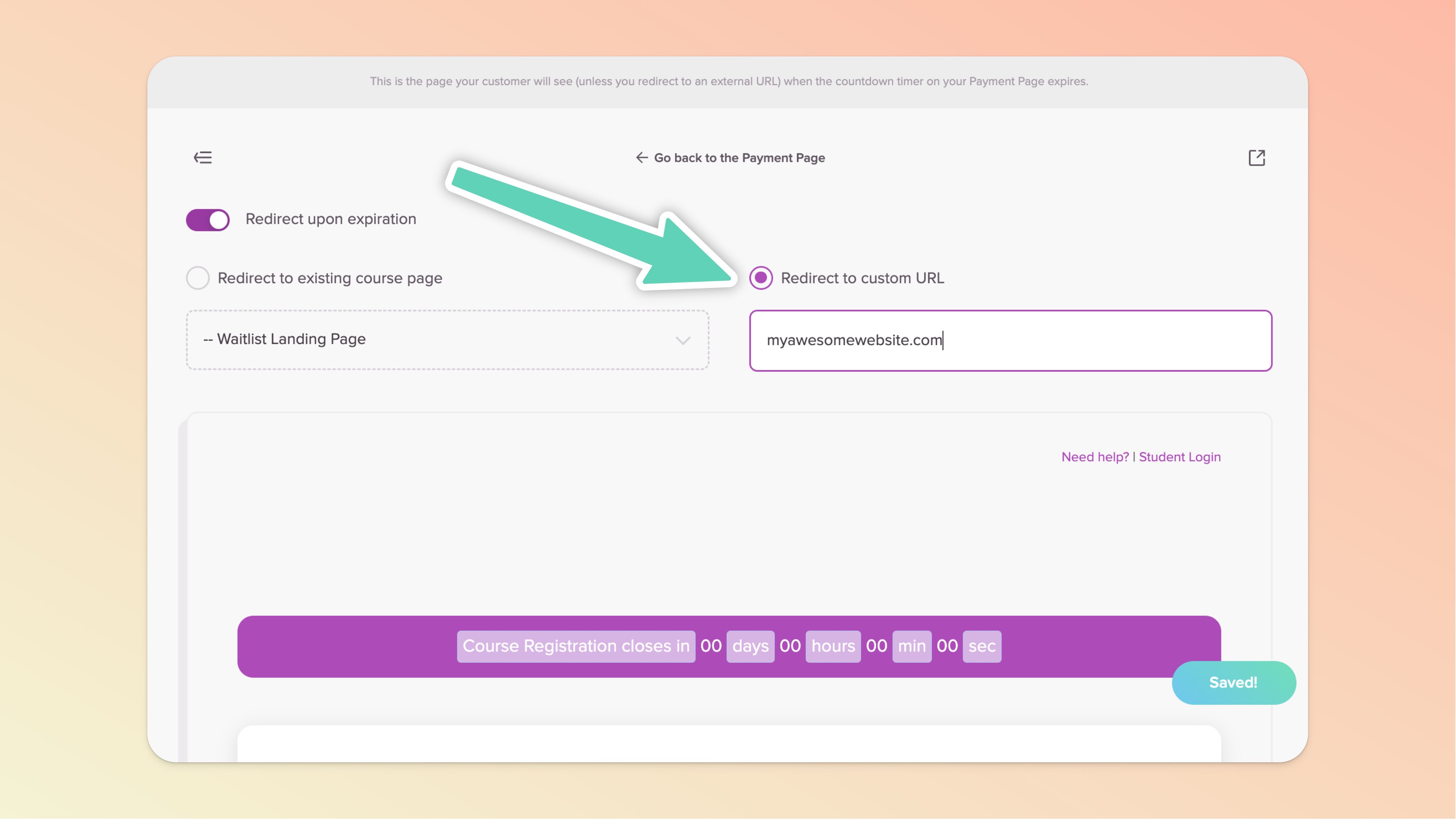
Once your Payment Page expires, do you want to send someone to a specific URL on your website (outside of Teachery)? Well, you can do that!
To create the redirect to an external URL, when editing your Payment Page:
Click the Actions button in the top right
Click "Edit Expired View"
Toggle ON the "Redirect upon expiration" option
Click the "Redirect to custom URL" option
Enter the URL you want to redirect your customer to 🚀