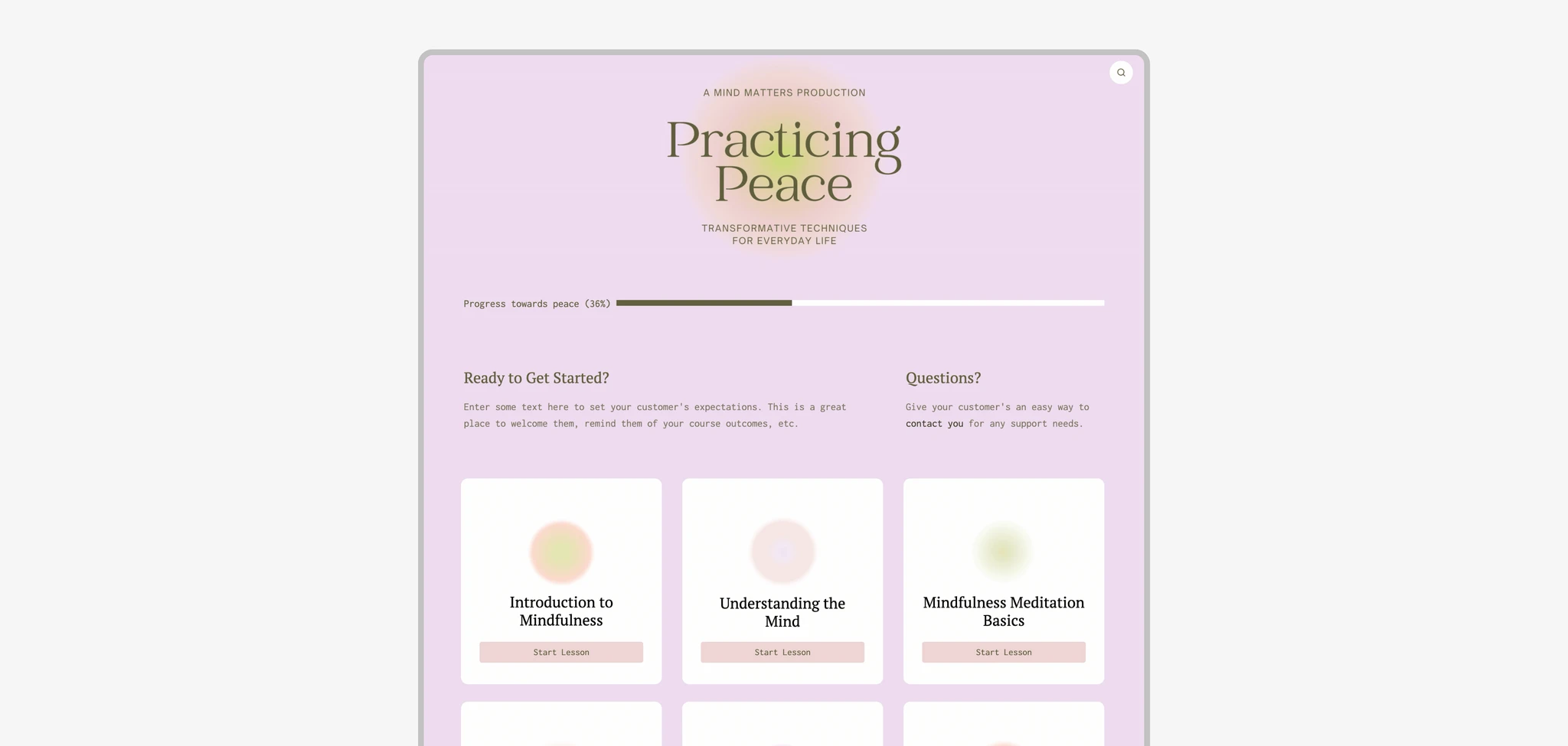
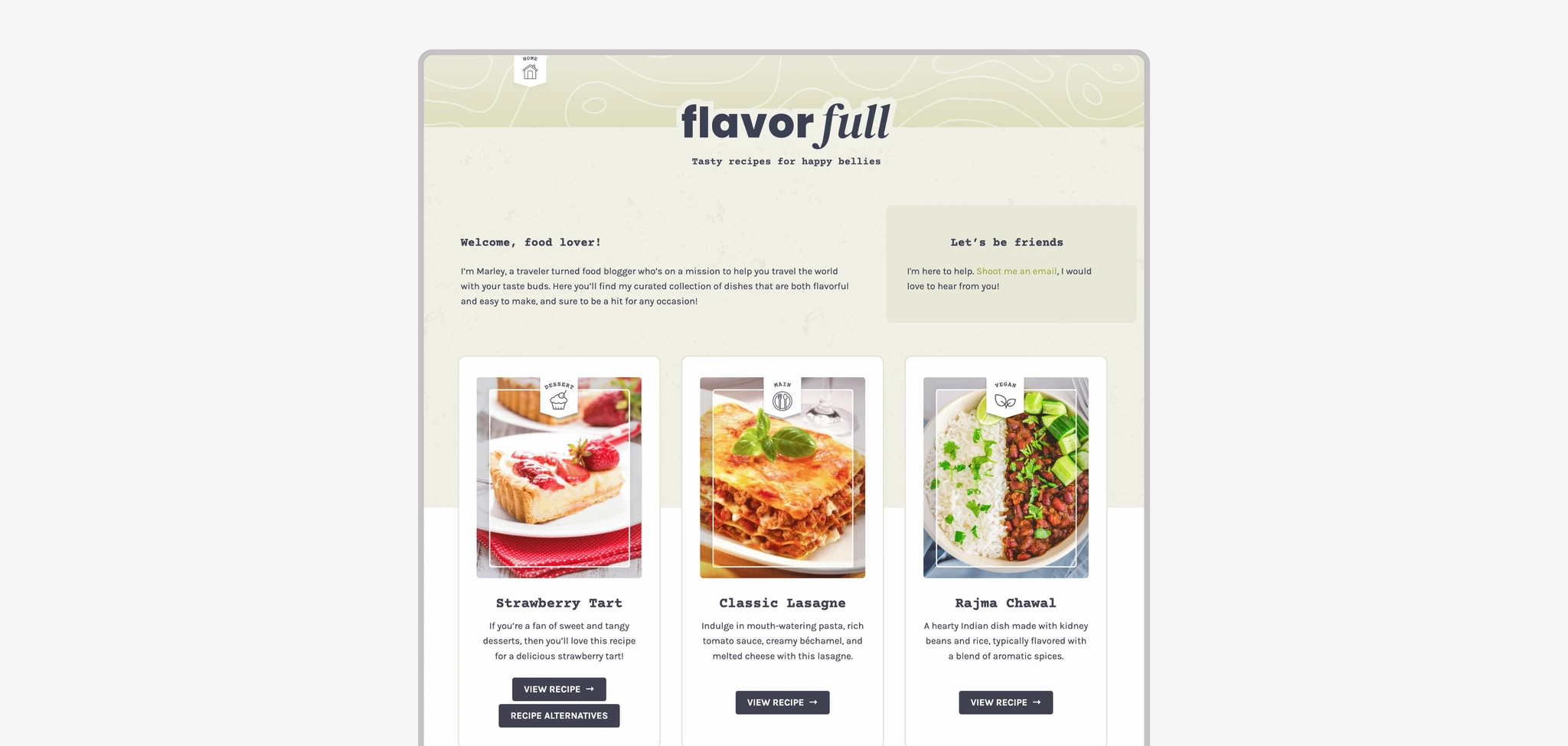
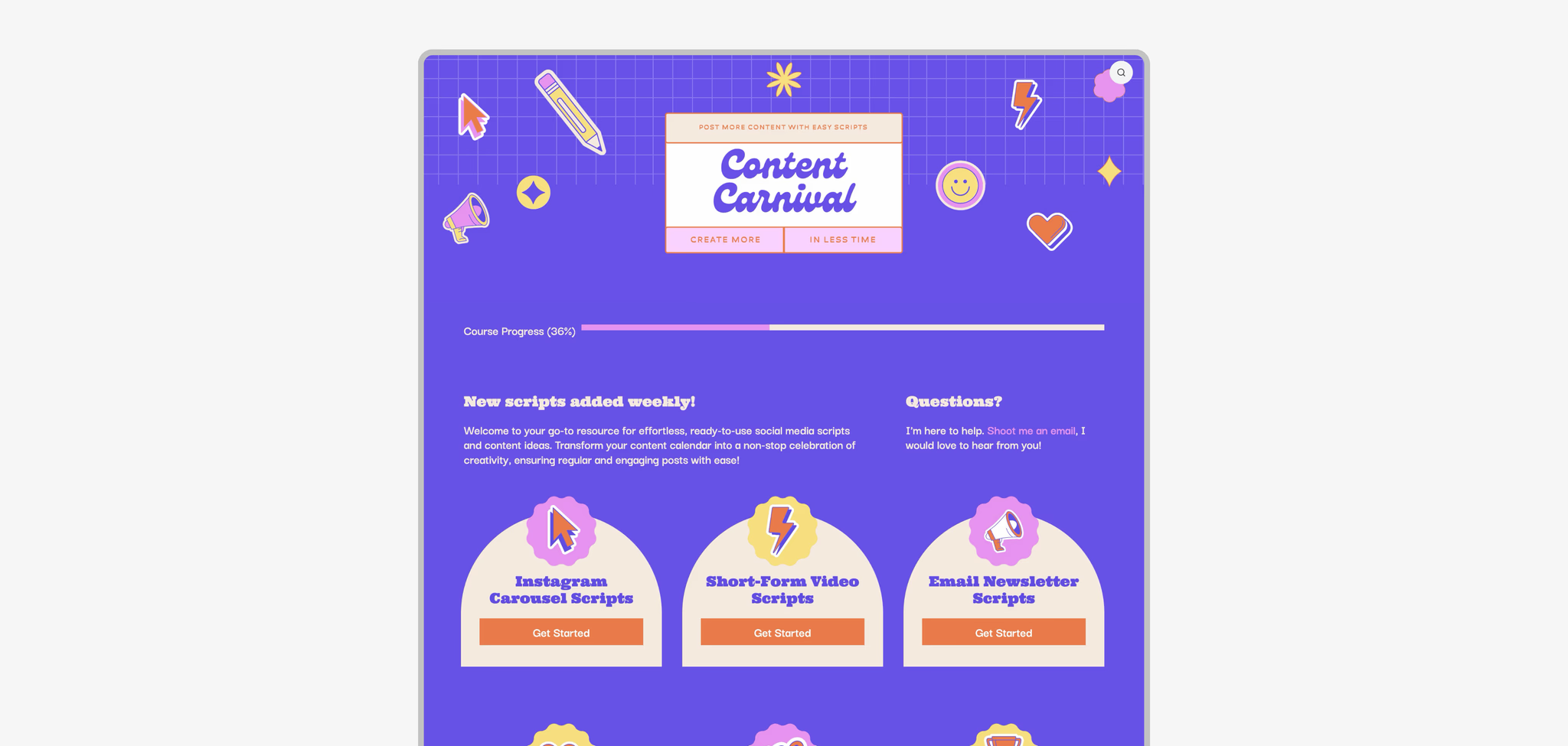
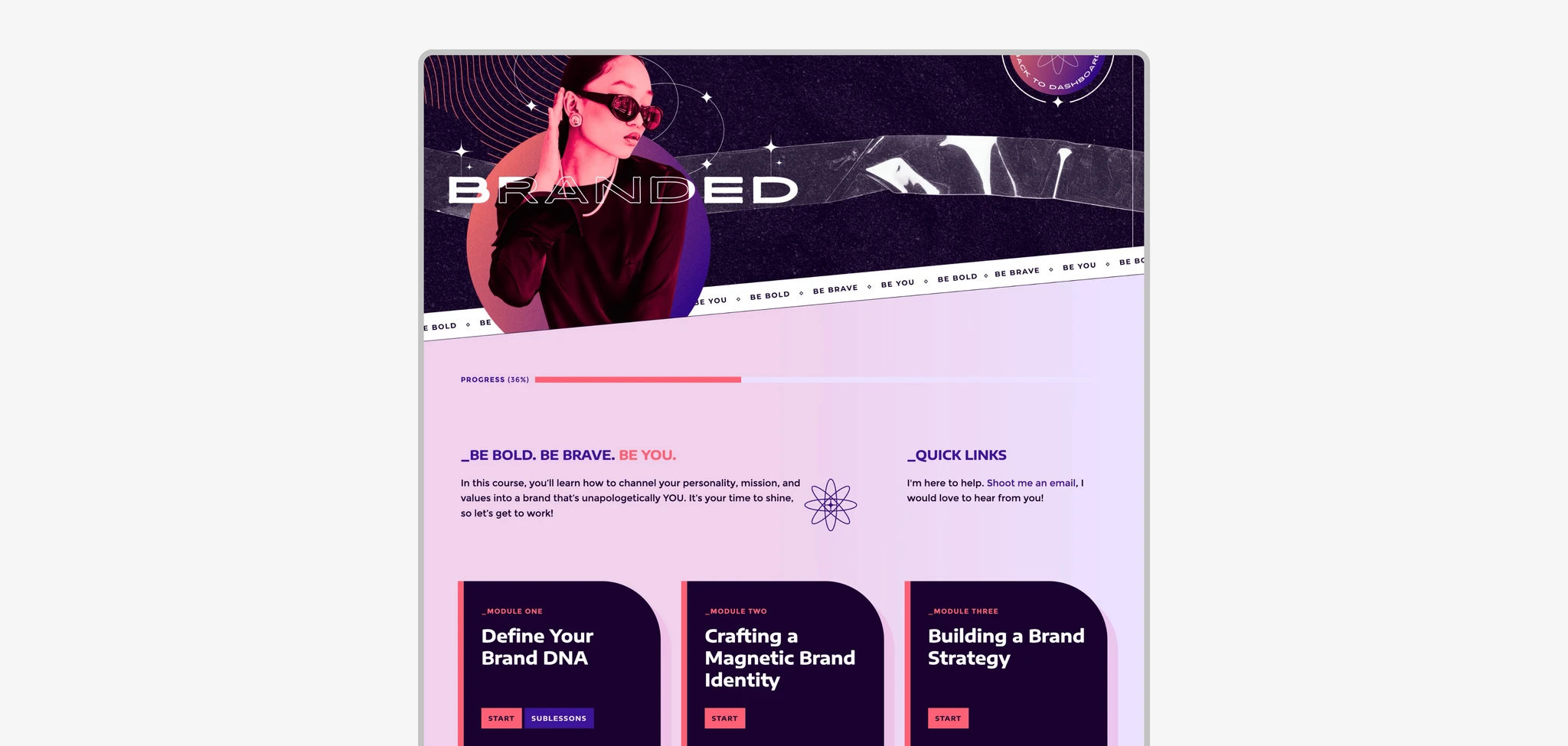
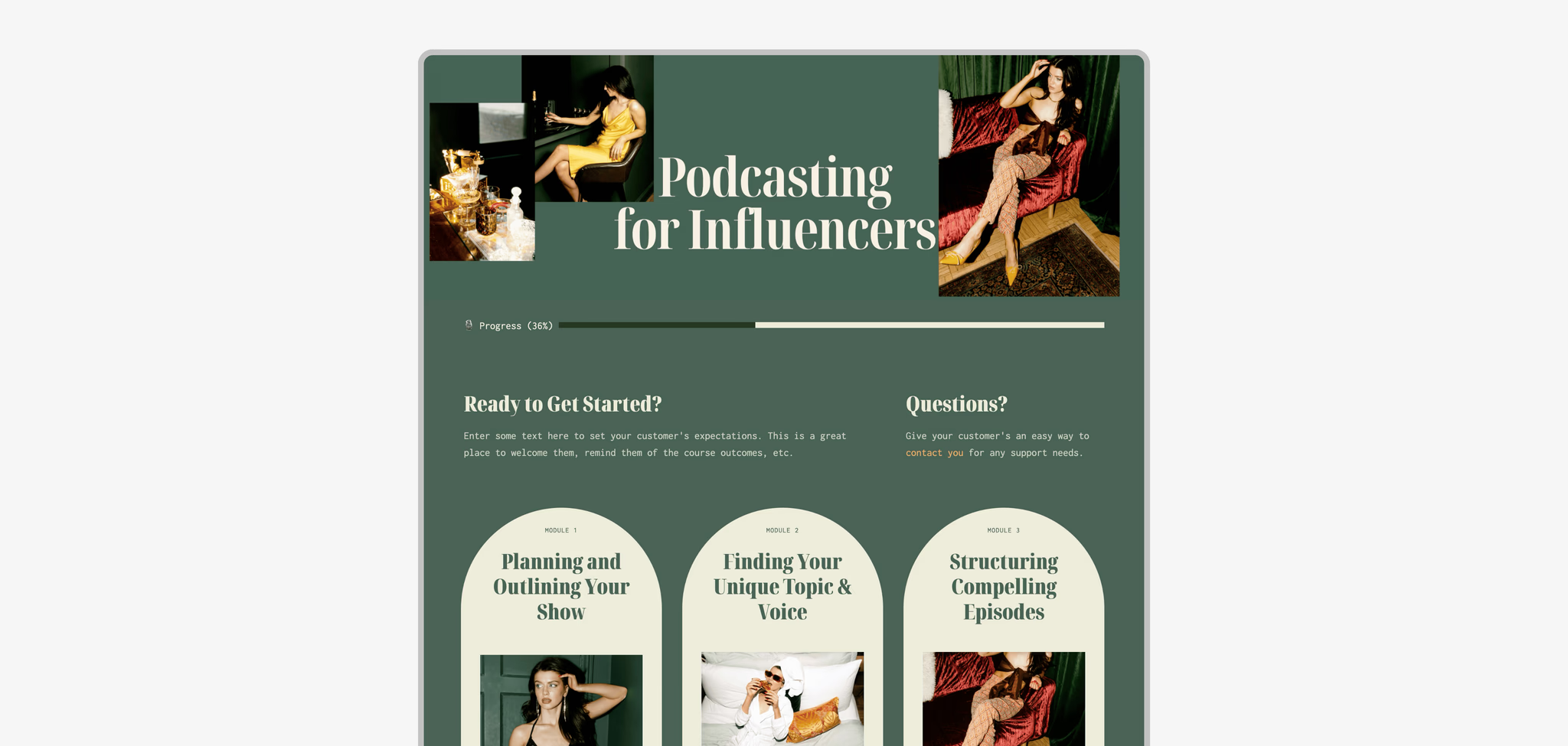
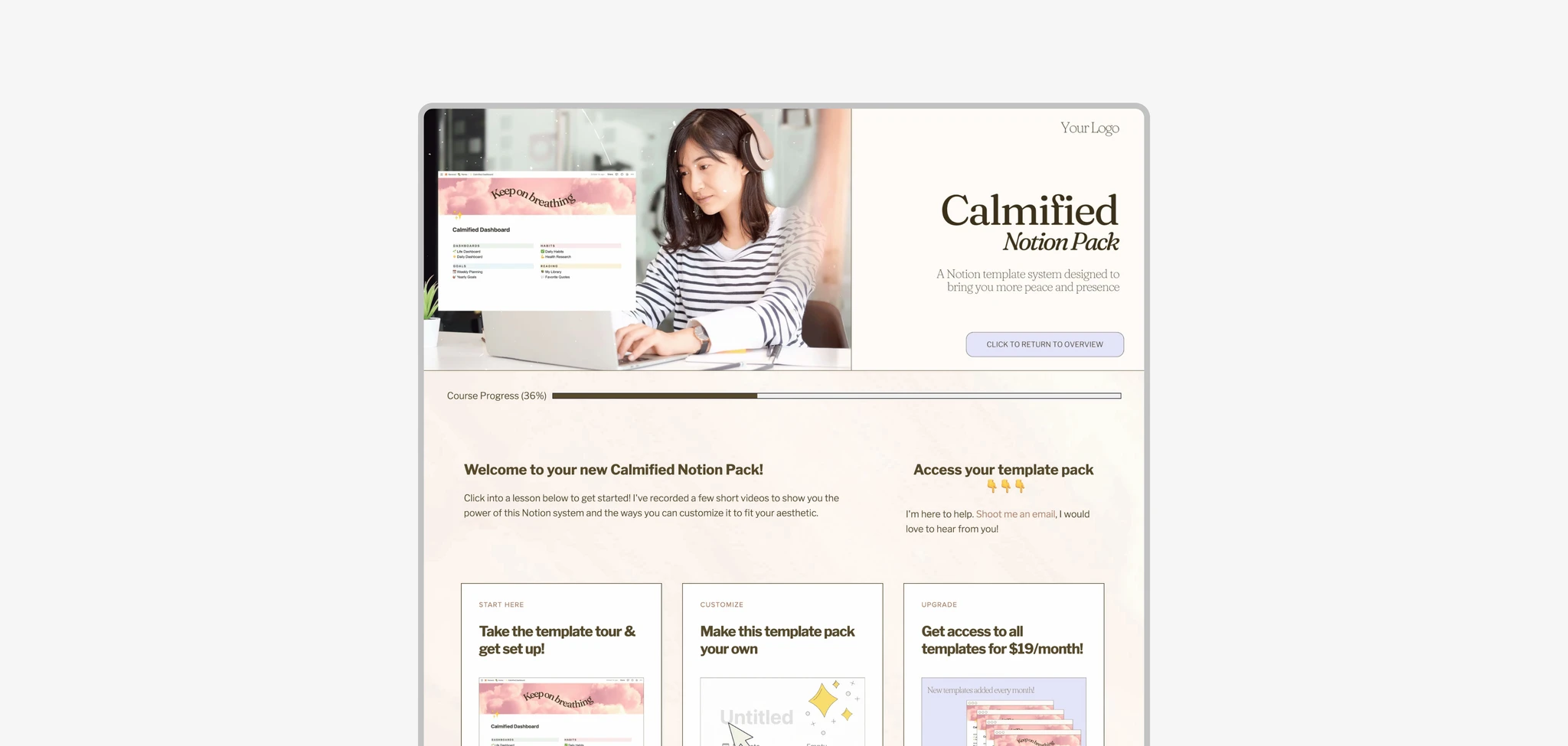
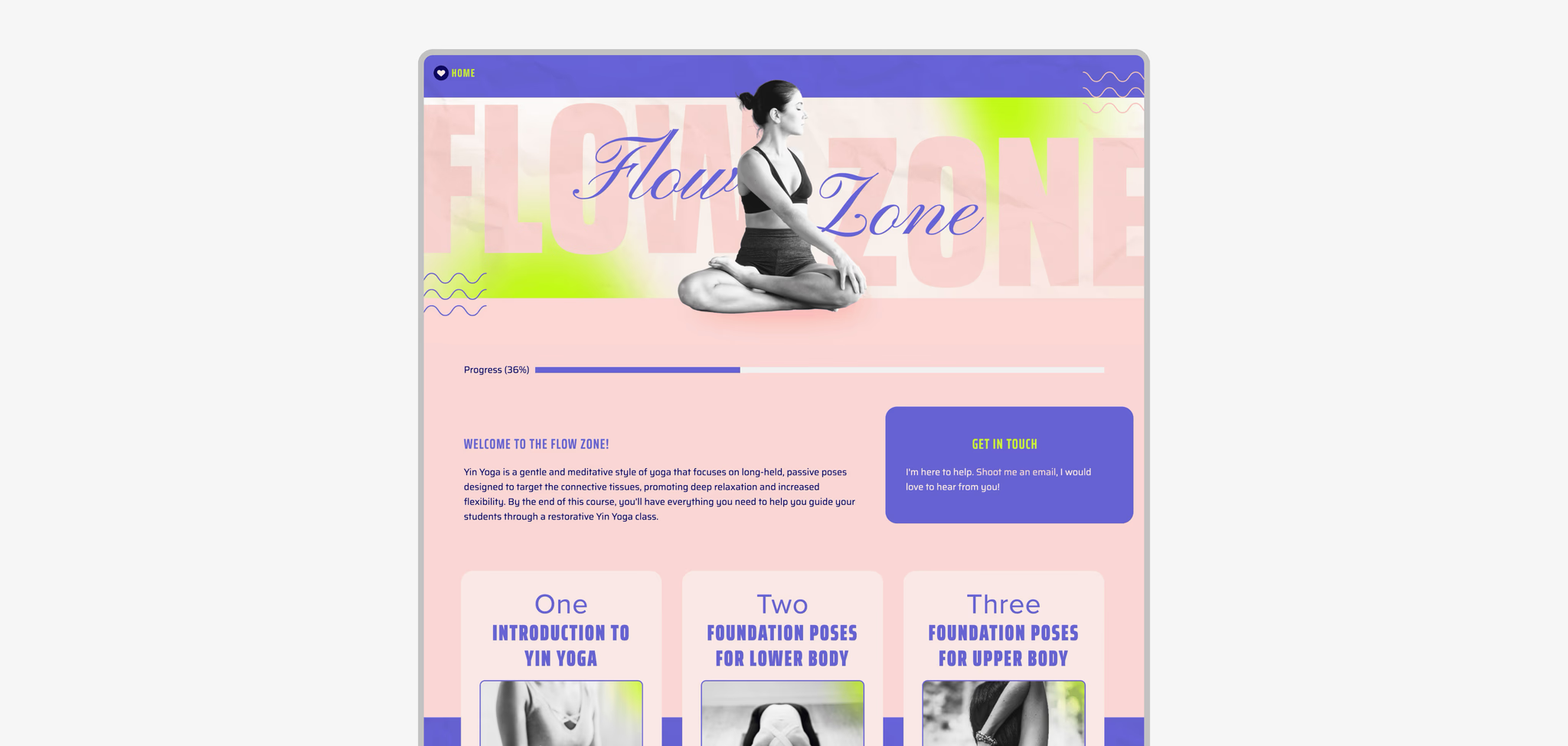
When you create a course in Teachery you have two course template choices:
Minimal Template: A more sleek, simple, and modern course layout (our default template)
Sidebar Template: A boxier, more conventional course layout with a left sidebar

The Minimal Template was the second course template created in Teachery but it's become the most popular and has since been set to the default template when a new course is created.
If you're looking to learn more about how to add content to your course or learn how Teachery works, you'll want to read our Getting Started help doc.
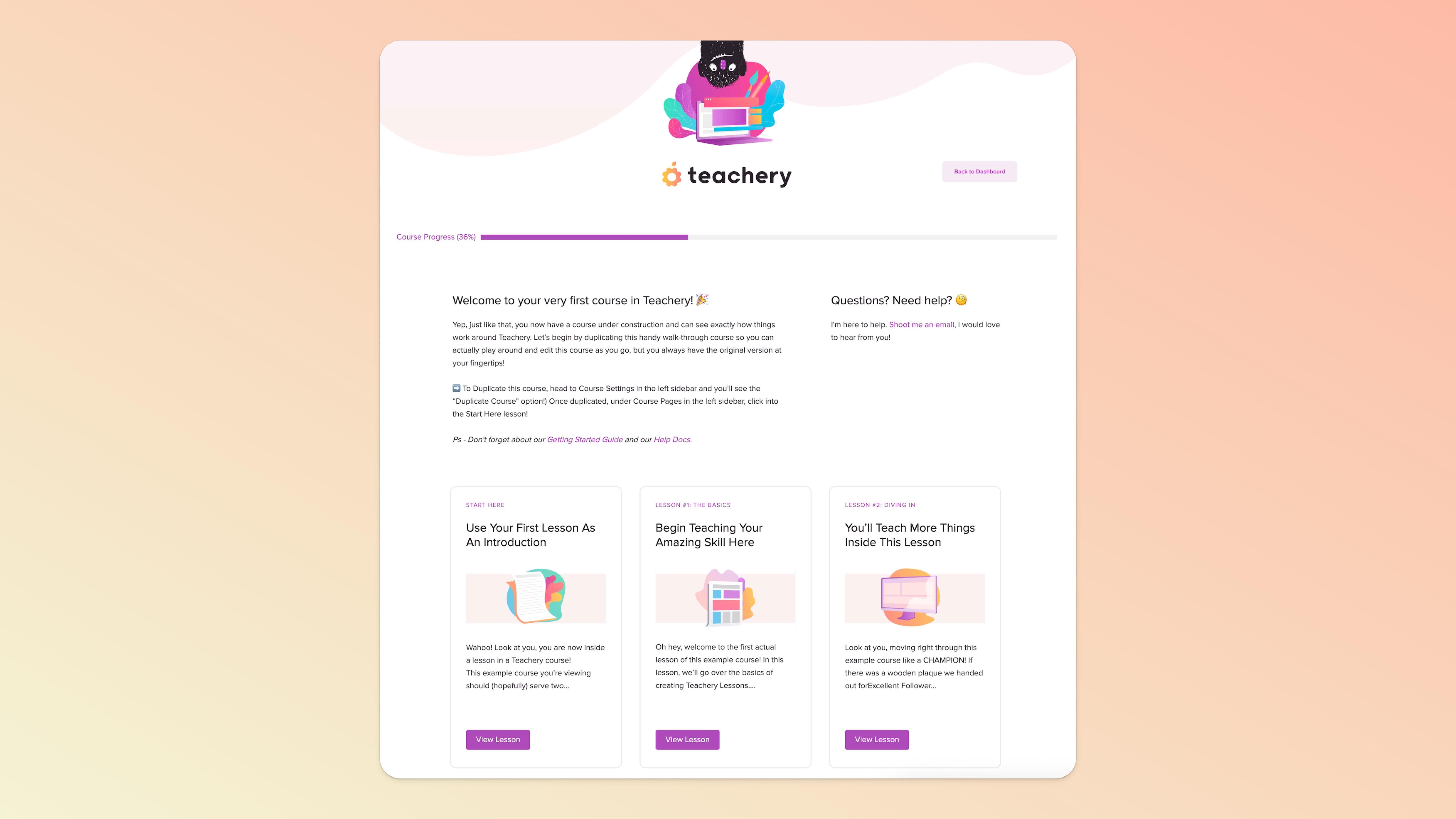
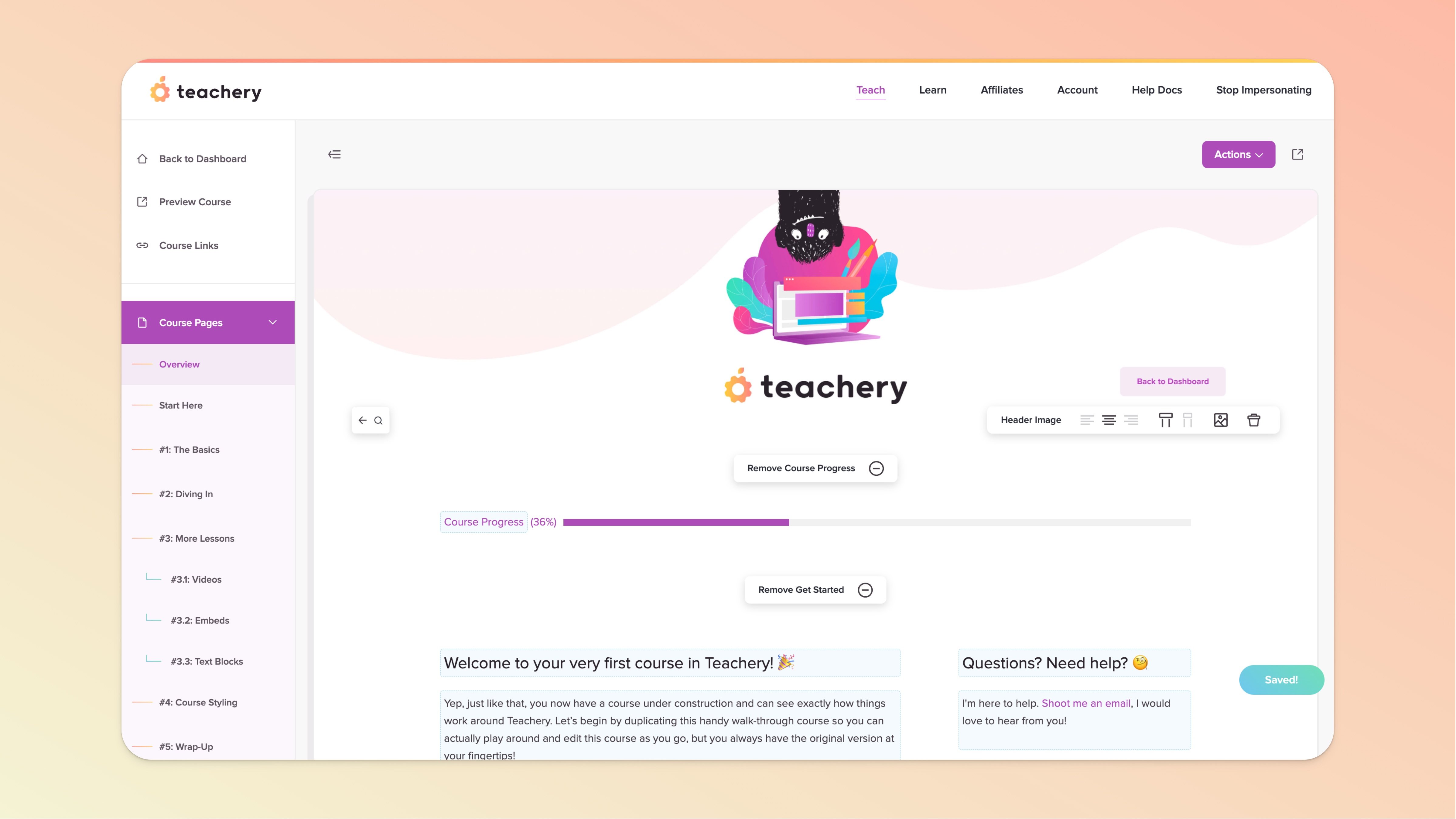
This is the public view of a course using the Minimal Template:
This is what the Teachery course editor looks like:

The Sidebar Template is the original Teachery course template. It was born one evening when I (Jason Zook, the founder of Teachery) couldn't find a course platform in 2013 that I could customize. So, I busted open Photoshop 😅 and our first course template design was born!
It's had a few tweaks and updates over the years, but people still love the Sidebar Template so it's not going anywhere any time soon.
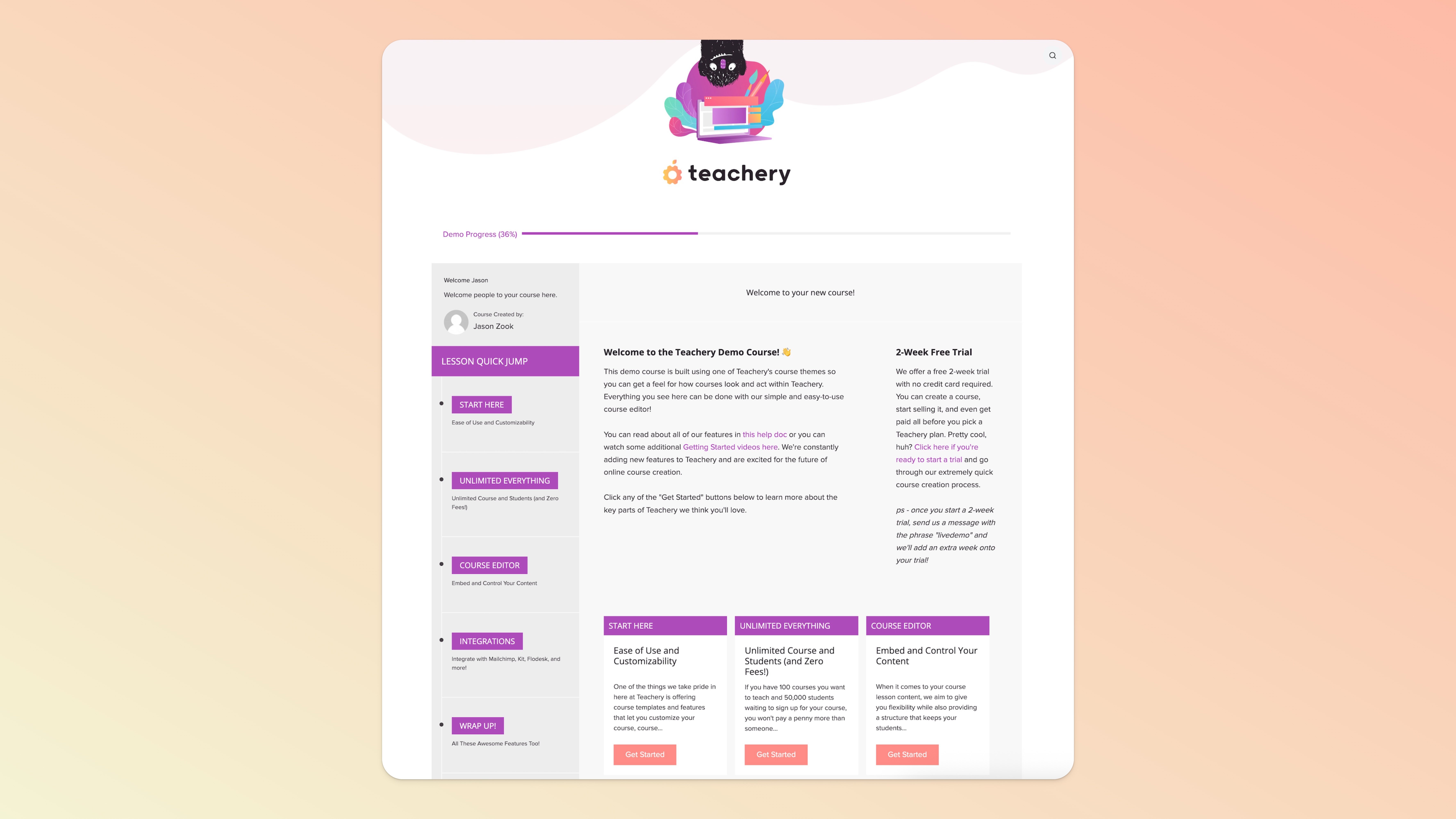
This is the public view of the SAME course you saw above, only switched over the Sidebar Template:
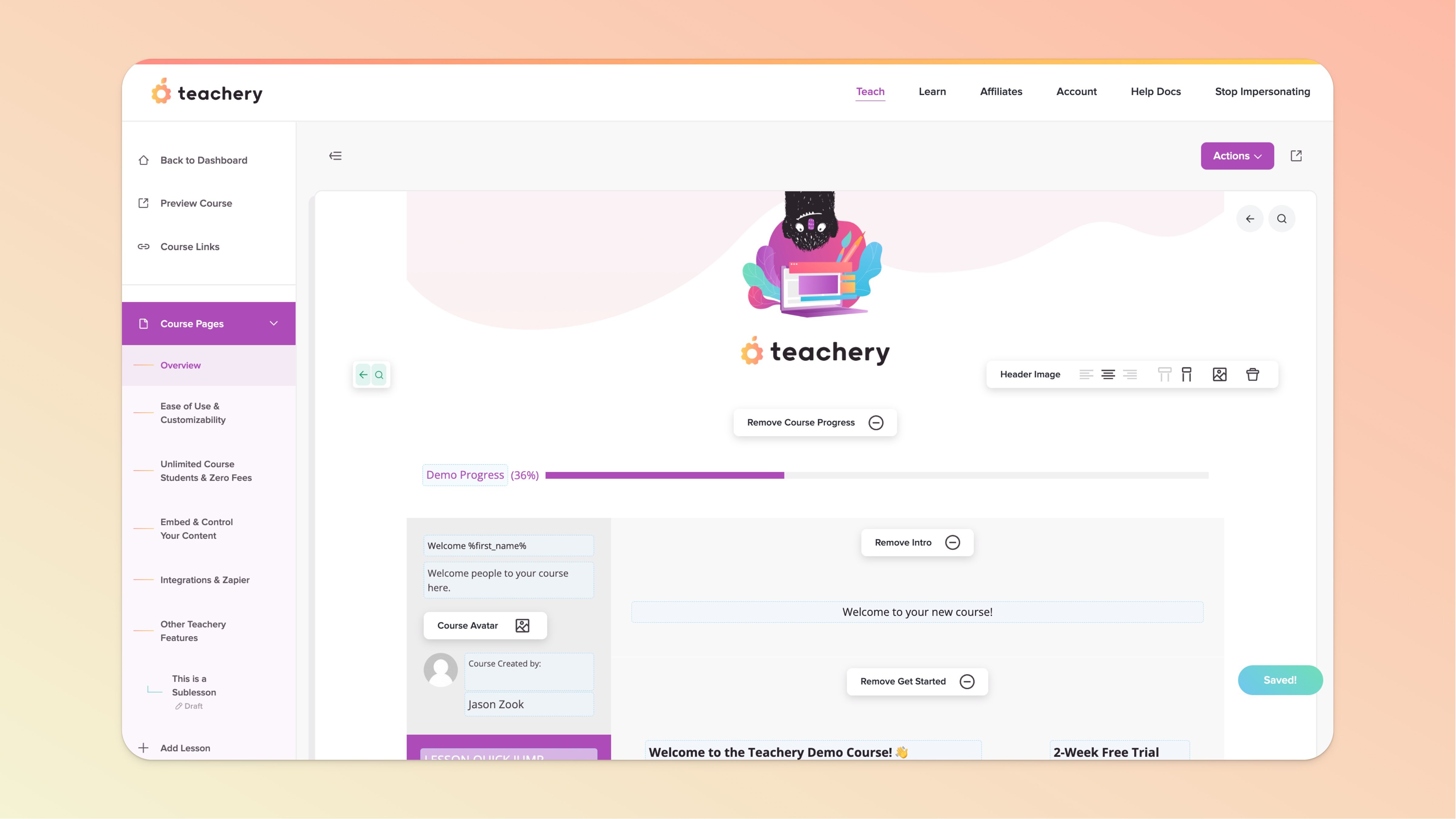
And here's the course editor view, which looks almost exactly the same as the Minimal Template editor view:
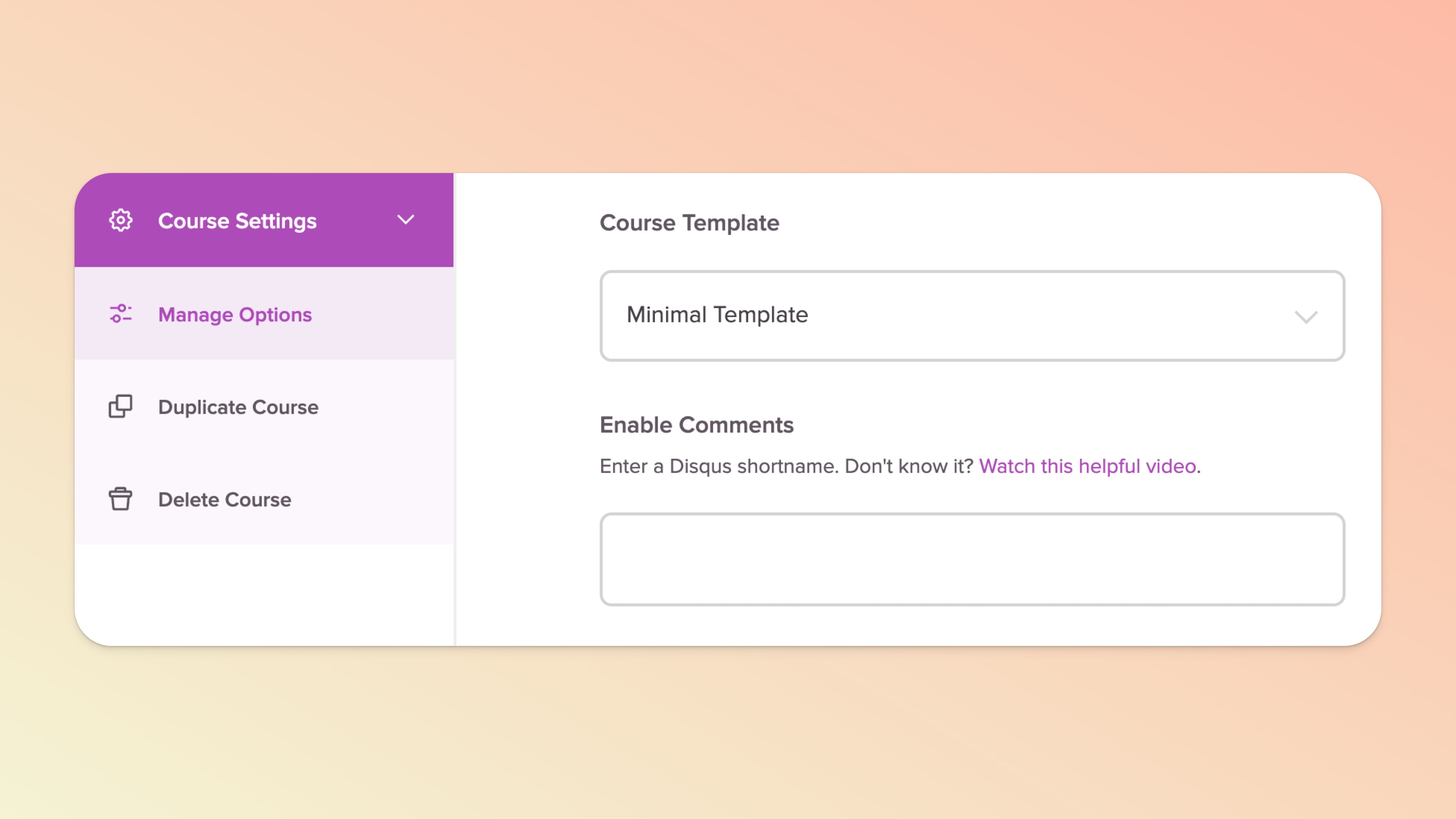
If you want to change the template of an existing course, it’s super easy!
Click into the course you want to edit
Inside the course editor scroll the left sidebar to Course Settings > Manage Options
Scroll down to the Course template section and choose your template
Make sure to hit Save at the bottom of the page ✅
If you’re familiar with WordPress, our two course templates are going work similarly (without the installation headaches you get with WordPress!)
The content you add to your course: Header image, Lessons, Sublessons, Lesson Content, Payment Pages, etc. All of that good stuff gets applied to whichever course template you choose, with no extra work on your end.
Where the course templates have a life of their own, is in the course styling. Much like a WordPress theme/template, you can switch back and forth between the Sidebar Template and Minimal Template and your course can look very different, but the content will always be the same.

Read our Styling Your Course help doc to learn more about customizing your course!
All of the Courses shown below can be used (for free!) via our Template Marketplace.