This feature is a great built-in marketing tool that will enable potential customers to get a better feel of what your course offering. 🤩
The Free Lesson Preview feature is easy to set up and once it's toggled on, there's really nothing else you need to do except promote the URL of your course (see “Your Course URL” in your course’s Course Links page).

** Your Default Course Page is what users will see if they type in the URL of your course and have not yet purchased it (or are logged out). The out-of-the-box Default Course Page is your course login page but this can be modified in the Course Settings > Manage Options page of your course.
You'll find this feature in the Actions menu of your course's Overview page. You can access the "Edit Free Lesson Preview" settings via the left sidebar Overview page hover menu OR while editing the Overview page itself and clicking the purple Actions button in the top right.
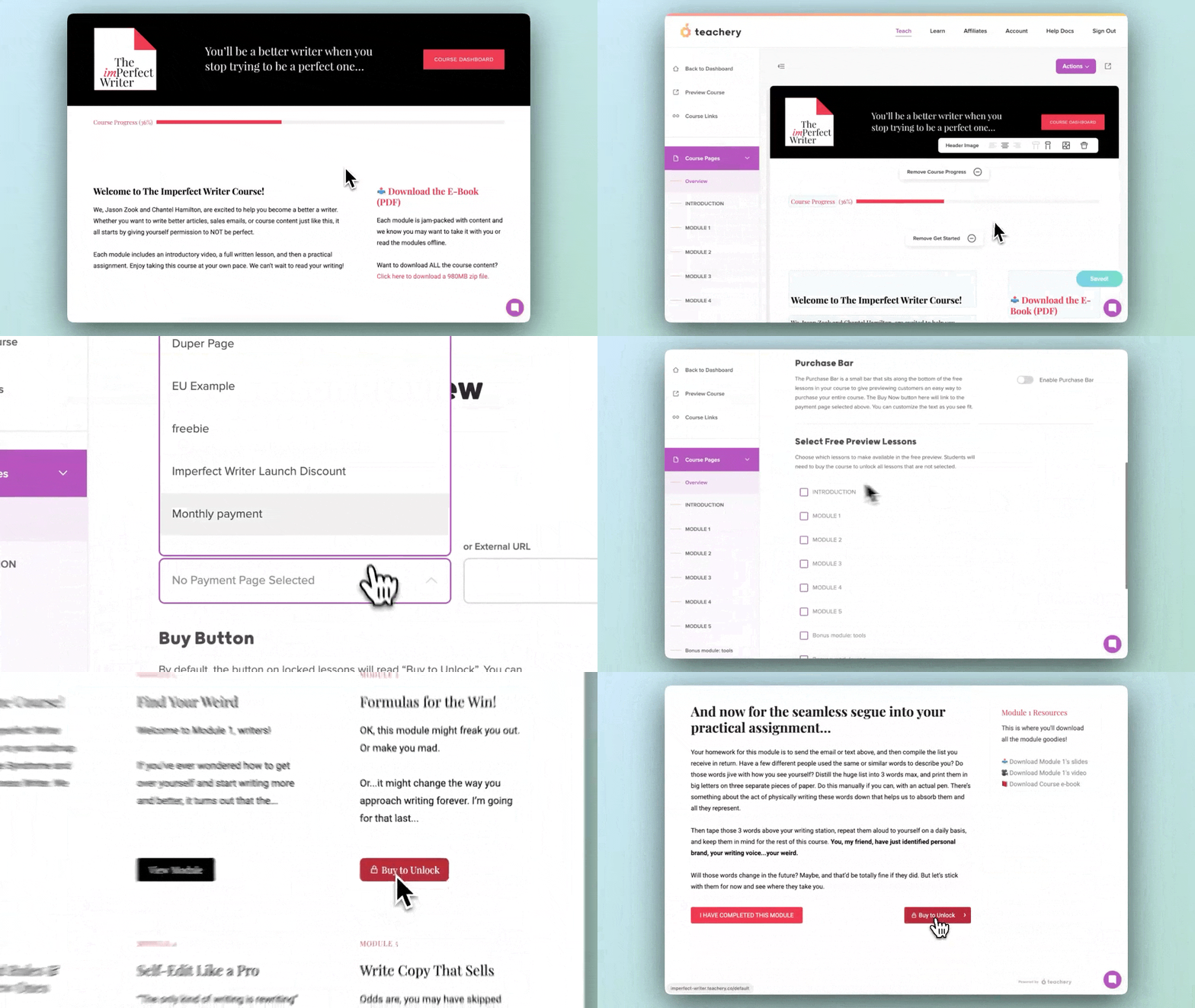
The settings you can quickly and easily adjust are:
Toggling this feature ON or OFF
Choosing a Payment Page or External Payment URL
Customizing the Buy Button text
Toggling the Purchase Bar ON or OFF
Selecting the Lessons to have as viewable

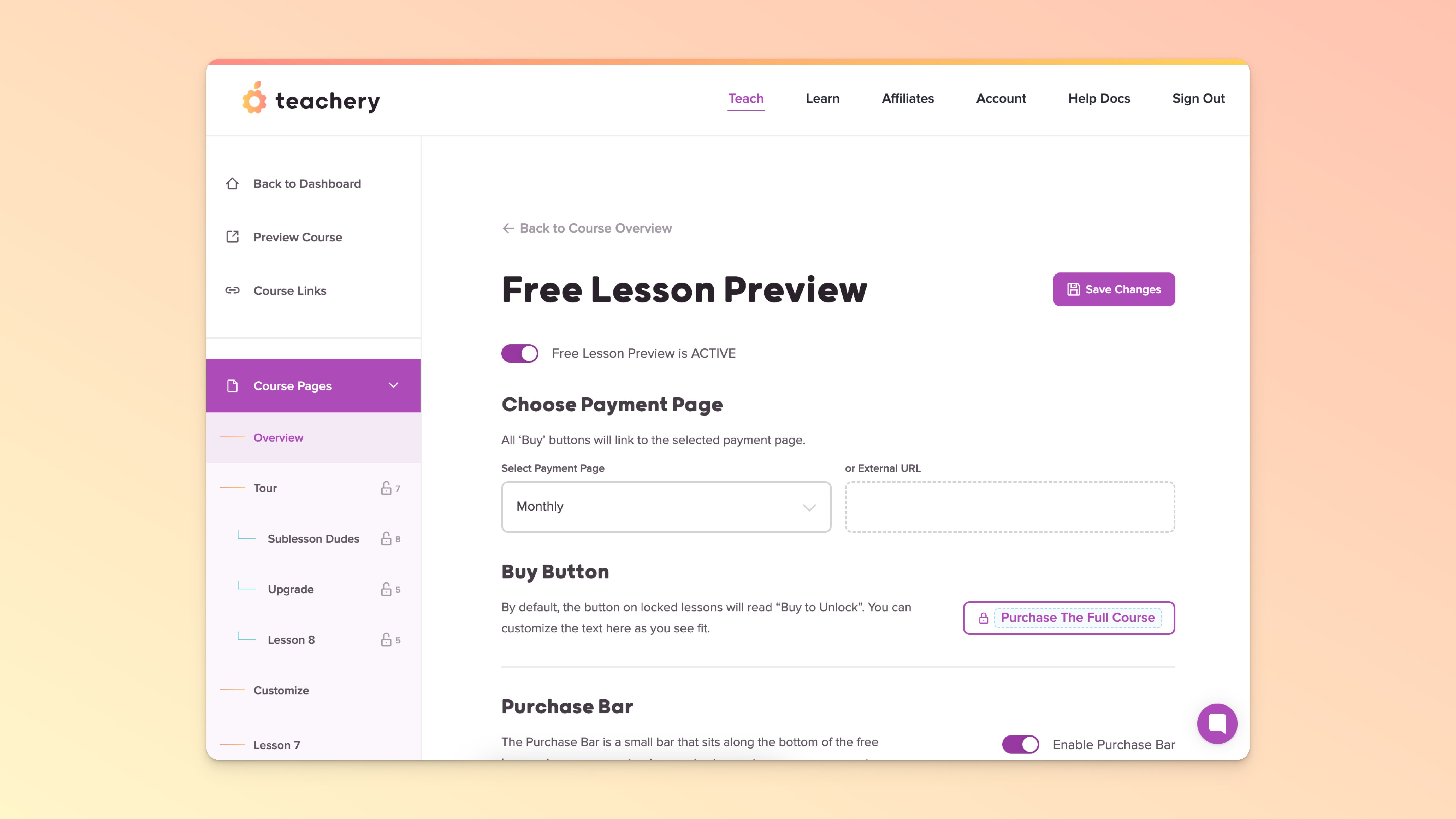
By default, toggling ON the Free Lesson Preview feature will automatically display a "Buy to Unlock" button on any Lessons that aren't set as free to preview. The "Buy to Unlock" text is customizable and you can set the button to go to an existing payment page within that course or another page/URL.
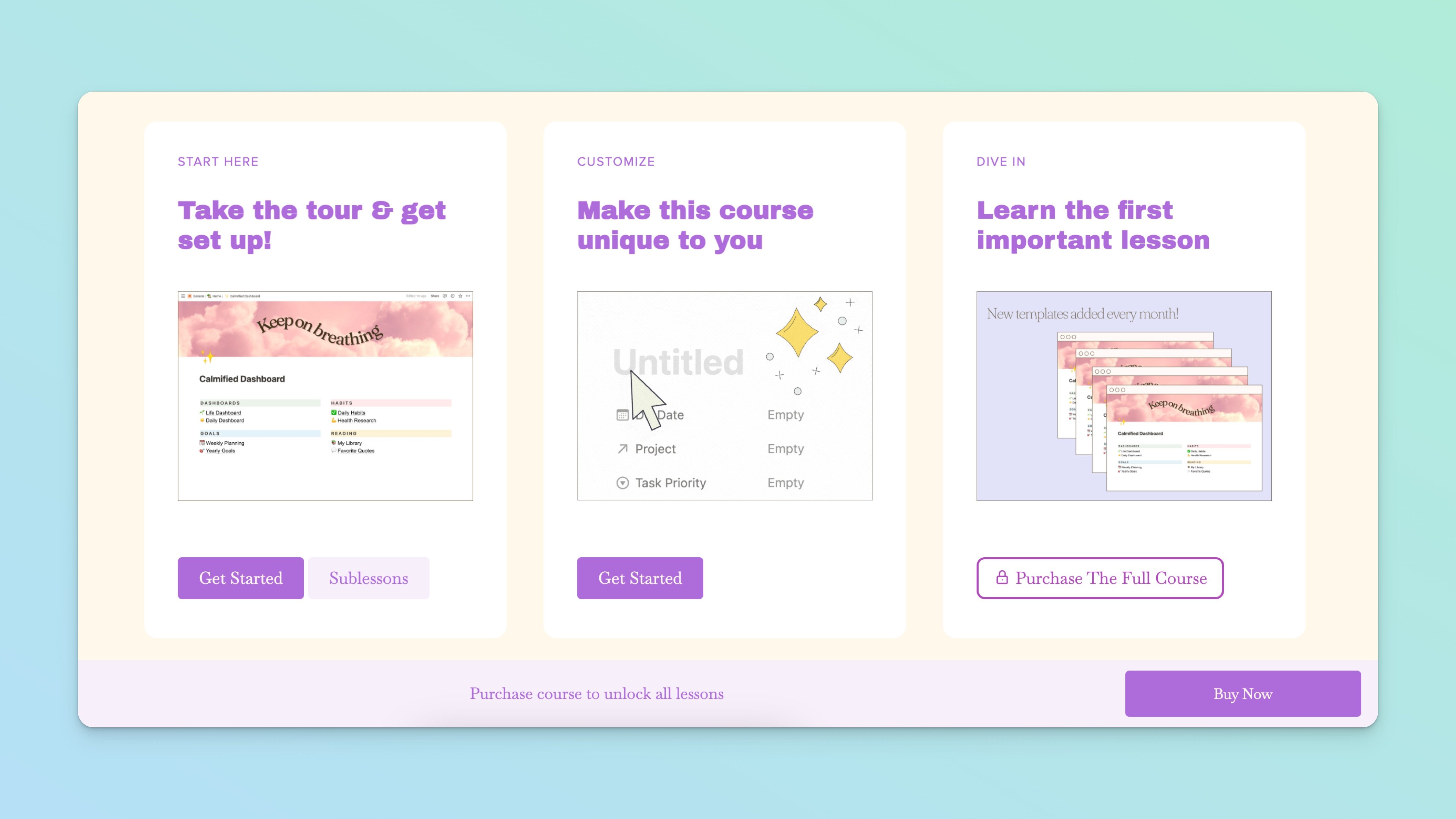
If you want an additional call-to-action for your potential customers to purchase the full course, you can toggle ON the Purchase Bar. This bar is a persistent bar that sits along the bottom of every page of the course, with customizable text and a button. You can style the bar in the Style Editor and the button link will simply adopt the payment page/URL you set for the lessons’ "Buy to Unlock" buttons.
Here's an example course showing the first two lessons as free with the Purchase Bar turned on:
How will I know if the Free Lesson Preview feature is on and working?
There are two ways: #1 When viewing the Overview page in the course editor, there's a small status message above the course page that says, "Free Lesson Preview is ACTIVE." #2 If you preview the Overview page of your course, you'll be able to see it just as a potential customer would see it (with free lessons and locked lessons).
Can I update which lessons are free at any time?
YES! Just make sure to use the "Save Changes" button whenever you are making an update to the Free Lesson Preview settings page.
What about Sublessons?
Sublessons will work the same as Lessons! You can make them free or not.
What happens to the "Next Lesson" button inside a Lesson or Sublesson?
The "Next Lesson" button (shown at the bottom of the last free lesson's page) will change to the same "Buy to Unlock" text. The styling of the button will be inherited to match other buttons, it's just the text and a lock icon that get changed.
Can you use the Free Lesson Preview feature with Locked Lessons?
YES! The locked lesson schedule will be shown after the customer has purchased the course. Easy peasy!
Can you use the Free Lesson Preview feature alongside a Course Expiration Date?
YES! If you are using the Purchase Bar AND the Expiration Bar, the Purchase Bar will take priority and upon purchasing, the Expiration Bar will be displayed thereafter.
💬 If, at this point, you hit any hurdles/doubts and can’t find the answers elsewhere in our help center, please use the support chat bubble* in the bottom right of your screen. Make sure to include course/product info, customer info, helpful screenshots, or anything else that may be relevant to your query.
* Support hours are 09:00 to 17:00 GMT.
