Our Progress Bar feature is very simple in its execution but has very powerful implications for you and your course students.

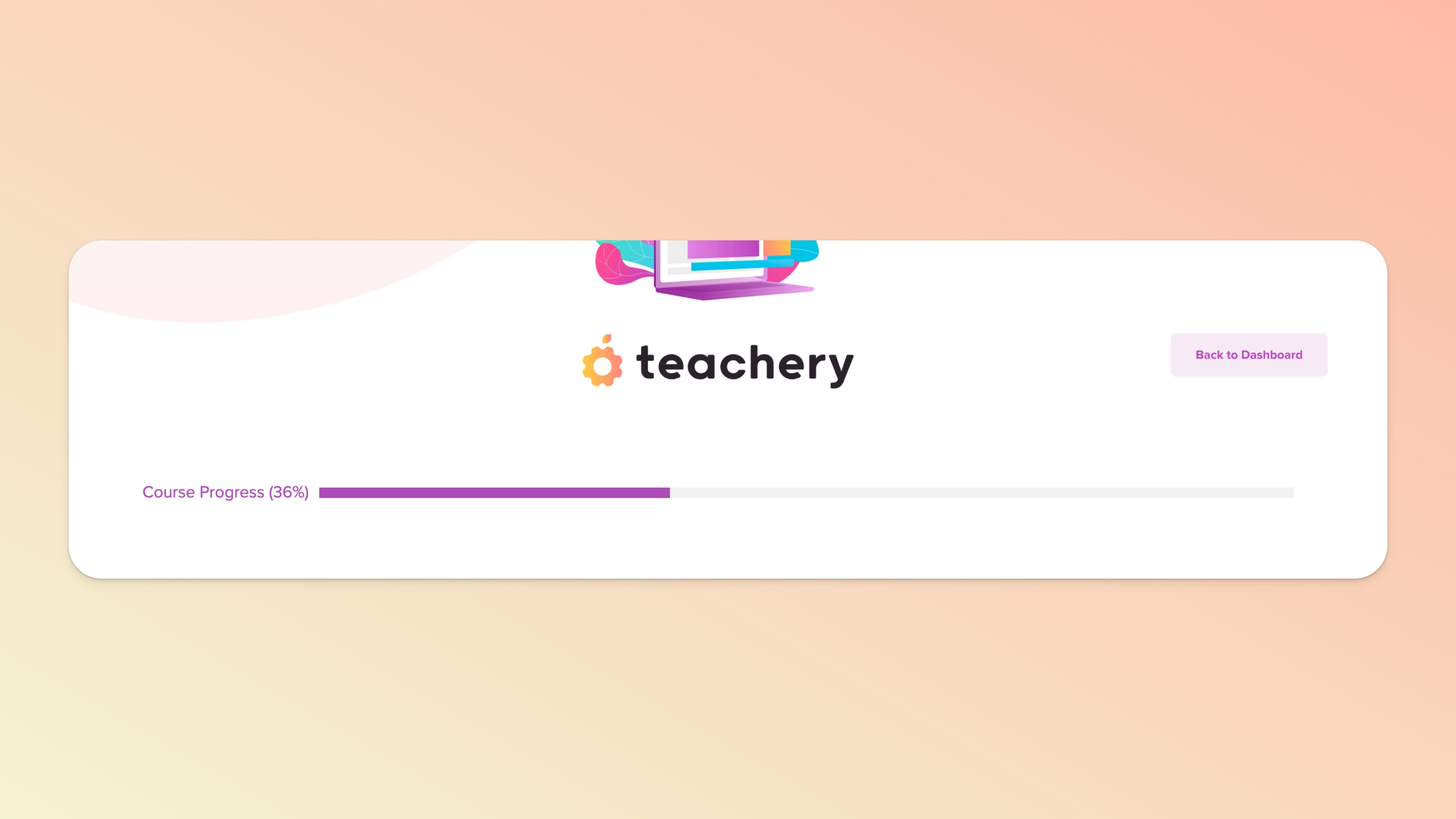
Progress bars are enabled ON ✅ by default, but if you don't see it on the Overview page of your course, here's how to enable it:
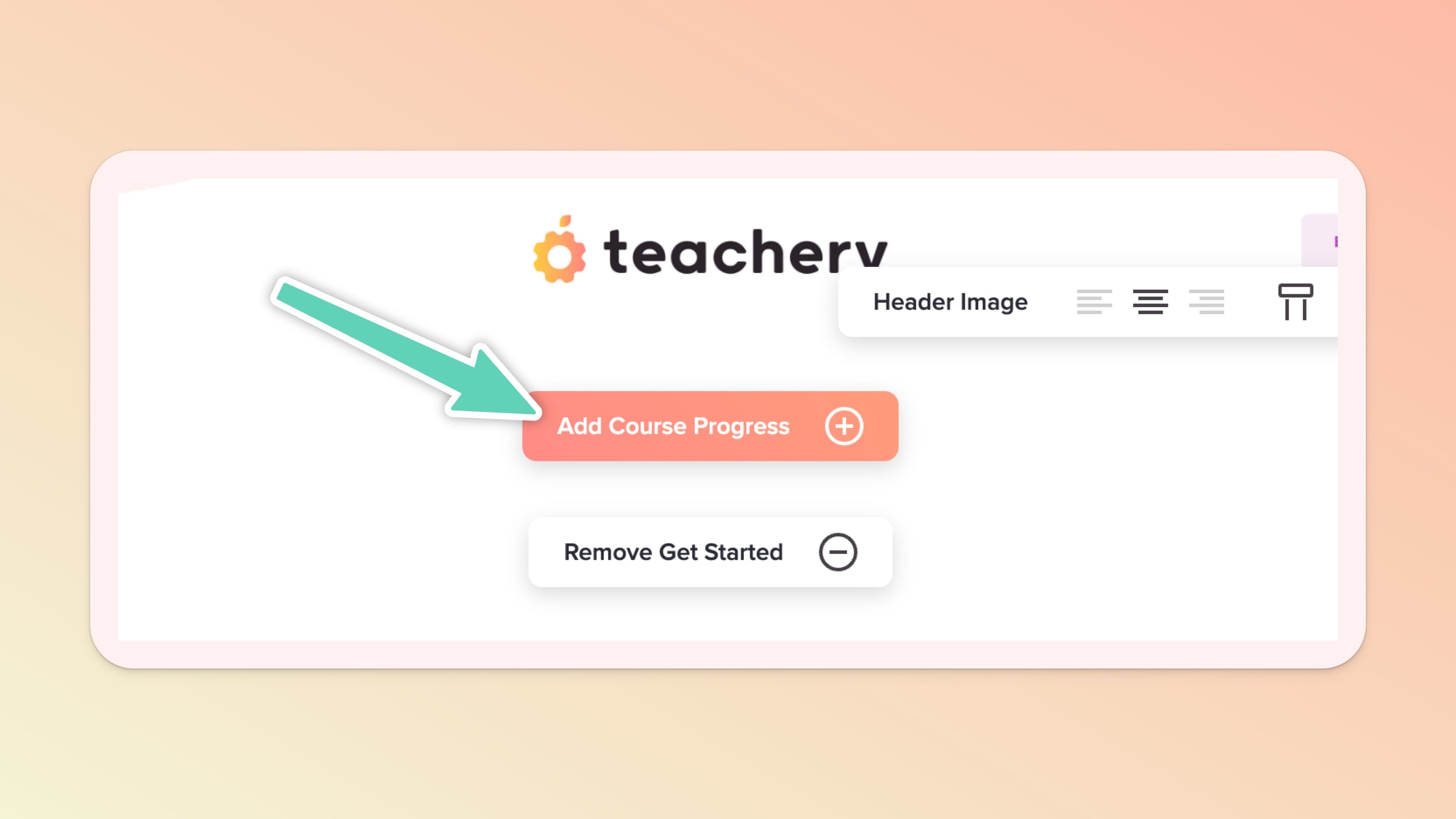
Edit the course you want to add the progress bar to
Make sure you're on the Overview page in your course editor
Click the orange "Add Course Progress" button under the header image to toggle the feature ON
Feel free to change the "Course Progress" text to whatever you like
The progress bar will now show on every lesson within your course! 💪
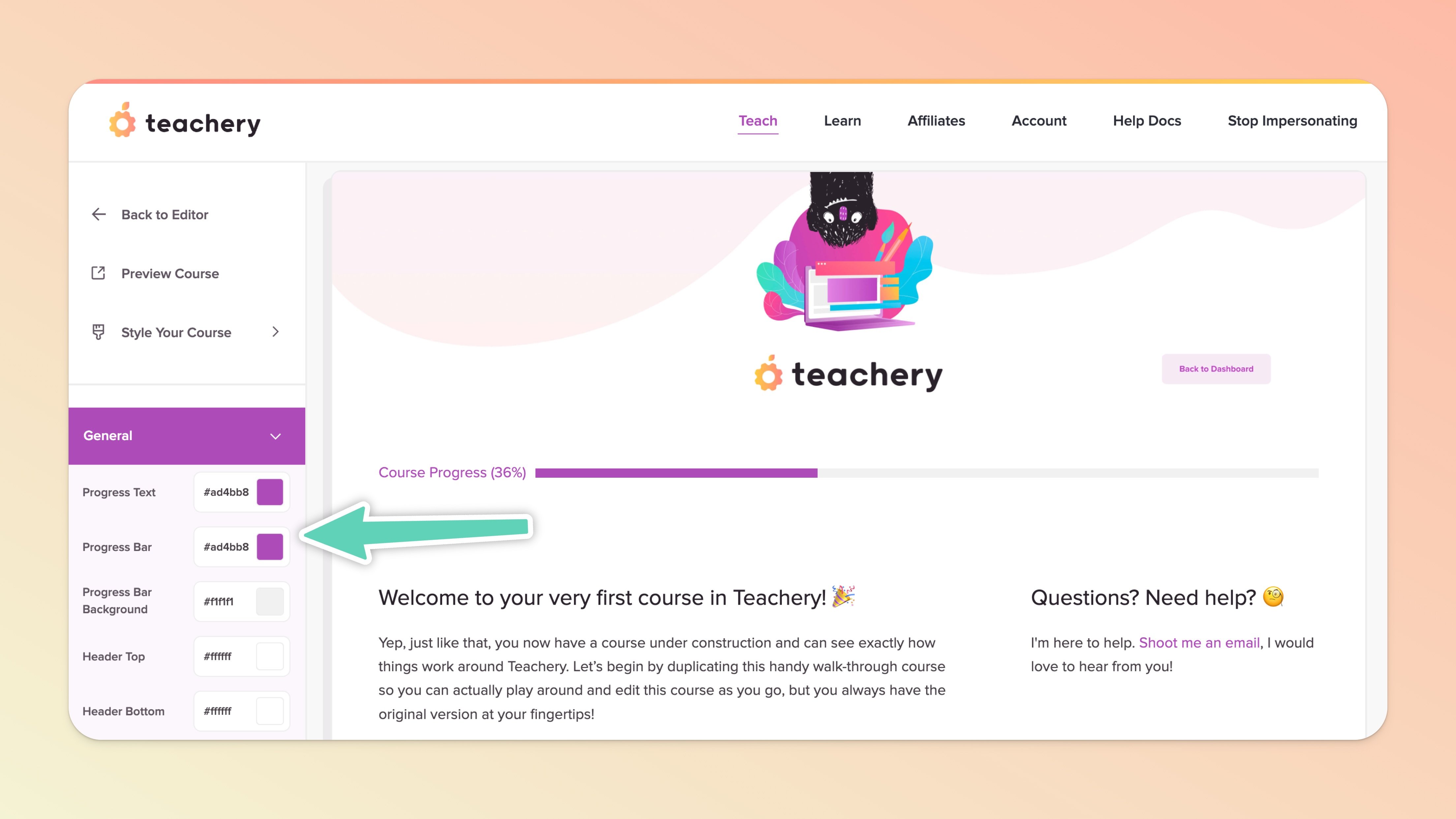
While in your course editor go to Style Your Course in the left sidebar
Then click the Overview page style option
The first 3 styles in the General tab are for your progress bar
If you're using the full-width Header Image feature on your Overview page, you may want a wider progress bar. In the Style Your Course section of the editor sidebar, click the Add Custom CSS page and include the following CSS:
.student-progress {max-width: 100% !important;}Make sure to double-check your CSS and then Apply + Publish Changes.
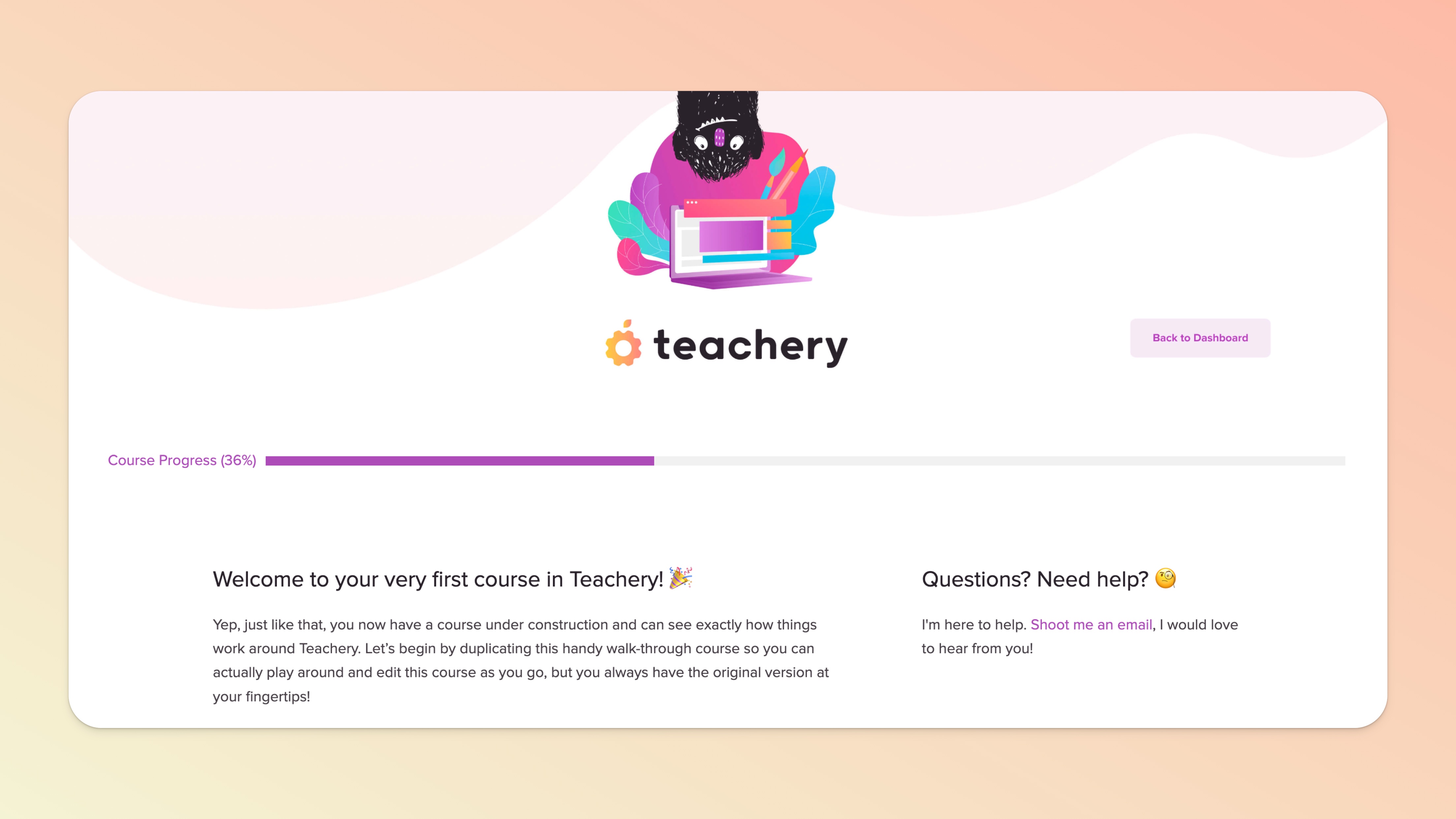
When you're logged in as the course creator, the progress bar will show "36% progress" no matter what you do. We'll save you the technical reasons why the progress bar never changes when you preview your course.
That being said... If you want to see the progress bar change, you'll want to add yourself as a customer of your course (reminder: use an email address that is NOT your Teachery account email address).
Viewing the course with your student login email you'll see the progress bar start at 0% and change as you navigate through the course!
