The course header image you add to your course’s Overview page has a lot of (awesome) visual real estate. Because of that, it's not the best image to use on the Course Card (what you see on your dashboard of courses in your Teach page and what customers will see on their Learn page) and it's not always the best for social sharing applications like Facebook, Twitter, LinkedIn, etc.
Having a dedicated preview image gives you the flexibility to customize the Course Card while keeping your awesome header image untouched.

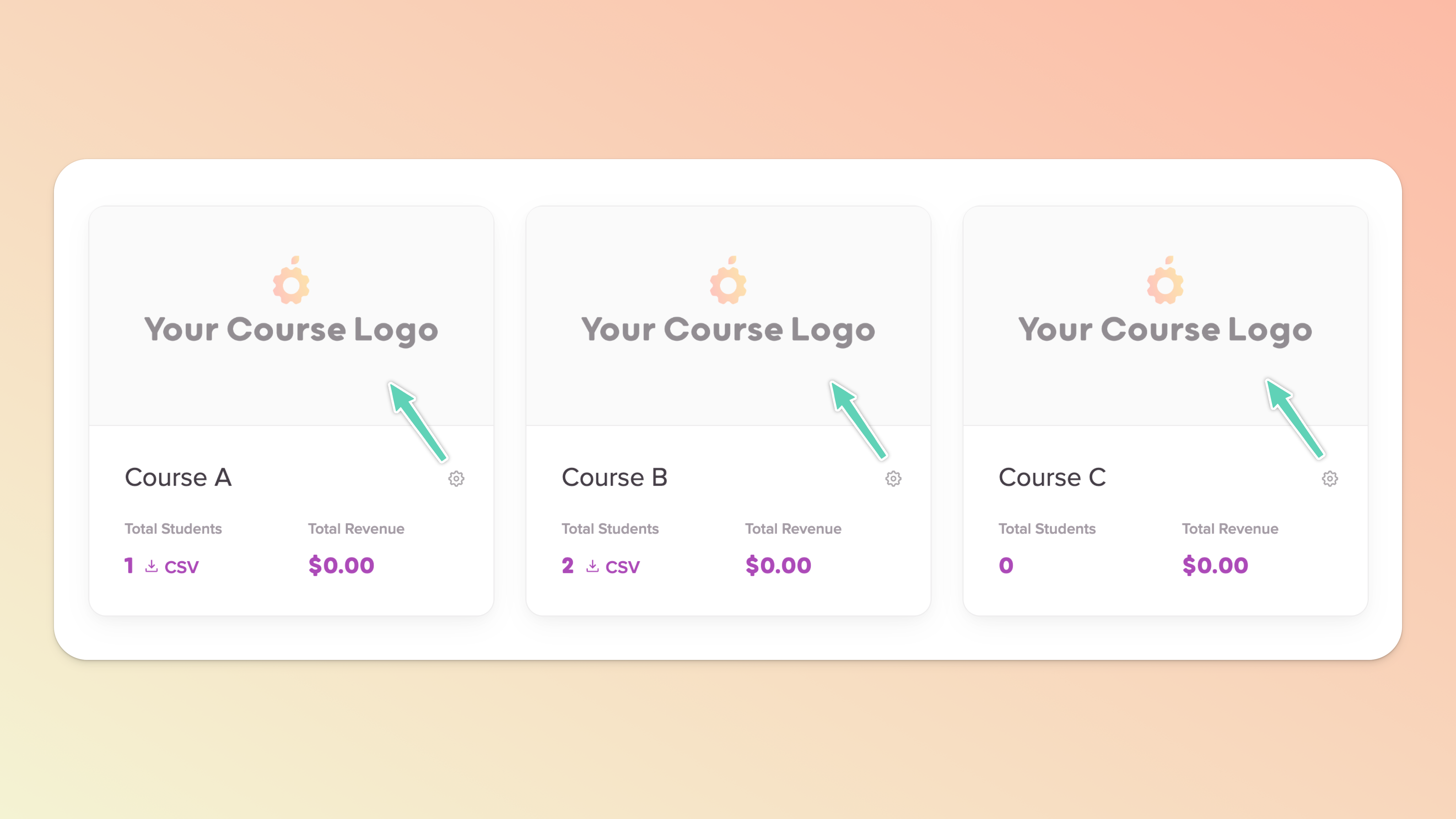
Adding or changing the Course Card preview image could not be easier!
Click the gear icon inside the Course Card, beside the course name.
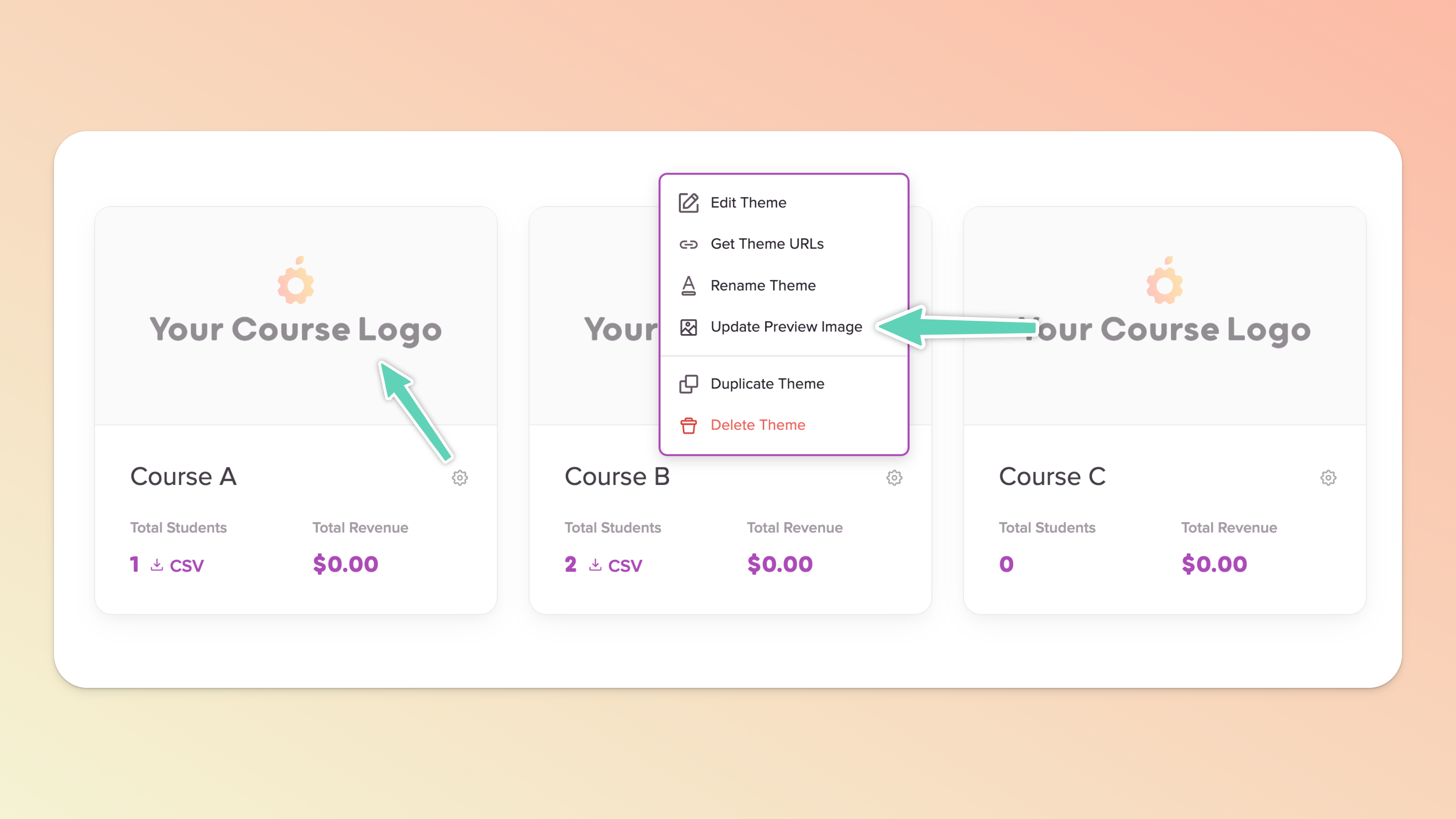
Select the Update Preview Image option.
In the popup that appears, use our file manager to upload an image (remember: 1200px by 630px - JPG or PNG).
You're done! 🙌
The most reliable social sharing image test is the Facebook Sharing Debugger. Add your Teachery Course URL (main Overview page). You can also use Social Share Preview for X, Linkedin, etc but it’s not 100% reliable.
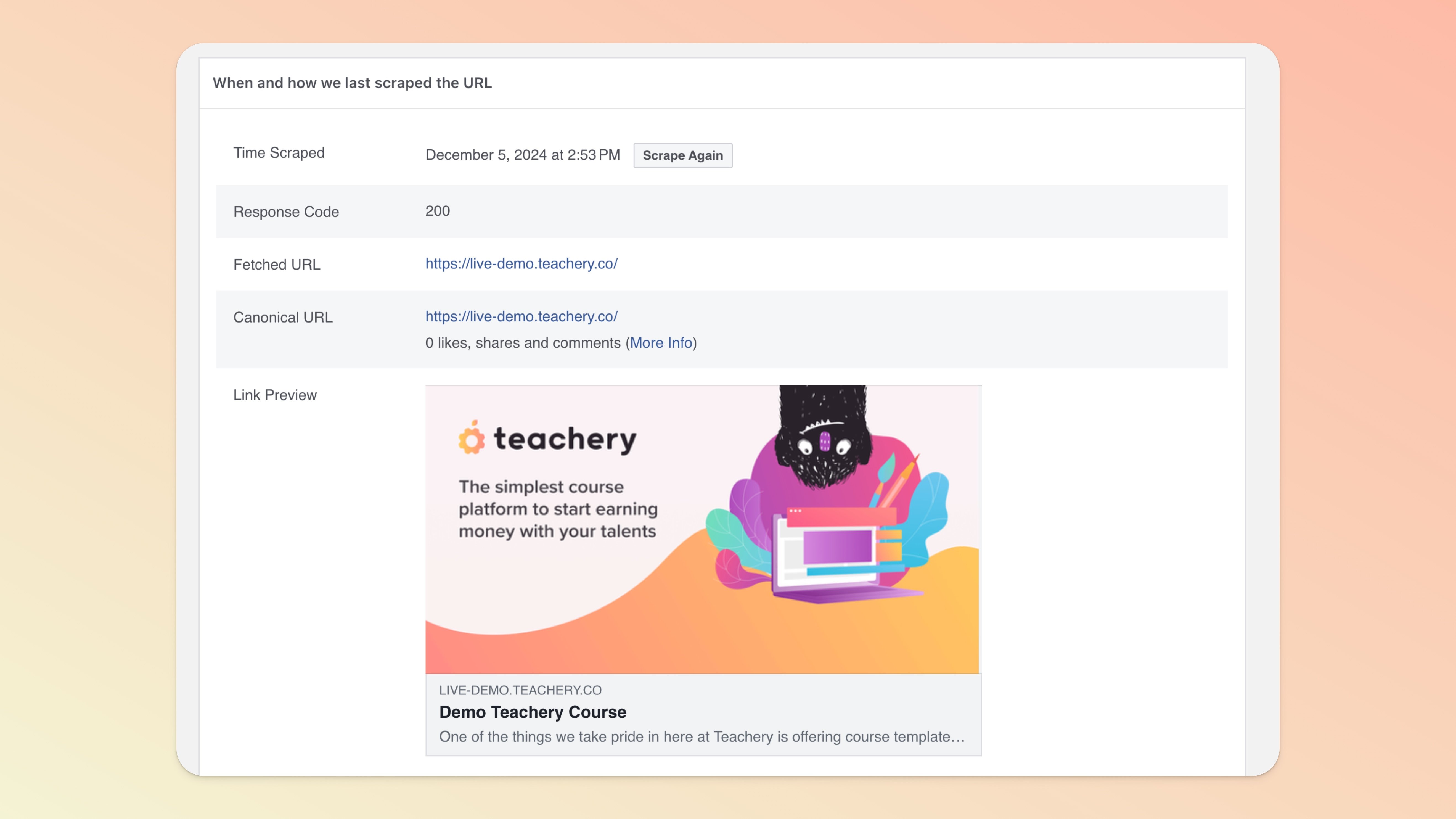
FB/Meta will cache the social share image and they may cache the default Teachery version. To force FB/Meta to "re-scrape" the image, use https://developers.facebook.com/tools/debug/, enter your main Course URL from Teachery, click Debug.
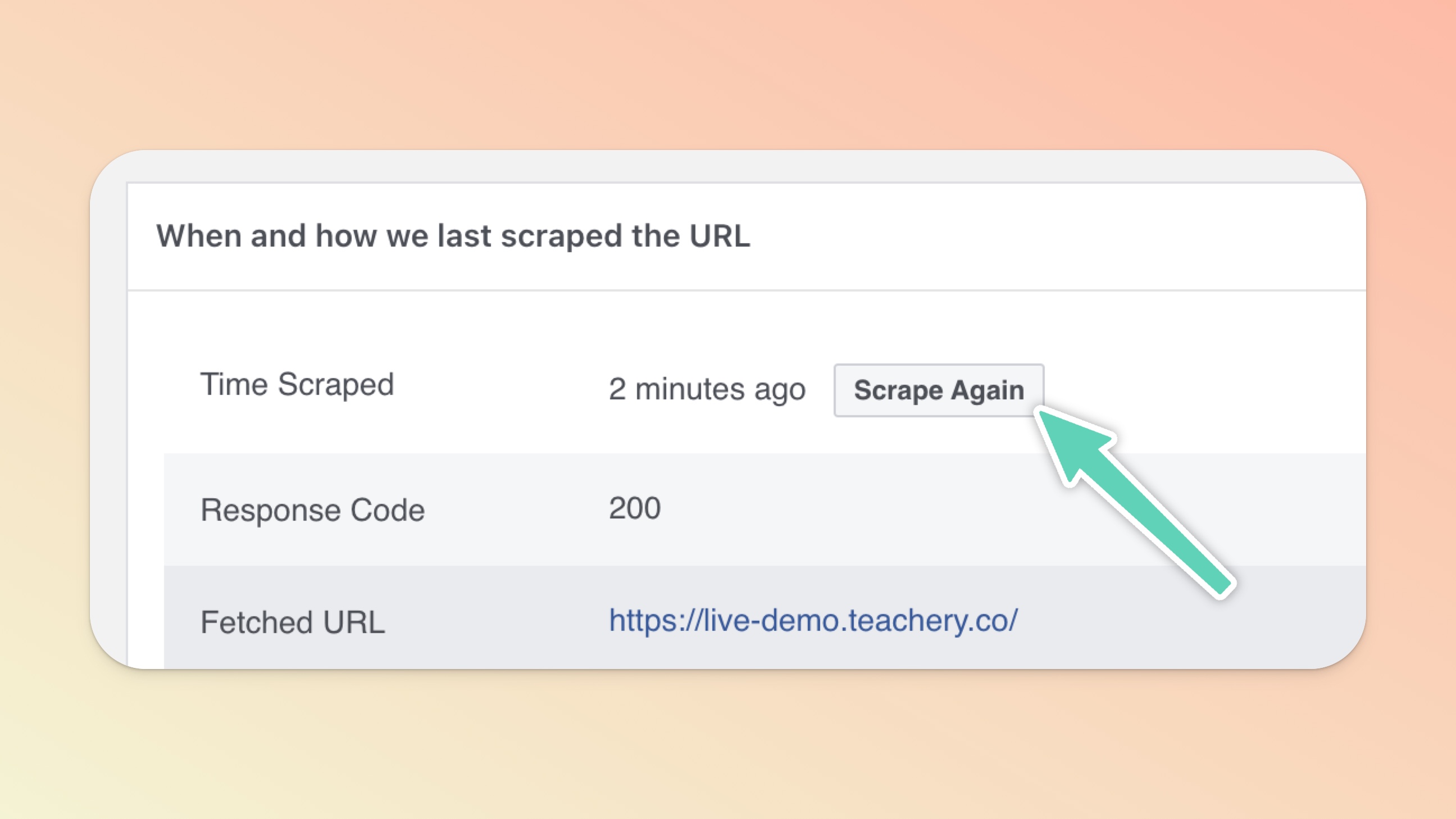
If don't see the correct social share image, click the "Scrape Again" button to pull in the new image.
If you've JUST changed the image in Teachery, it can take FB/Meta's debug tool up to an hour to see the new image from Teachery.