---
title: "Add a Custom Font to Your Course"
description: "Take your course design to the next level with any custom webfont!"
url: https://help.teachery.co/en/articles/196-add-a-custom-font-to-your-course
collection: "Design"
updated: 2026-08-13
language: en
---
# Add a Custom Font to Your Course
Take your course design to the next level with any custom webfont!
Adding a custom font in Teachery only requires a few simple steps.
> **Warning:** **Note**: Currently, it’s **not** **yet** possible to add a custom font to payment pages built with our [new payment page builder](https://help.teachery.co/en/articles/241-introducing-the-payment-page-builder.md). 🚧 Please use our [original payment page template](https://help.teachery.co/en/articles/212-creating-a-payment-page-and-editing-your-default-payment-page.md) in the interim.
## OPTION 1⃣: If you're utilizing free Google fonts…
We have a dedicated area to add any Google font to your Teachery course.
> **Info:** We **recommend** using [our Global Font Palette feature](https://help.teachery.co/en/articles/163-changing-your-course-font.md) if you want to use Google Fonts, but you can also use the alternative method below.
### Step #1: Grab the Google font embed code
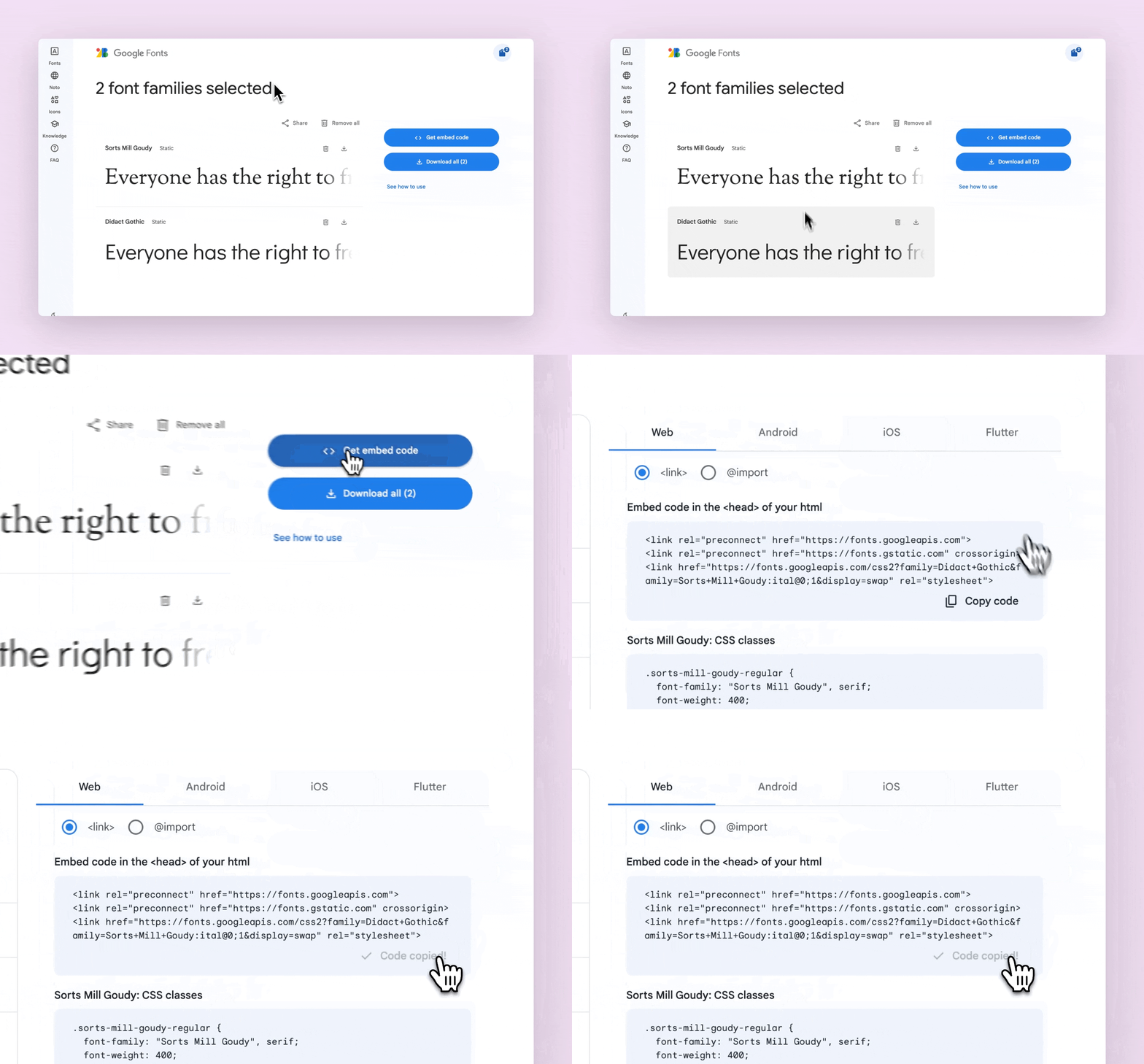
While viewing your selected Google font (or multiple selected fonts):
- Click the **Get embed code** button
- Then make sure you're on the **Web** view
- And finally click **Copy code**
### Step #2: Add the copied Google font files to Teachery
Click into your course in Teachery and in the left sidebar scroll down to **Course Settings > Manage Options.** Scroll down to the **Add Custom Font Code** and paste your code from Google.
What you paste should look like this:
```
```

### Step #3: Add a snippet of CSS to display the font
Once you've saved the Manage Options page, click into the **Style Your Course > Add Custom CSS** area of the sidebar.
To apply your Google font to the body copy, here's the CSS (replace "**MyAwesomeWebFont**"):
```
*, body {
font-family: "MyAwesomeWebFont", sans-serif;
font-weight:400;
font-style: normal;
letter-spacing: -.3px;
}
```
To apply your Google font to all of the Headings (H1, H2, H3, H4), here is the snippet of CSS to use (replace "**MyAwesomeWebFont**"):
```
.imitate-h3, h3, h1, h2, h3, h4, h2froala,
.imitate-h2-template-2 {
font-family: "MyAwesomeWebFont" !important;
}
```
> **Success:** Make sure to click the button that says **Apply Changes** AND **Publish Changes** once you add any custom CSS.

And that'll do it! You've successfully added any Google font to your course.
* * *
## OPTION 2⃣: If you're utilizing Custom fonts…
Let's say you've discovered an amazing font and purchased a license for it. You should've received a ZIP file that included a few different font formats you can use.
> **Info:** There is much debate online about using OTF, TTF, WOFF or WOFF2 as the correct webfont file. **Our recommendation is to use the WOFF or WOFF2 file.** You can use the others, but WOFF and WOFF2 seem to be a better standard across all devices.
### Step #1: Upload your custom font to any editable text area in a course
This is a simple little trick to let Teachery manage the custom font file, so you don't have to upload it to your own website.
> **Info:** If you’re not yet familiar with how to manage files using our built-in file manager, please start [here](https://help.teachery.co/en/articles/172-uploading-files-pdfs-and-other-downloadable-content.md).
In any **lesson or payment page** of a course in your Teachery account:
- Click into an editable text area
- Type any word or phrase (example: custom font file)
- Highlight the word or phrase you inserted, **click the ( + ) button** in the widget that pops up and then click the **upload file icon** to open the file manager
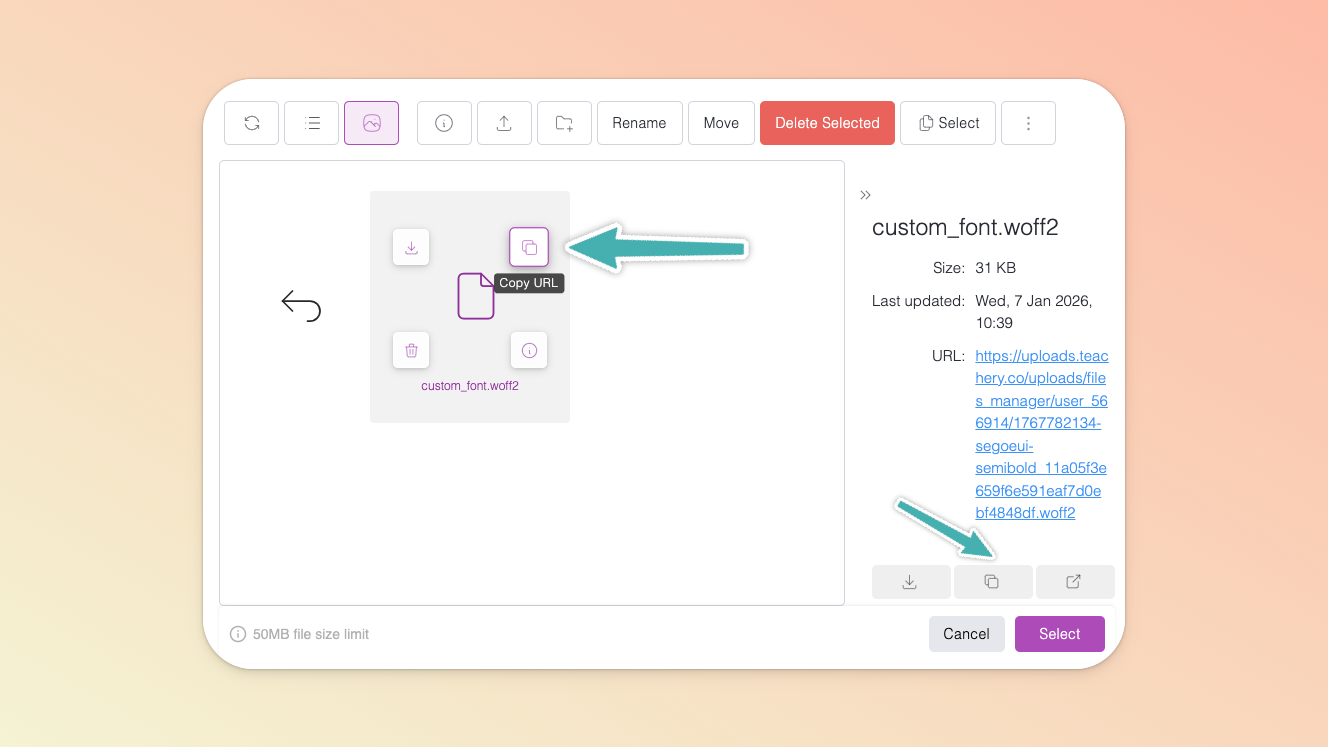
- Import your font file and, once uploaded, select the file and **click the copy URL icon** (or the copy URL icon found in the file’s info panel on the right) - you will need this URL for the next step
- You can now close the file manager and **delete that original word or phrase you’d inserted** in your text area (it’s no longer needed)
### Step #2: Add a snippet of CSS to display the font
Now, head to the **Style Your Course > Add Custom CSS** area of your course and paste the following code at the top of your Custom CSS area:
```
@font-face {
font-family: 'MyAwesomeWebFont';
src: url('https://example.com/webfont.woff') format('woff'),
url('https://example.com/webfont.ttf') format('truetype');
}
```
- Replace '**MyAwesomeWebFont**' with the name of your font
- Replace the src urls with the links you copied from uploading your custom font to your course content block
- Click the button that says **Apply Changes** AND **Publish Changes** to save your CSS
> **Warning:** Make sure your format (ex: 'woff') matches the format of your font file you uploaded.

### Step #3: Apply your new font family to your course using custom CSS
While still in the Add Custom CSS area...
To apply your Google font to the body copy, here's the CSS (replace "**MyAwesomeWebFont**"):
```
*, body {
font-family: "MyAwesomeWebFont", sans-serif;
font-weight:400;
font-style: normal;
letter-spacing: -.3px;
}
```
To apply your Google font to all of the Headings (H1, H2, H3, H4), here is the snippet of CSS to use (replace "**MyAwesomeWebFont**"):
```
.imitate-h3, h3, h1, h2, h3, h4, h2froala,
.imitate-h2-template-2 {
font-family: "MyAwesomeWebFont" !important;
}
```
* * *
There you have it! If you have any questions or run into any trouble adding custom fonts to your course, feel free to reach out to us via the support chat 💬 icon.